
FTA: BOM Analysis - Mass BOM Analysis Results
After the mass workflow from the
Launch Mass BOM Analysis
step is complete, the system will redirect to the Mass BOM Analysis Results
tab. A notification message will appear at the bottom, stating that the processing has finished.To review the BOM analysis results:
- Click theStatusdrop-down.
- Choose whether to view pass, failed, invalid, or BOMs that failed because they did not meet a rule. Optionally, results can be narrowed further by using theSearch Fordrop-down.
- Choose whether to search by All, Product, FTA Type, or Rule Description.
- Enter a value in the textbox to the right.
- ClickSearchto proceed.
Will Not Meet Rule
The
Will Not Meet Rule
status can be used to view Bills of Material that failed analysis due to the terms of a specific rule not being met. Even if Failed Bill of Materials is
selected, the rule that failed to be met will appear in the Status
column where applicable.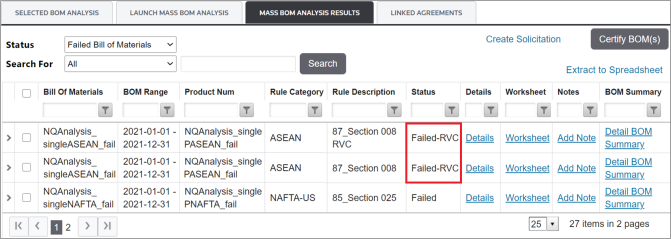
Mass-Certifying Bills of Material
Depending on how the system was configured during implementation, you may have the option to mass certify passed Bills of Material. If this feature was not turned-on during implementation, Bills of Material will certify automatically.
To mass certify passing BOMs:
- Choose one or more BOMs from the grid and check the corresponding box on the far left.

- ClickCertify BOM(s).

- The certified BOM(s) result is displayed according to the columns described below.

Columns | Description |
|---|---|
Product Num | Unique product identifier. |
Product Description | Unique product description associated with each product number. |
Supplier | The organization that provides a needed product. |
Certificate Start Date | The effective date of the certificate in the format YYYY-MM-DD. |
Certificate End Date | The date the certificate expires in the format YYYY-MM-DD. |
Certificate Type | The FTA the certificate was created. |
Preference Criterion | This field identifies the origin criterion used as the basis of the preferential treatment. |
Producer | This field identifies the source of the certificate of origin information. |
Net Cost | Net Cost identifies the way in which the RVC was calculated. |
Country of Origin | The country in which the product is produced or manufactured. |
Accumulation Non Originating Value | Allows the producer or exporter of goods to choose to include as part of the goods' regional value content any regional value added by suppliers of non-originating materials used to produce the final goods. |
BOM Note | Notes are used for communicating information about a BOM to other users or for capturing details related to the specific product listed on the BOM. |
Detail Report | By clicking View you can view details for this report. A pop-up window will open, you can extract the report in an excel sheet by clickingExtract on the top right corner. |
Worksheet | You can view the BOM Qualification Worksheet by clickingWorksheet . A pop-up window will open, you can download the worksheet by clickingDownload PDF on the top right corner. |
Filtering Mass BOM Analysis Results
Some of the results columns can be filtered to further narrow down the results.
To filter the grid:
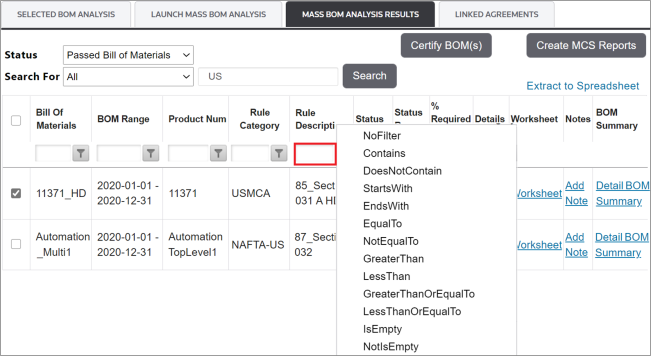
- Enter the search criterion in one or more of the column headers.
- Click the filter icon, and select a filter. The grid will then refresh to only show analysis results that match the filtered criteria.
Extracting BOM Analysis Results
To extract BOM analysis results, click
Extract to Spreadsheet
. This option will pull the results into a Microsoft Excel spreadsheet that can then be downloaded and saved locally.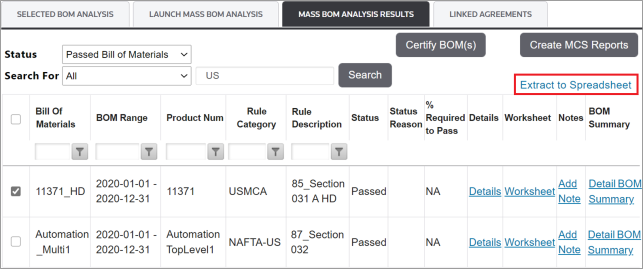
Worksheet
To download the report:
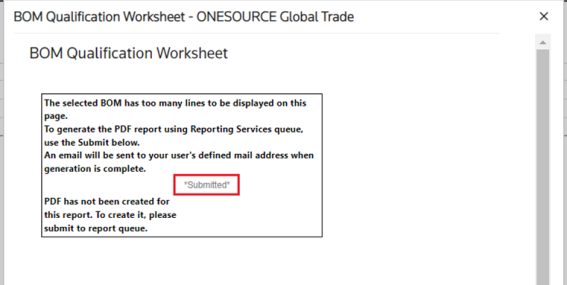
- Click on Worksheet link it will open a modal.

- Click onSubmit Report to Queuelink.
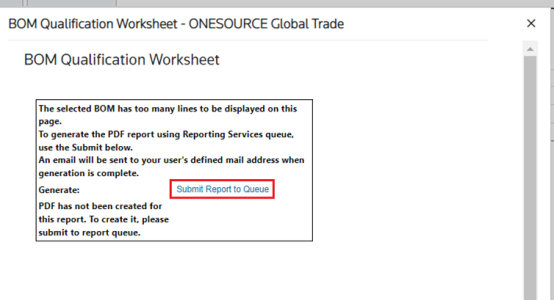
The message will change to
Submitted
.
You will receive a email with a link to download the report.

This link will open a new tab, click on the
Download PDF
and it will download the Report.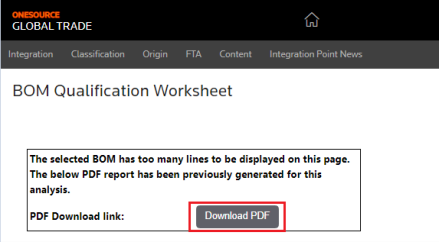
Linked Agreements (optional)
When an agreement is not updated for the latest version of the WCO tariff, Rules of Origin may be missing for certain HS Numbers of finished goods. The
Linked Agreements
tab (if configured for your system) can be used to link to past HS Numbers and find the Rule of Origin. Cumulation (the method by which this tab works) is the ability to identify linked agreements and pull in certificates from other agreements into the qualification process. When an agreement allows for qualifying goods from another agreement to count in the qualification process, the cumulation functionality enables the user to link agreements and look for existing certificates to help improve qualification.
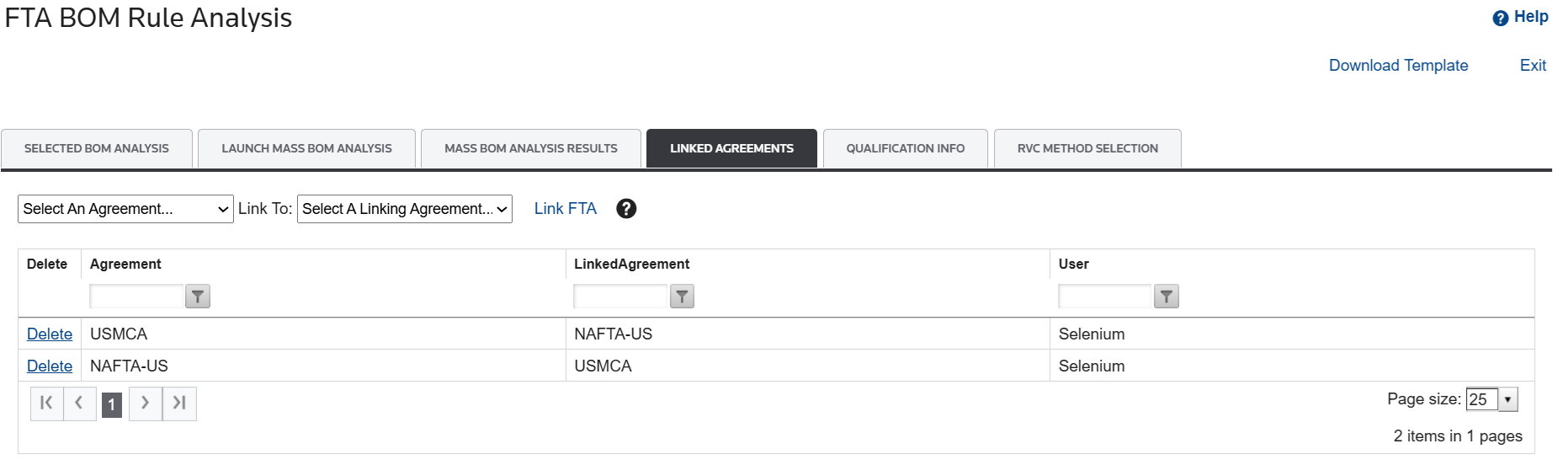
More information is provided in the ToolTip, which can be viewed by hovering over the
?
icon.
The grid in this tab can also be filtered to only show linked agreements that meet certain criteria, as shown below:
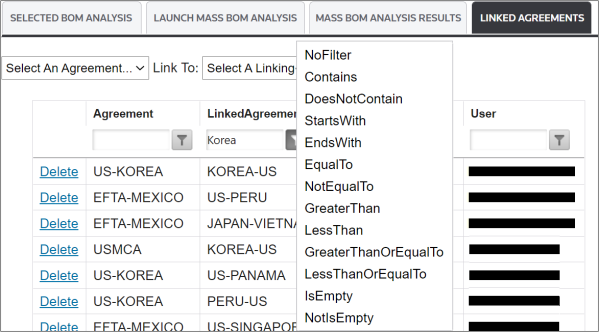
Adding a New Linked Agreement
To link two agreements:
- Choose two agreements using the two dropdowns above the grid.


- After two agreements have been selected, click on theLink FTAbutton.

he linked agreements will then show as a line item in the grid below:

Removing a Linked Agreement
To remove a linked agreement:
- Choose an agreement from the grid.
- Click on its correspondingDeletebutton. A confirmation pop-up will appear on the screen.

- ClickOKto proceed.

The linked agreement will then be removed from the system and no longer appear in the grid.
Related Content
-
FTA: BOM Analysis
Format: Article