
FTA: BOM Analysis - Selecting One or More Products for Analysis
To begin analysis, specify the
From
and Through
date parameters. Dates can be entered manually or selected by using the calendar buttons to the right.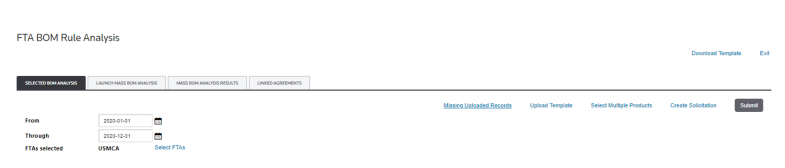
After the parameters are set, click
Select Multiple Products
to open a pop-up with a list of available selected products. 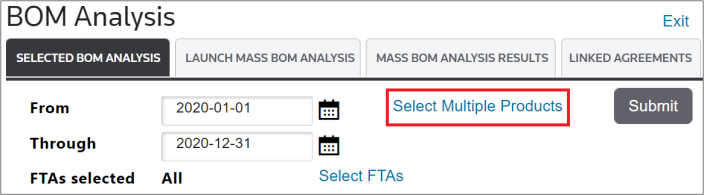
These products belong to BOMs within the specified
From
and Through
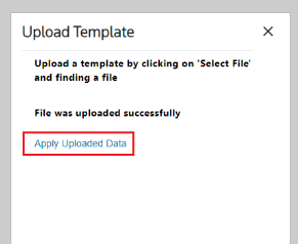
date parameters.Clicking
Upload Template
.
If there are any issues with records in the template, it will show in the
Missing Uploaded Records
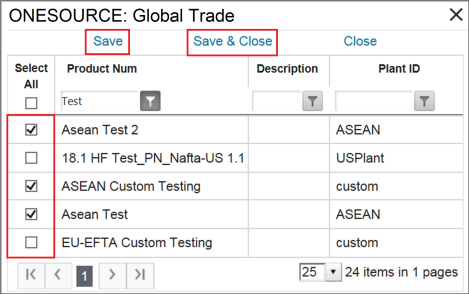
link. Otherwise, Active BOM records are shown on the screen.To select a product to be analyzed, check the corresponding box on the left. If the list is very long, you have the option to search for a Product Number, Description, or Plant ID by utilizing the filters.
To save progress without exiting the pop-up, click
Save
. Proceed to the next page of listed products as applicable until all necessary products for analysis have been selected.After all necessary products for analysis have been selected; click
Save & Close
.
The selected products will display in a grid on the
Selected BOM Analysis
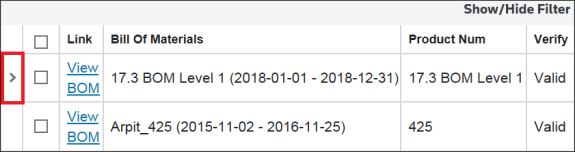
tab.If the selected product has multiple levels or subassemblies, an arrow to expand the information of lower level BOMs will appear.
To view the lower level BOM, click on the expansion arrow.
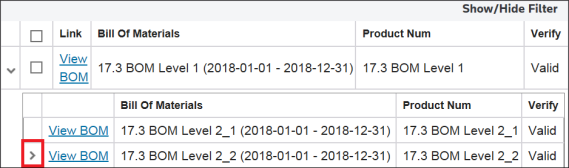
If a sub-level contains additional sub-levels, another expansion arrow will appear.
Related Content
-
FTA: BOM Analysis
Format: Article