
FTA Audit Log - BOM Analysis Audit Log
Setting BOM Analysis Parameters
To use the
BOM Analysis Audit
Log tab:- Choose a search criterion from theSearchdrop-down or enter a value in theSearchfield.
- ClickSearch. Records can be retrieved using the following search criteria:
- Product
- Bill Of Materials
- Analysis Number
- FTA
- Status
- Run Date

After the search criterion has been selected, the screen will display the results. The information presented includes:
Information | Description |
|---|---|
Product Number | The product number of the selected Bill of Material (BOM). |
Bill of Materials | The version of the Bill of Material (BOM) used at the time of analysis. |
BOM Range | The date range that each Bill of Material (BOM) covers. |
Analysis Run Date | The date the Bill of Material (BOM) analysis was run. |
Analysis Number | The number of the specific FTA Analysis for the Bill of Material (BOM) run. This will increase by one for each Mass or Single analysis in ONESOURCE FTA Management. |
Analysis | The results of the latest analysis completed for the Bill of Material (BOM). |
Status | Status of the Bill of Material (BOM) Analysis (Passed, Failed, etc.). |
Reason | If “Status” is “Passed”, how the Bill of Material (BOM) item qualified. This will also show if multiple rule parts were used on the BOM. |
To see the
Reports
and Customer Certificates
details for a product, choose a product in the grid below and click its corresponding arrow on the far left. The details will also display the analysis reason.
To hide the details
, click the arrow a second time. 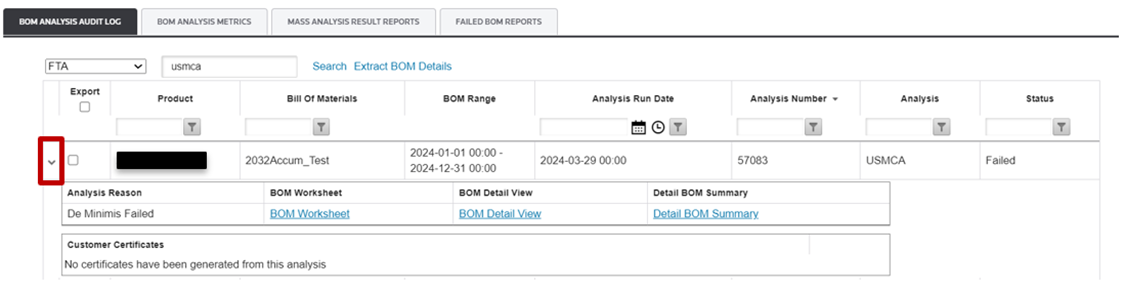
Clicking on a
BOM Worksheet
link will display a modal to generate the report. The links are covered in more detail in the sub-sections below.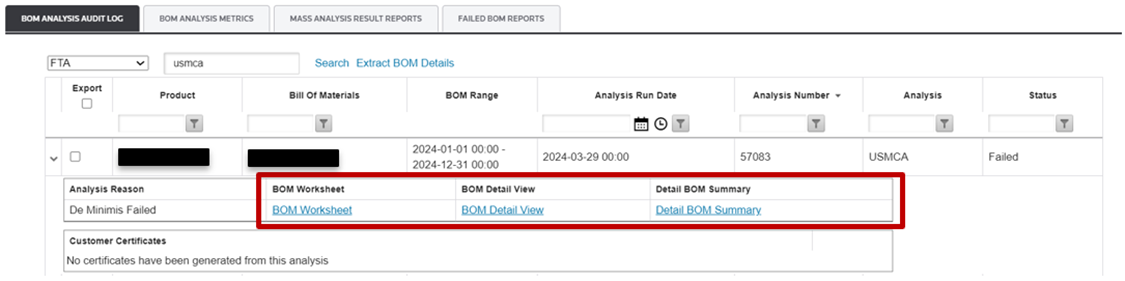
BOM (Qualification) Worksheet
The BOM Qualification Worksheet is a useful tool for reviewing the consolidated results of a BOM Analysis. The following fields will display on the Finished Good data portion of the report:
- Part Number
- Effective Date
- Expiration Date
- Part Description
- HS Classification
- Bill of Materials Name
- Country of Manufacture
- Plant
- FG Value
- Status
- Rule of Origin
- Analysis Date
In addition to the Finished Good data, the BOM Worksheet shows three additional sections:
Additional sections | Description |
|---|---|
Component Costs | Displays the purchased components on the Bill of Materials (BOM), their HS Classification, Country of Origin (COO), Cost, Quantity Required, Extended Cost, and Total Cost. |
Qualifying Basis | Displays the reason the Bill of Material (BOM) passed or failed (e.g. RVC, Tariff Shift, De Minimis, etc.) |
Rule of Origin Text | Displays the text for the Rule of Origin on which the Bill of Material (BOM) was run. |

By clicking the link, the document will open.
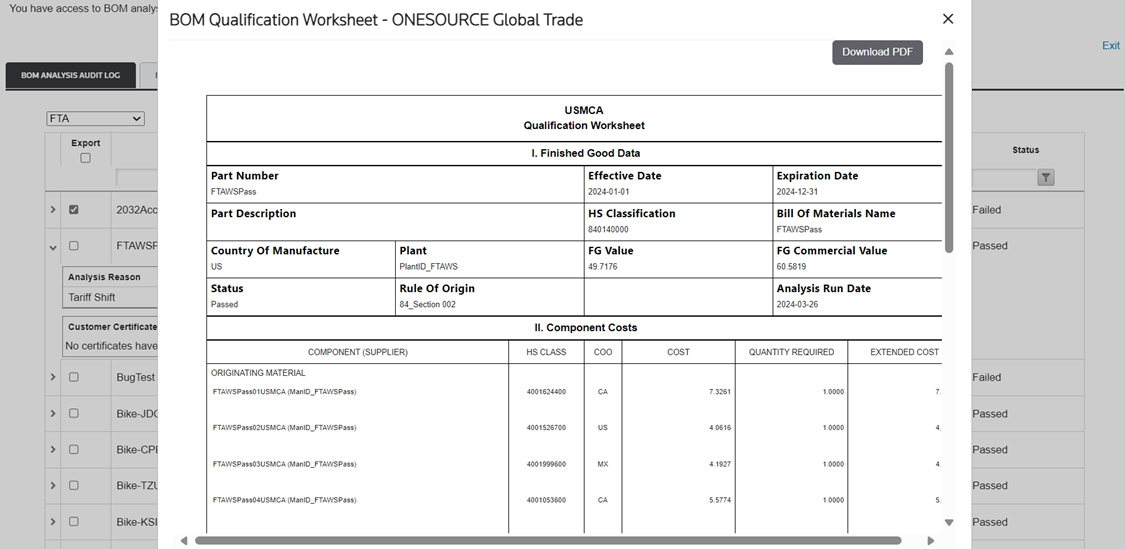
You can download a printable version of the document by clicking on “Download PDF”.
BOM Detail View
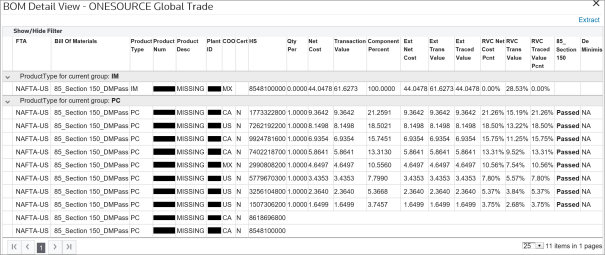
The
BOM Detail View
link will display the BOM online in a grid format with the finished good information at the top and the component information at the bottom. Both the finished good and component portions of the grid can be expanded or collapsed by using the arrows on the left side of the grid.The
BOM Detail View
includes a layer of configurability that allows the columns to be specific to each FTA.If your subscription includes the Great Britain-India or EU-India agreements, the BOM Detail View also displays the new Regional Value Content (RVC) and Qualifying Value Content (QVC) calculation methods available for those agreements:
EXW
Build Down
, EXW
Build Up
,and FOB Build Up
.
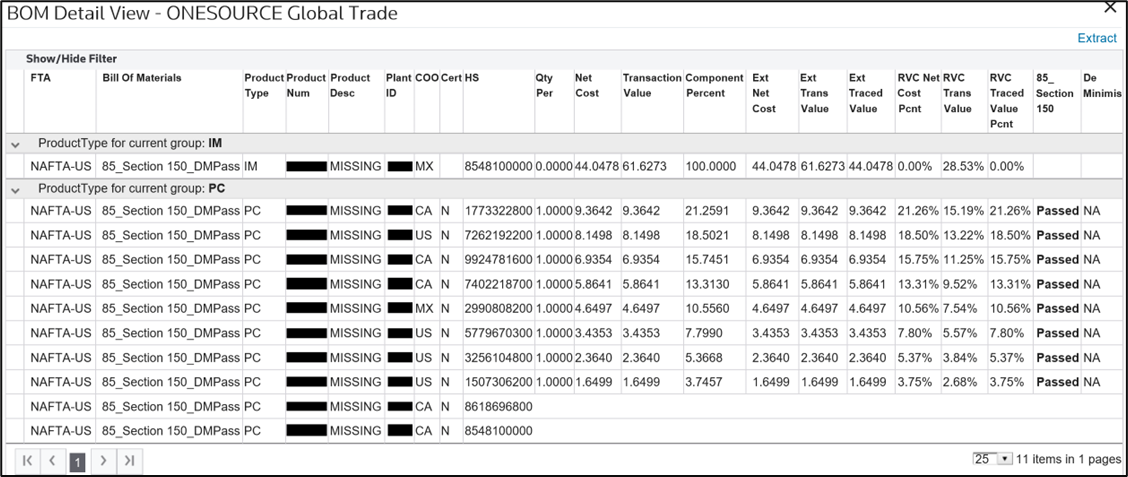
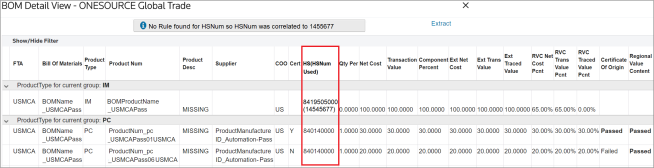
If the HS is correlated, the
HS
column will turn into HS (HSNum Used)
and show the correlated HS Number in parentheses.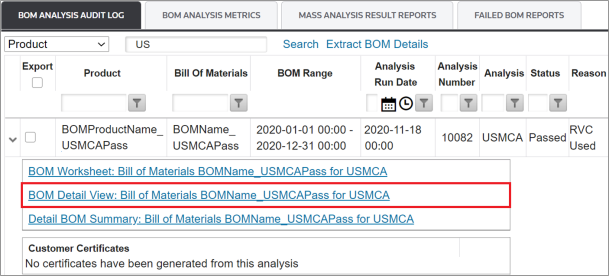
If the HS is correlated, the HS column will turn into HS(HSNum Used) and show the correlated HS Number in parentheses.
Detail BOM Summary
The
Detail BOM Summary
link will display the BOM summary in a grid format.
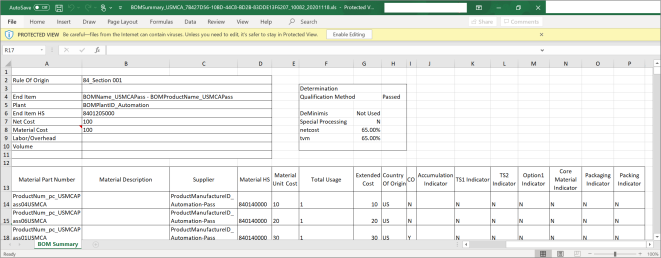
Extract BOM Details
You also have the ability to extract up to 500 BOMs at a time to Microsoft Excel. This feature makes it easy to not only review BOMs, but also perform daily BOM Analysis tasks outside the system.
To extract BOM details to Excel:
- Set the search parameters.
- ClickSearch.

- Review the BOMs in the grid.
- Check the corresponding boxes of all BOMs to be extracted. It is also possible to select all BOMs visible on the screen by clicking the check box beneath Export.
- After all BOMs to be extracted have been selected, clickExtract BOM Details.

Related Content
-
FTA Audit Log
Format: Article