
FTA Certificates and Letters - Completing the Product Information Tab
The next step is to complete the required data for the
Product Information
tab. Please note that some supplemental fields (such as Accumulation Non-Originating Value
are agreement-specific and may or may not appear based on which agreement (e.g. CPTPP) was selected.NQ/Origin Letter
If generating a NQ/Origin Letter, choose a
Product Source Location
from the drop-down. The Product Source Location
indicates whether the product information should be pulled from the NQ certificates in the system or straight from ONESOURCE Global Classification data.
Qualifying Certificate
If generating a Qualifying Certificate, this drop-down will not be editable. It will automatically search the system for qualifying records.
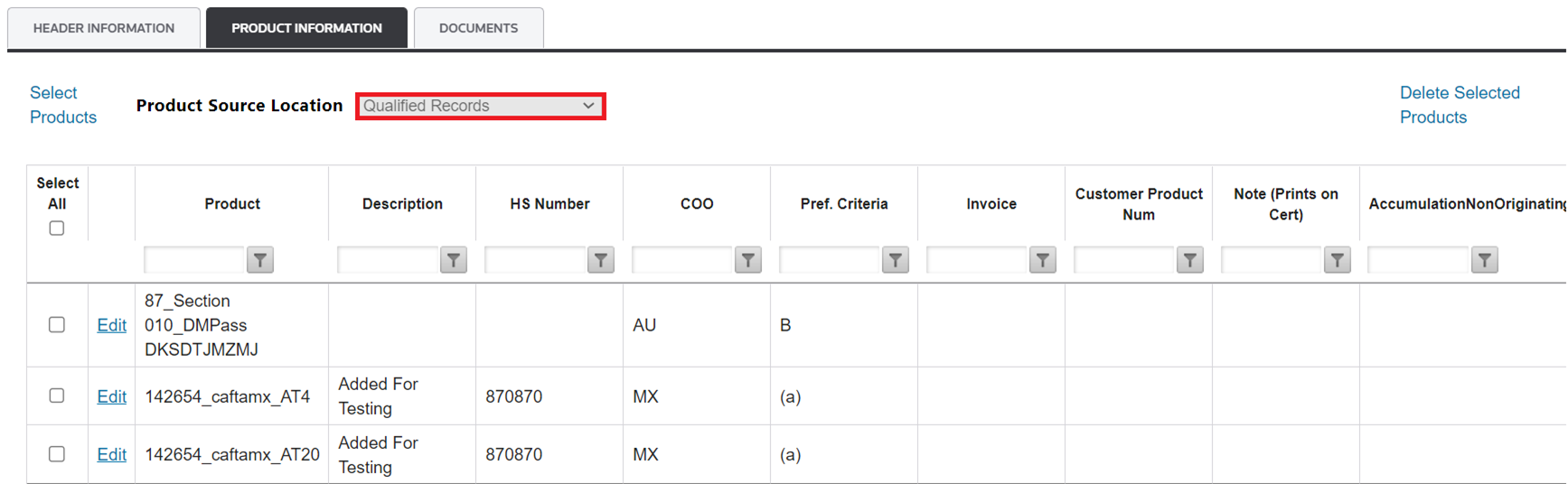
To add products to the certificate, click
Select Products
.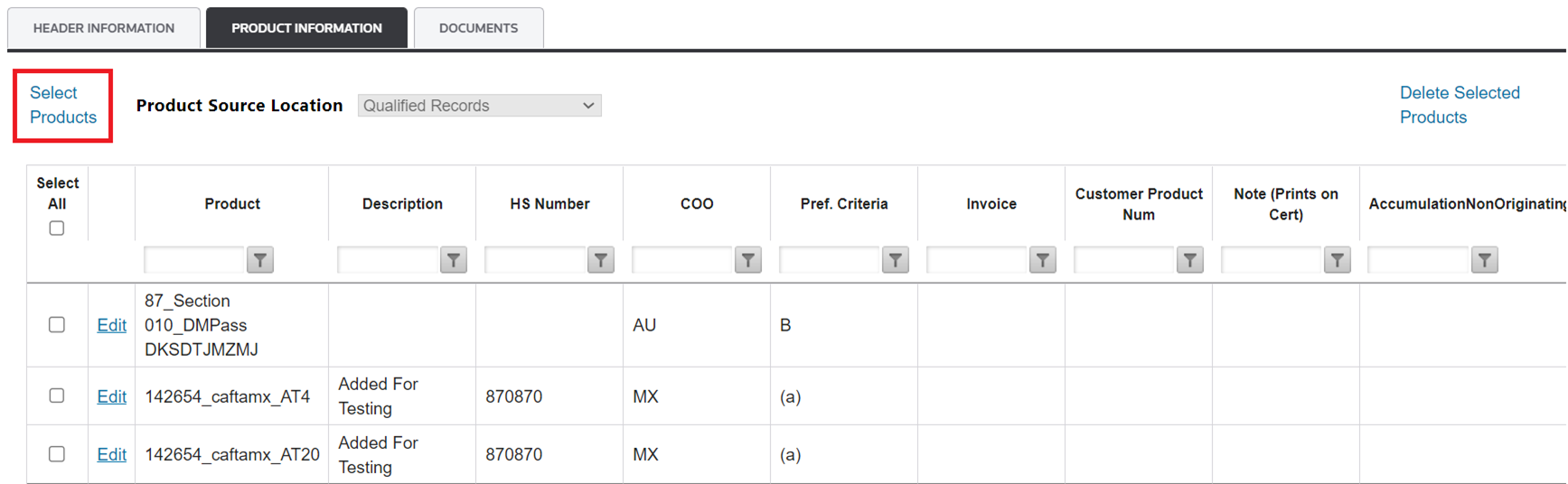
Clicking
Select Products
will open a pop-up.The
Description/HS
Source drop-down allows you to choose the appropriate Global Classification country to load a Product Description and HS Number data from.The
Search
drop-down allows you to choose which column to search for the value entered in the textbox. Enter a value in the text box on the right, and then click Go…

After the search criteria are entered and
Go
… is clicked, all applicable matches will appear in a grid.The grid allows you to filter on applicable matches.
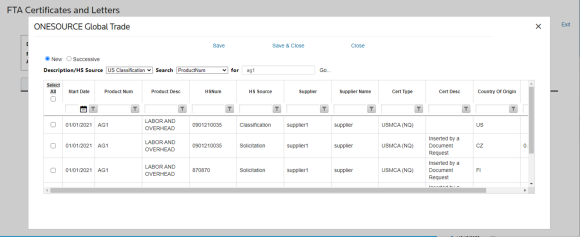
To add a product to the certificate, choose a certificate in the grid and check its corresponding box on the far left.
To add all products to the certificate, click
Select All
at the top left of the grid.To sort a data column, click the header once to load the data in ascending order. Click twice to rearrange in descending order. Clicking a third time will return the column to its original order.
To filter a column, add filter criteria in the column fields.
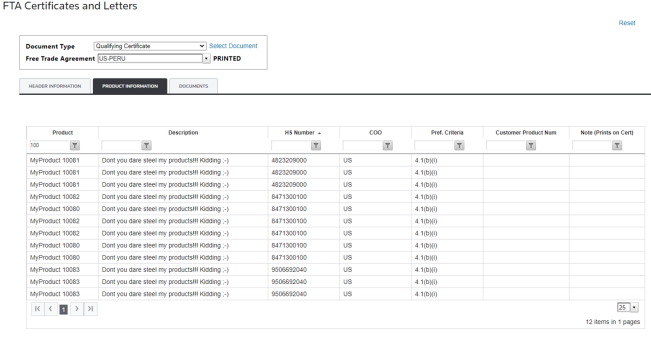
Related Content
-
FTA Certificates and Letters
Format: Article