
FTA Certificates and Letters - Creating a Long Term Supplier Declaration (LTSD)
If a European Free Trade Agreement is configured to generate a Long Term Supplier Declaration (LTSD), additional header fields may need to be completed.
In keeping with the regulatory requirements, the Start Date for an LTSD may not be more than 12 months before the Date of Issue (the date on which the Declaration is made out) or more than 6 months after the Date of Issue. The End Date may not be more than 24 months after the Start Date.
It is also possible to generate a multi-product, multi-agreement LTSD on this screen. For the purposes of screenshots and further instructions in these scenarios, the below sections follow the multi-product LTSD process. For a single product/agreement LTSD, only the
Header Information
tab will be necessary.
Header Information
To complete the
Additional Header Fields
:- ClickSelect Countriesto open theCountriespop-up.

- Complete with the two-character ISO country codes for all participating cumulation countries.
To select a country:
- Check its corresponding box to the left.
- After all required countries have been selected, clickUse Selected Countries.

The selected countries will then appear in the
Cumulation Countries
field.
If applicable, choose a language from the
Secondary Language
drop-down.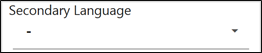
After the fields in the
Additional Header Fields
section are filled in, click Save
to continue.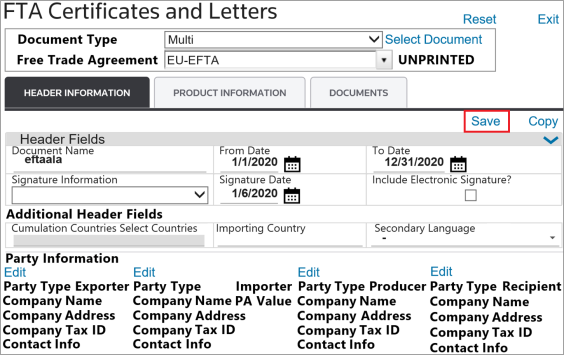
Product Information
For a multi-product LTSD:
- Open theProduct Informationtab.
- Click theSelect Productsbutton.Clicking
 Select Productswill open a pop-up where you can select one or more products to include on the LTSD.
 - Select a Description/HS Source.
- Choose a column to search by.
- Enter a value.
- ClickGo….After the parameters are set, all products matching those parameters will appear in the grid.

- Select the product(s) to be included in the LTSD.
- ClickSave & Close.

All selected product(s) will now appear in the grid. Additional products can be added by clicking the
Select Products
again and repeating the steps listed above.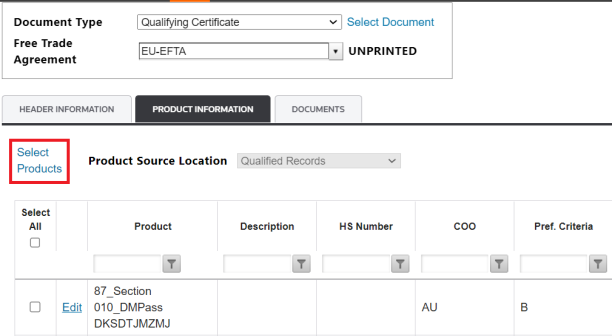
To edit a product:
- Choose a product from the grid.
- Click its correspondingEditbutton.

- Make any necessary changes.
- ClickUpdate.

To delete one or more products:
- Select the checkbox of the corresponding product(s) you want to delete.
- Click “Delete Selected Products”.
 importantYou can remove all products by selecting theSelect Allcheckbox.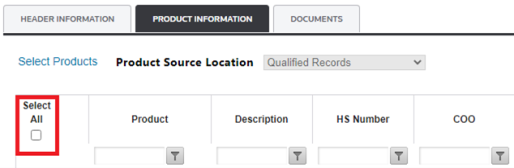
- A pop-up will appear asking for confirmation. ClickOkto confirm orCancelto cancel this action.
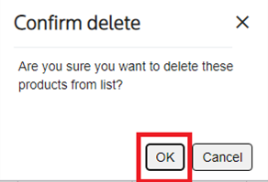
By clicking
Ok
, the following message appears.
Documents
The
Documents
tab can be used to add multiple customer companies and e-mail addresses who will receive the document after it has been generated.To add a new customer:
- Click theAdd Customerbutton.The fields in the
 Customersgrid will become read-write.
 - Enter the customer information.
- ClickInsert.

To modify an existing customer:
- Choose a customer from theCustomersgrid.
- Click its correspondingEditbutton.

- Make any necessary changes.
- ClickUpdate.

To remove a customer:
- Choose a customer from the grid.
- Click its correspondingDeletebutton.
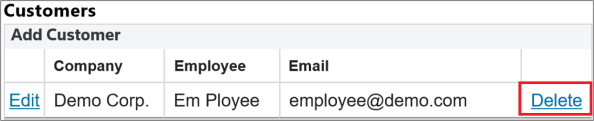
Reset
If the
FTA Certificates and Letters
screen was opened via the Customer Request
screens, you can return to the previous page at any time by clicking Reset
. Any changes made in FTA Certificates and Letters
will be saved.The LTSD generation process can be configured to print two documents, if there is a retroactive document and a current document; or on one document as long as it does not span more than two years.

Related Content
-
FTA Certificates and Letters
Format: Article