
FTA Certificates and Letters - Creating a New Certificate
If the
FTA Certificates and Letters
screen was opened from the FTA
menu, the FTA and Document Type information must first be populated.- Select an agreement from theFree Trade Agreementdrop-down. The available agreements to choose from will vary based on client configuration.A second drop-down (
 Document Type) will then appear on the screen.
 - Choose a Document Type from the drop-down. Available Document Types can vary by agreement but may include the Qualifying Certificate and NQ/Origin Letter.

After these two fields are complete, the
Header Information
tab will become visible. To complete the Header Information
tab, complete the following fields:Fields | Description |
|---|---|
Document Name | Enter the name of the certificate. |
From Date | Use the calendar button to choose a start date. |
To Date | Use the calendar button to choose an end date. |
Signature Information | Use the drop-down list to choose the name of the individual signing the certificate. This box only needs to be filled if Include Electronic Sig is checked. |
Signature Date | Use the calendar button to choose a signature date. This box only needs to be filled if Include Electronic Sig is checked. |
Include Electronic Sig | Check this box if an electronic signature is to be used on the document. If this box is checked and no name is specified from the Signature Information drop-down, an error message will appear on the screen and you cannot continue until a name is selected. |
After all information is entered, click
Save
to continue.
The following notification message will appear at the top of the screen:

Additionally, Party Information for all three tabs will be visible. However, if
NQ/Origin Letter
was the specified Document Type
, no Party Information will be available or required.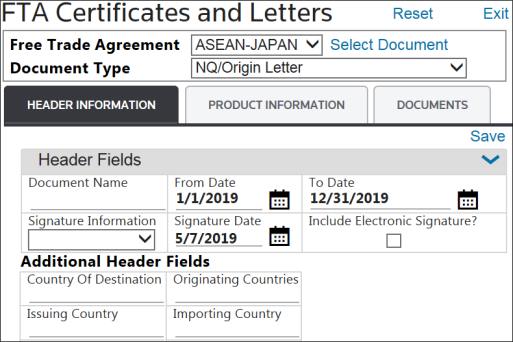
Related Content
-
FTA Certificates and Letters
Format: Article