
FTA Certificates and Letters - Generating the Document
Once the document is ready, click
Generate
.
After the document(s) are generated, the system will automatically attach the specified document(s) in a new
Documents
grid directly above the Customers
grid.The
Documents
grid contains:Column | Description |
|---|---|
Created Data | The date the document was generated in the format: MM/DD/YYYY HH:MM AM/PM |
Revision Num | New revisions can be generated for the same document when you try to reprint it from customer request management page. The number is sequential and should allow you to have multiple versions of the same document so you can also have any of those versions attached to emails when sending it back to customers. |
Document | Report names are displayed based on the Report type configuredDisplay name . There are some exceptions to that:
|
The types of documents being generated will be different based on the Document Type selected by you. If no Customer information was provided, no information or generated documents will appear in the
Customers
grid.Additionally, after the document(s) are generated, you will receive the following notification message at the top of the page
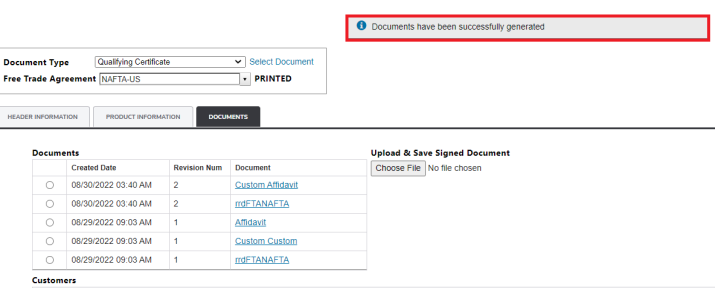
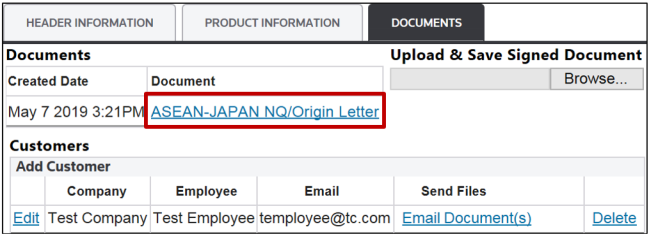
To view, save, print, or sign a document, click the document link. The document will open in a new tab or window.
Related Content
-
FTA Certificates and Letters
Format: Article