
FTA Search - Saving Searches
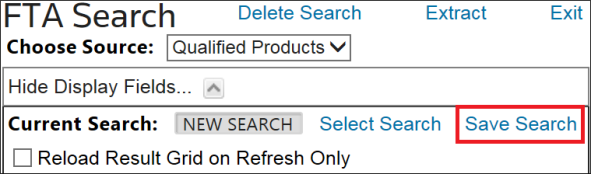
Searches can be saved for future use. The save feature is especially useful in cases where a specific search is done on a routine basis.
To save a search:
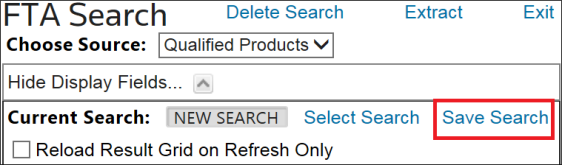
- ClickSave Searchto open theSave Searchpop-up.
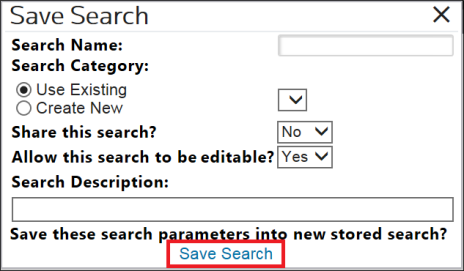
- Name the search.
- Complete all required fields.
- ClickSave Search.
Saving a Search to an Existing Category
Saved searches can be stored under
Categories
. Categories serve as folders for related searches.To save a search under an existing category:
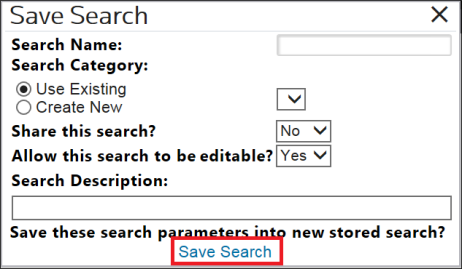
- Click theUse Existingbutton.
- Click its corresponding drop-down to the right.
- Choose a category to be used.
- ClickSave Search.
The tab name in the
Report Fields
section will change to the name of the newly saved search.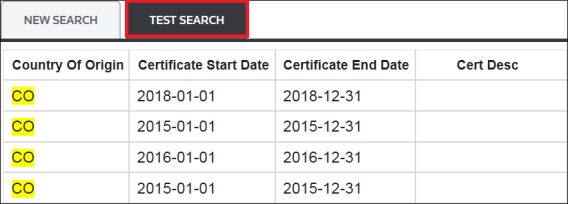
How to locate the saved search is detailed below in the
Retrieving Saved Searches
section.Creating Saved Search “Categories”
To create a new Search Category:
- ClickSave Searchat the top of theFTA Searchscreen.
- After theSave Searchpop-up is open, click theCreate Newbutton.
- Add a Category name.
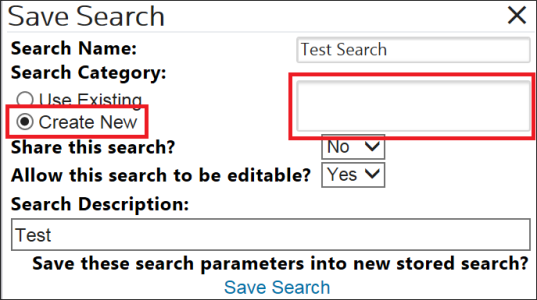
Before saving, you have the option of allowing other users to use or edit the search. For either of these options, click
Yes
in the corresponding drop-down.
Searchable descriptions can be included to help find the saved search more easily. Any key words entered in the
Description
field can be used to locate similar searches or find a saved search.Related Content
-
FTA Search
Format: Article