
Using FTA Search
The
FTA Search
screen is laid out in multiple sections, with each section serving a different purpose in the creation of a query.Choose Source
To begin using the
FTA Search
screen:- Click on theChoose Sourcedrop-down.
- Choose a set of Products, Certificates, or Bills of Material to search.

- After a source has been selected, proceed to theDisplay Fieldssection of the screen. TheDisplay Fieldssection is used to create the data set for the query.
The fields available in the
Source Columns
side are all the available column headers of the source table selected in the Choose Source
drop-down.Display Fields
To create the data set, look at the
Source Columns
section and choose which columns to add to the query.There are two methods for moving a field from the
Source Columns
section to the Display Columns section. You can either click and drag the source column to the Display Columns section or click the source column(s) and use the arrow buttons to move the column(s) back and forth.To change the order of the
Display Columns
, either drag the field names or use the up and down arrow buttons to the right until the columns are in the correct order. After the necessary fields have been selected and ordered, the fields will appear in the Report Fields
section of the screen.
All new searches that are created will be included under the
NEW SEARCH
tab at the bottom of the screen. This tells both the system and the user that this is a new search that has not been saved yet. Saving searches is detailed below in the Savings Searches
section.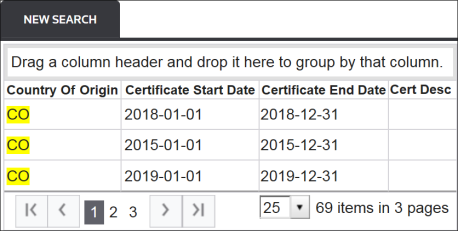
Search Fields (Parameters)
After the data set has been created, the searching capabilities in the
Search Fields
section can be used to locate key information contained within the data set.In the
Current Search Criteria
section, search criteria can be added via Search Parameter
(e.g. ProductNum), Comparison
(e.g. Contains), and Value
(e.g. “CRTD”).To set a parameter:
- ClickAdd New Parameter. The search criteria fields will then become available.
- Set the necessary parameter in the provided fields.
- ClickInsert.
It is important to note that the available options in the
Search Parameter
drop-down will match the fields selected in the Display Columns
section of the screen.
After
Insert
is clicked, the query will run based on the specified search parameters. The NEW SEARCH
tab will highlight data matching the query.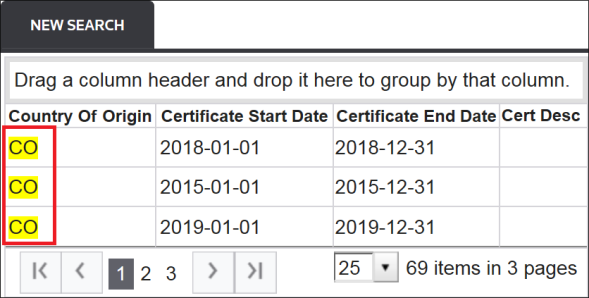
Additional search parameters can be applied to the query by following the steps listed above.
Search Parameters
To edit a search parameter:
- Return to theSearch Fieldssection of the screen.
- Choose a parameter to edit.
- Click its correspondingEditbutton.The parameter, comparison, and value fields will become read-write.

- Make any necessary changes.
- ClickUpdate.

Related Content
-
FTA Search
Format: Article