
FTA: HS Correlation - Pending HS Collisions
When the rules engine attempts to auto-correlate HS Numbers, a situation could occur where multiple possible HS Numbers correlate. In this case, the rules engine can’t make an automatic decision and will populate the grid in the “Pending HS Collisions” tab with records showing all possible HS choices.
In order for the given BOM to continue processing through the rules engine, one of these options must be chosen and saved. The next time the rules engine runs, it will use the selected HS Number instead of the BOM’s original HS to check for applicable rules.
The grid is grouped by agreement for ease of use. Each record under a group represents a BOM where an HS collision choice must be made.

Selecting/Saving an HS Selection
In order for the rules engine to use an HS selection, it must be selected. In order to view these possible selections:
- Choose a record from the grid.
- Click its corresponding expansion arrow on the left side of the grid, as shown below.

Additional information will now be visible in a sub-grid. In order for the rules engine to use a HS correlation, it must be selected. To do this:
- Check the corresponding box of the desired HS selection.
- ClickSave HS Selection.

- A confirmation message will then appear on the screen. ClickOKto proceed.
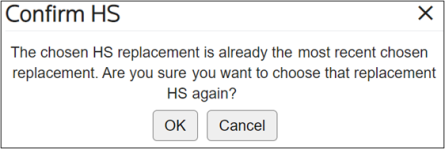
After
OK
is selected, the chosen HS Number will then be used in place of the current HS Number when analysis is run for the selected BOM. A validation message will appear on the screen, stating that the selection was saved successfully, and the selection will no longer appear as an option in the Pending HS Collisions
grid.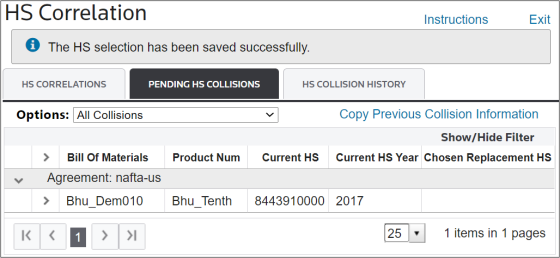
Filtering the Grid
If the desired HS selection cannot be easily found, additional filtering may be required on the
Pending HS Collisions
grid. This can be done with the Show/Hide Filter
feature and/or with the Options
drop-down.The
Options
drop-down above the grid can be used to pre-filter the grid to show all information, only information for BOMs that need decisions to be made, or only information for BOMs that have previously had a decision made.BOMs that have previous decisions made will only show on this tab if the HS decision has been manually undone on the
HS Collision History
tab. This could be done if an invalid HS was chosen or the decision needs to be changed for any reason.
The grid can also be filtered to show only specific agreements based off the values in the column headers, as shown below:
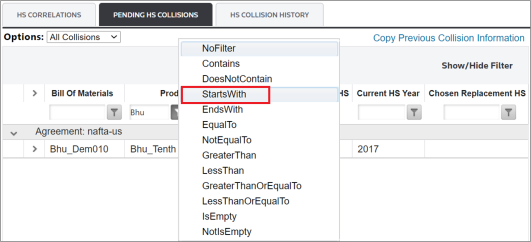
Copy Previous Collision Information
The
Copy Previous Collision Information
button can be used to look for any BOMs with outstanding collisions that have an Agreement/HS Number combination that a collision decision had been made for in the past.This will automatically pull in the most recent decision made for the Agreement/HS Number combination and clear it from the
Pending HS Collisions
grid. This can be useful if there are a large number of decisions to be made or if there are HS Numbers that often come through the system that commonly need to be correlated.
When this button is clicked, a confirmation pop-up will appear on the screen. Click
OK
to proceed.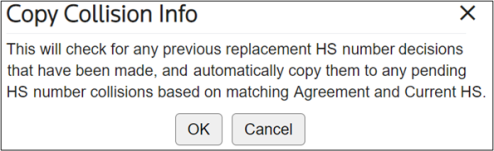
Instructions
The instructions for the
Pending HS Correlations
tab can be accessed by clicking on the Instructions
tab and then viewing the Pending HS Correlations Tab Help
tab.
Related Content
-
FTA: HS Correlation
Format: Article