
FTA: MCS Generation - Create Single MCS
The
Create Single MCS
tab is used for selecting which agreement(s) should be added to a created MCS.To create a single MCS:
- Choose an agreement from theSelect Agreementdrop-down.
- Enter the name of an existing Bill of Material in theSelect BOMfield.
- When the BOM name appears in the list, click the BOM name.
- After a BOM is selected, its information will import into most of the required MCS fields. Confirm the accuracy of this information.
- Make any necessary updates based on known requirements.
- If any fields are blank, complete the remaining fields before continuing. If correlated HS Numbers are used,HSNumwill appear asHSNum (HSNum Used)and include the correlated HS Number in parentheses.

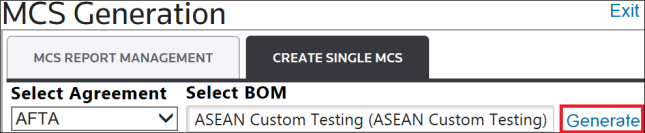
After all fields are completed, click
Generate
.
Clicking
Generate
will cause an ASEAN MCS
button to appear to the right of the Generate
link.To view the document, click the
ASEAN MCS
link.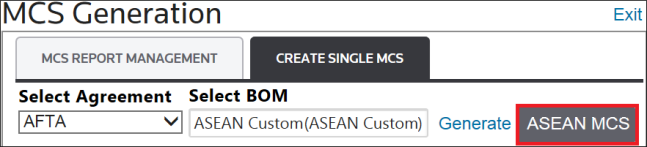
To view the new MCS in the grid, return to the
MCS Report Management
tab or click the ASEAN MCS
button next to the Generate
link.After receiving a certifying document from authority, go to the
MCS Report Management
tab and add the document as described in the Uploading a Certifying Document
section above.To find a previously-generated certificate from the
Create Single MCS
tab, use the filters below each column heading to narrow down the search options until the certificate is located.Related Content
-
FTA: MCS (Manufacturing Cost Statement) Generation
Format: Article