
FTA: Solicitation Management - Available Products
After the header solicitation information is saved, ONESOURCE FTA Management will automatically load the product grid under the
Available Products
tab with products that are available to be added to the solicitation.By default, this tab will not display products that have either been included in previous solicitations or already have a valid Certificate of Origin on file.
Every product displayed on the product grid has an associated Supplier ID and Supplier E-mail address. Tying the product with the Supplier ID and Supplier E-mail enables the user to send one e-mail to each supplier included in the request.
Adding an Individual Product to a Solicitation
To add an individual product to the solicitation:
- Choose a product from the grid.
- Check the product’s corresponding box on the far left.
- ClickAdd Selected.

Adding All Products to a Solicitation
To add all products to the solicitation:
- Check theSelect Allbox in the column header line.
- ClickAdd All. A pop-up will appear, asking for confirmation that all products are to be added.

- ClickOKto start the workflow.
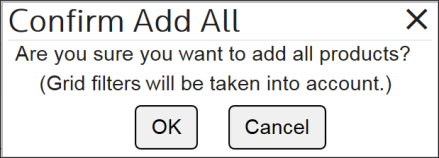
While the workflow is in the process of adding all available products to the solicitation, you may leave the page to perform other tasks.
Adding Products to a Solicitation through Spreadsheet Upload
To add products to the solicitation through spreadsheet upload:
- Click theUpload Spreadsheetlink. The dialogue box will appear. This box will allow you to download the template.

- After the file is ready for upload, select the spreadsheet file.
- ClickApply Uploaded Data.
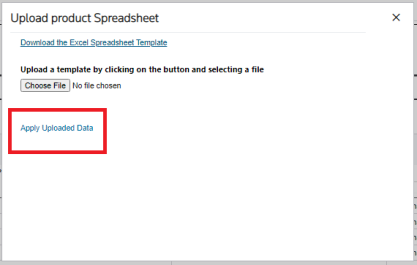
After the file is uploaded a message will appear to let you know the upload was successful.
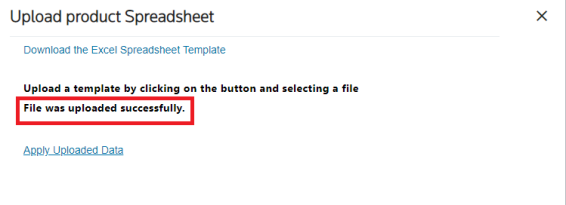
If there are invalid products in the spreadsheet, a link will appear to download products not found.

Adding Product Workflow
After the workflow mentioned in the previous section is complete, you will receive a system-generated notification e-mail stating that all products were successfully added to the solicitation. The same process applies if
Remove All
is applied to remove all products from a solicitation.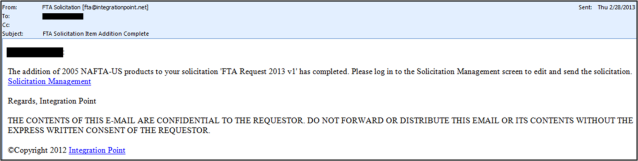
After
Add Selected
or Add All
is clicked, all checked products will be saved to the solicitation details and added to the Selected Products
tab.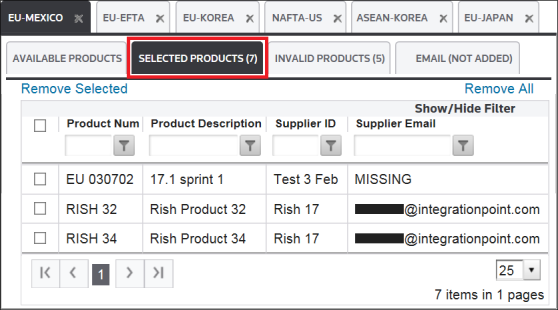
Related Content
-
FTA: Solicitation Administration
Format: Article