
FTA: Solicitation Management - Creating an E-mail Template
An e-mail template can be drafted and created as a
default
solicitation message to the supplier(s). Utilizing the e-mail template feature eliminates the need to draft a message for each solicitation created in the system.To create an e-mail template:
- Click theEmail Managementlink at the top of theSolicitation Managementscreen. This will redirect you to a screen where a new template can be added or an existing e-mail template can be modified.

- Complete the following fields to make the template.
- ClickSave.FieldsDescriptionTemplate NameEnter a name for the e-mail template.TypeChoose a template type from the drop-down menu.SubjectEnter an e-mail subject.Message BodyEnter a message to be included in the e-mail to the supplier. There is no character limitation, so you can include as much information as needed regarding the solicitation (e.g. how to respond, who to contact for questions, etc.).

Select the template to use and the e-mail will auto-populate based off the template contents.
After the template is created, it can be added to a solicitation by opening the
Email
tab of the solicitation and clicking the Template
drop-down. The template will appear as one of the options in the drop-down.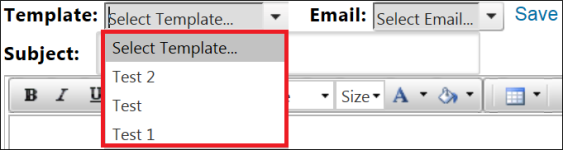
Likewise, choosing an e-mail from the
Email
drop-down allows you to select the e-mail already associated with the FTA program being solicited.
After an e-mail is selected, customize the subject line to match the solicitation. If the subject line is left blank, it will read as,
Solicitation E-mail Request - AgreementName
.
Click
Save
to proceed.
After all the actions listed above have been performed, the
Email (Not Added)
tab will change to Email (Added)
. Clicking Save
secures the changes.
A status message (
Email was added successfully
) will appear at the top of the Solicitation Management
screen.
Click
Save
at the top of the screen.
The system will then confirm the new solicitation is ready to be sent. After confirmation, click
Send
to send the request.
After the solicitation is sent, the supplier(s) associated with the product(s) in the solicitation will receive a system-generated e-mail formatted to the specifications of the selected template.
The template will provide key information to the supplier regarding the solicitation and how they can log into ONESOURCE FTA Management to respond to the solicitation.
The steps a Supplier must follow when responding to a solicitation are covered in the
Supplier Certificate
section of this help center.important
An internal checking process within Solicitation Management prevents solicitations for the same products from being sent multiple times. This could potentially happen if you have the same solicitation open in multiple browser windows/tabs.
After the request has been sent, you are redirected to the
Solicitation Administration
screen. The following notification message will appear at the top of the screen:
The new request will be included alongside other previous requests still in an active state and with a status of
Sent
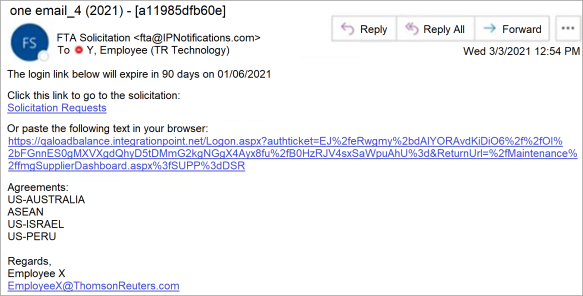
.At this point, the supplier will receive an e-mail to log into ONESOURCE FTA Management to complete the solicitation. If the solicitation is for multiple agreements, they will appear as a list in the e-mail. Additionally, this e-mail will contain an expiration date for the login link. After the expiration date, the supplier cannot enter the system using the link from the e-mail. Should this occur, re-send the solicitation to the supplier.
Related Content
-
FTA: Solicitation Administration
Format: Article