
FTA: Solicitation Administration - Overview
To better manage and track the progression and completion of a request, the
Solicitation Administration
screen displays all solicitations regardless of status as well as the key information you need to manage a request.
Solicitation Administration Links
The
Solicitation Administration
grid contains three links to other ONESOURCE FTA Management screens that are needed for managing requests from start to finish.
Columns | Description |
|---|---|
Manage Solicitation | Redirects to the Solicitation Management screen. If the supplier has responded to the request, the supplier-provided documentation can be viewed. If the supplier has not responded to the request, a listing of products included in the solicitation can be viewed. Products included in the request are displayed on theOutstanding tab. |
Supplier Dashboard | Redirects to the Supplier Dashboard screen. This screen displays the following:
|
Supplier Page | Redirects to the screen the Supplier will use when responding to a request. Having access to this screen provides the Requestor the ability to view which products have been solicited. If the Supplier provides documentation to the Requestor outside of using the application, having access to this screen allows the Requester to enter the provided information directly into ONESOURCE FTA Management on behalf of the Supplier.
important
If you are configured for Supplier Portal Plus (SPP), this column does not appear. |
For more details on this section, refer to the
Creating a New Request
section of this help.Solicitation Administration Data Columns
The following data columns exist on the
Solicitation Administration
screen:Columns | Description |
|---|---|
Title | The name of the request. |
Supplier ID | The recipient of the request. |
Date Sent | The date the request was sent. |
Period Begin Date | The start date of the solicitation period. |
Due Date | The date by which the Supplier must respond to the request. |
Reminder Set Date | The date a reminder was sent. |
Status | The status of the request. For more information, refer to the Request Status section below. |
View/Add Notes | Links to internal notes regarding the request. |
View/Add Comments | Any comments shared with the Supplier. |

Solicitation Administration Statuses
Before the solicitation is complete, you (Requestor) must review, accept, and approve the information the Supplier provided. See below for a table of statuses:
Statuses | Description |
|---|---|
Not Sent | The solicitation was created but has not been sent. |
Sent | The solicitation was sent to one or more Suppliers. |
Action Required | The Supplier logged into FTA Management and responded to the solicitation. This response must be reviewed either by providing a Preferential Certificate of Origin or by marking the product(s) as non-originating. |
Complete | The Requestor reviewed the Supplier-submitted information and approved what was submitted. The request is complete. |
Not Complete | The Requestor reviewed the Supplier-submitted information and accepted/rejected/deleted what was submitted. The request is incomplete if not all information was submitted. |
Archived | The solicitation is complete and has been archived. Archiving solicitations is a recommended best practice upon completing a request. If the client company archives solicitations, the Certificate Request screen will only display active requests that require further action. |
Rejected | The Requestor reviewed the Supplier-submitted information and rejected what was submitted. |

Filtering the Solicitation Administration Screen
The
Solicitation Administration
screen has filtering capabilities, which can be used to quickly locate specific information pertaining to a request, item, or supplier. To enable the filters for each column:
- ClickShow/Hide Filter. A filter row will appear beneath the column headers.

- Each column with a filter field can be filtered. Choose a column to filter.
- Enter a value in the column’s corresponding filter field.
- Click the filter icon. A list of filter options will appear.

- Choose and click on an option to select the filter. Filter options will vary depending on the type of column header (alphanumeric, date, numeric).

The results will then narrow down to match the specified filter parameters.
Multiple filters can be used at the same time to further narrow down search results. This is referred to as a recursive search.
Filter
options include the following and may vary by field or by screen within the application.Alphanumeric Filters | Numeric Filters | Date Filters |
|---|---|---|
|
|
|
Solicitation Administration Additional Filters
There are four additional filters (listed below) that are unique to ONESOURCE FTA Management. These filters can be applied by checking one or more box at the top of the
Solicitation Administration
screen.
The
Active Only
filter allows you to choose whether all requests (active and closed) display on the screen or if only active requests will be visible.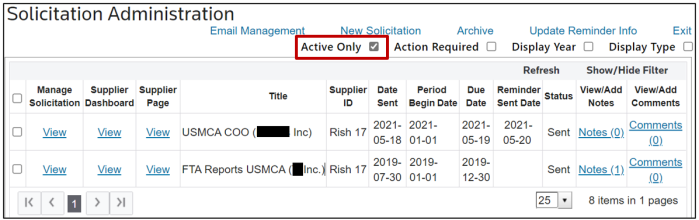
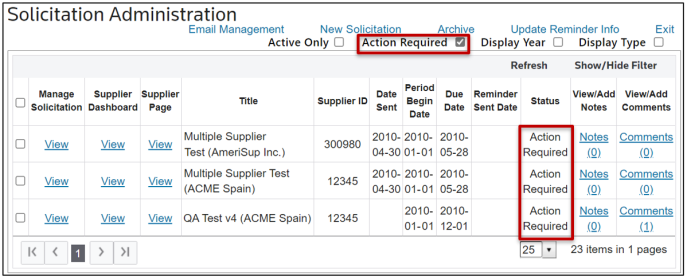
The
Action Required
filter allows you to exclusively view only solicitations that require attention. When selected, all solicitations in the grid will show a status of Action Required
.
The
Display Year
filter allows you to separate requests by year. When selected, requests are categorized and displayed under separate tabs that correspond to the year of the request.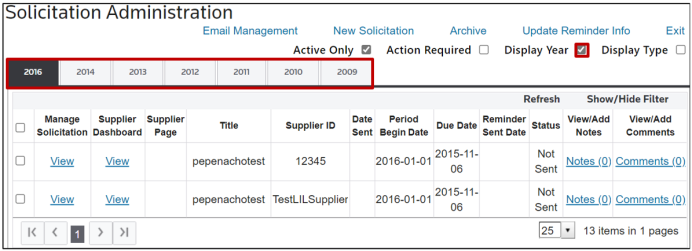
The
Display Type
filter allows you to separate requests by FTA/Request type. When selected, requests are categorized and displayed under separate tabs that correspond to the FTA program of the request.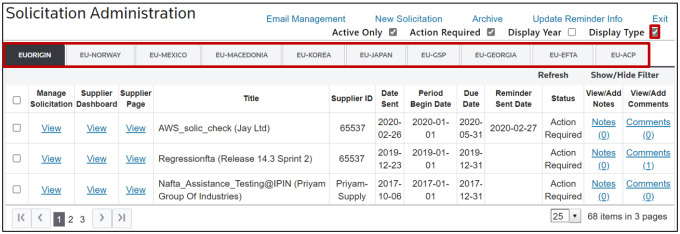
Refreshing Filters
Regardless of which filter(s) are selected on the
Solicitation Administration
screen, a Refresh
button will appear on the top right of the grid. Clicking on this button will refresh the grid’s contents, showing all changes.
Related Content
-
FTA: Solicitation Administration
Format: Article