
FTA: Supplier Portal Plus (SPP) - Reviewing the Documentation
To open a document:
- Choose a document from the grid.
- Click the linked name.
- Review for accuracy and completeness.

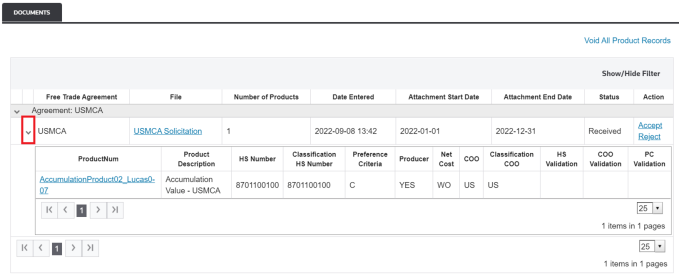
The grid can be expanded to show further detail by clicking the arrow icon on the far left. Clicking the arrow will display the full details of every product included in the submitted document.
In the expanded view, you can review more detailed supplier information for every product included in the solicitation response.
Validation capabilities (on the far right) allow the system to run user-defined validations against the provided information. This is useful for quickly determining if the supplier changed any of the sent information from the solicitation (e.g. HS Number, Country of Origin, etc.). Some of these changes may be cause for rejection.
Accepting Documentation After Review
You can accept the supplier’s submitted information, assuming the information is accurate and complete after review.
To accept a document:
- Choose a document inside the Documents tab of theSolicitation Managementscreen.
- ClickAccepton the far right. TheAccept Documentconfirmation pop-up appears on the screen.

- ClickAcceptto confirm orCancelto return to theSolicitation Managementscreen. If the agreement requires producer information, confirm the producer the supplier selected. If the producer information is changed, it will not change the information certificate in the system. However, the updated information will be stored for future use when the product is added to a customer certificate.

- After you clickAccept, theAcceptandRejectbuttons are no longer available for the record and theStatuscolumn will change toAccepted.

For Bills of Material (BOMs) where the approved product is a BOM component, the system will update the Certificate of Origin status in the BOM to show that an approved Certificate of Origin is on file for the product.
After a certificate is accepted, it will be stored in both the product record in ONESOURCE Global Classification and the
FTA Product Records
screen.For more information on how to locate and retrieve Certificates of Origin, please refer to the
FTA Product Records
section of this help.Voiding All Product Records on a Solicitation
In some instances, all product records created from a given solicitation should be voided. Should this occur, you have the option to open the solicitation and void all product records at the same time.
This feature should only be used after you have confirmed all product records in the solicitation should be voided. This action cannot be reversed.
To void all product records:
- Open a solicitation.
- Once in theSolicitation Managementscreen, open theDocumentstab.
- Confirm that all the product records in the solicitation need to be voided.
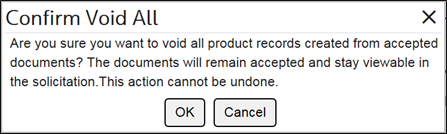
- ClickVoid All Product Recordsto open theConfirm Void All confirmationpop-up.

To confirm the voiding of records, click
OK
.To cancel and drop any potential changes, click
Cancel
or X
.
Rejecting Information Submitted by the Supplier
If the information the supplier submitted is unacceptable, a rejection message can be sent to the supplier. This message will notify the supplier that the information was rejected, along with a cause for the rejection.
To reject a document:
- Choose a document inside theDocumentstab of theSolicitation Managementscreen.
- ClickRejecton the far right to open theReject Documentconfirmation pop-up.

- In the text box, enter a reason for the rejection.
- ClickReject. The message will then be sent to the supplier via a notification e-mail.

The document will no longer appear in the
Documents
tab of the Solicitation Management
screen. However, the rejection message will appear on the Supplier Dashboard
for both the requestor and the supplier.The rejection message will also appear in the
Comments
section on the Solicitation Administration
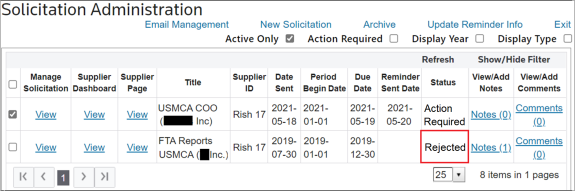
screen as well as updating the status of the solicitation to Rejected
.
Related Content
-
FTA: Supplier Portal Plus (SPP)
Format: Article