
FTA: Supplier Portal Plus (SPP) - SPP Product List
The
SPP Product List
screen contains a list of the supplier’s solicited products and is described in more detail in the sections below.
If the system has been configured to use Supplier Portal Plus; the
SPP Product List
can be accessed by performing the below steps.- Open theSolicitation Administrationscreen.
- Click on theSupplier Dashboardview.

- Once the Supplier Dashboard is opened, click on aGo to a Solicitationlink.
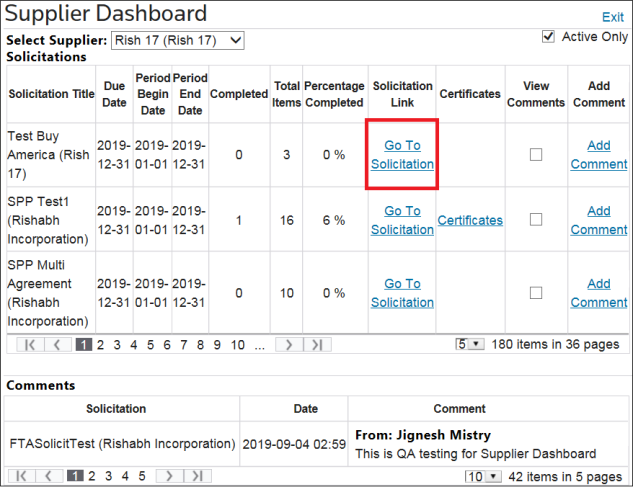
Clicking on the
Go To Solicitation
link will open the SPP Product List
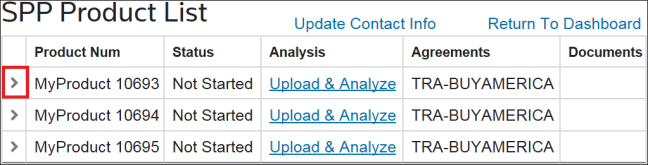
screen; which provides the following information:- Product Number
- Status (Started or Not Started)
- A link the supplier can use to upload and analyze a BOM
- The applicable agreement(s) for the product
- Any document(s) already attached to the product
To view additional product information, choose a product from the grid and click its corresponding expansion arrow on the left.
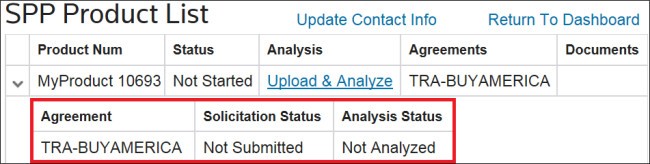
The applicable agreement, solicitation status, and analysis status will now be visible in a sub-grid.
Update Contact Info
If any supplier information needs to be changed or updated:
- Click on theUpdate ContactInfo button above the grid to open theEdit Contact Informationpop-up.

- Make any necessary changes.
- ClickSave Information. The system will then return to theSPP Product Listscreen.

Detail View
The
Detail View
allows you to select multiple products and generate a document that includes all selected products for a specific agreement, after you have analyzed the products.
- Generate Documents
- You can generate a single document, or you can combine multiple products into one document by FTA. To do this, select the desired products from the grid and select theGenerate Documentsbutton. If needed, you can select all items.

- The system generates the appropriate documents and displays them in theDocumentcolumn.
- Upload DOO
- When you are ready to upload a document, select theUpload DOObutton. A modal window appears, allowing you to choose which document, containing multiple products, you want to associate with the upload.

- Select the arrow to expand and view the products included in the document.

- Select theChoose Filebutton and pick a file from your computer
- Submit Documents
- When you are ready to submit, select the products and then select theSubmit Documentsbutton.

- Upload Supporting Documents
- If you want to upload any required supporting documents, select the products and then select theUpload Supporting Documentsbutton. You may assign a custom name to each file in the "Attachment Name" field, and, if needed, upload multiple versions of the same document. The supported file types are jpg, gif, png, pdf, bmp, xls, and xlsx.

- After choosing your file, the screen will show the message "File was uploaded successfully". SelectSave and attach document to checked itemsto leave the screen.
important
The ability to add or remove supporting documents is dependent on the status of the solicitation. If the solicitation has a status of
Submitted
or Accepted
, the checkboxes in the supporting documents grid will be disabled and no changes to the attached documents can be made.Return to Dashboard
To return to the Supplier Dashboard, click on the
Return to Dashboard
link.
Related Content
-
FTA: Supplier Portal Plus (SPP)
Format: Article