
FTA: Tools - Email Bounceback Management
During the solicitation process, ONESOURCE Free Trade Agreement Management sends e-mails to third-party users in order to request additional information from those users. In these instances, it is critical that those users are notified properly so global trade processes can be fulfilled in a timely manner.
However, in some cases, third-party e-mail addresses fail to send due to a failure in the delivery process or an invalid/deactivated e-mail address. This is referred to as a
Bounceback
. The most common reasons why an e-mail bounces back are:
Bounceback reason |
Description |
|---|---|
Invalid E-mail Account |
|
Invalid E-mail Domain/Server |
|
Mailbox Full |
The e-mail recipient account has a full mailbox and cannot receive e-mails until space is freed up |
Blocked E-mail |
The recipient's e-mail server has blocked the receipt of the sent e-mail by any given policy set by the responsible domain. (E-mail Daemon) |
When an e-mail bounces back, the ONESOURCE Global Trade team recommends that you take the following steps:
- Check the recipient’s e-mail and domain address for any typing or spelling mistake.
- If any errors are present, make any necessary changes.
- Send a test e-mail to the proposed recipient from your e-mail account (not via ONESOURCE Global Trade) so you can check if that e-mail recipient still exists in the destination server/domain.
This chapter contains the following information:
- Viewing failed e-mails via theBounceback Emailsscreen
- Receiving/setting up e-mail notifications via theEmail Notificationsscreen
Viewing Failed Emails (Bounceback Emails)
The
Bounceback Emails
screen can be used to monitor undelivered e-mails so you can act accordingly.This screen can be accessed by selecting
Tools
from the user menu and then selecting Bounceback Emails
.
In this screen, ONESOURCE FTA Management users will have access to the
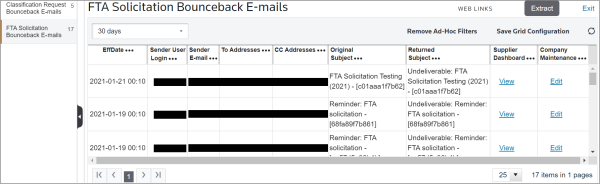
FTA Solicitation Bounceback E-mails
dock. Additional information about the e-mail(s) that bounced back will become visible, including the recipient who failed to receive the e-mail in either the To Addresses
or CC Addresses
columns.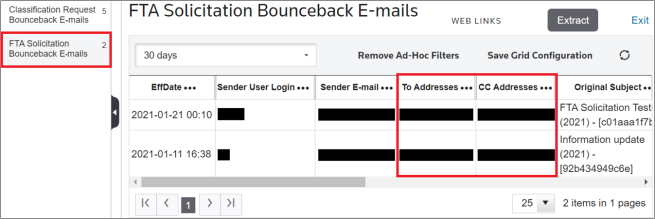
This screen can be filtered to show only e-mails containing certain specific information or that bounced during a specified period of time.
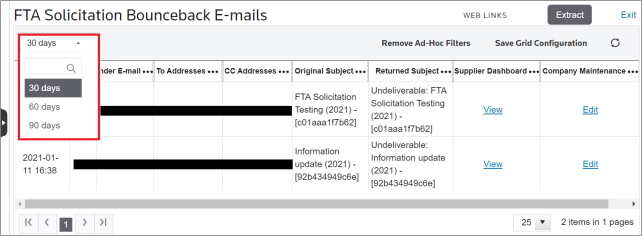
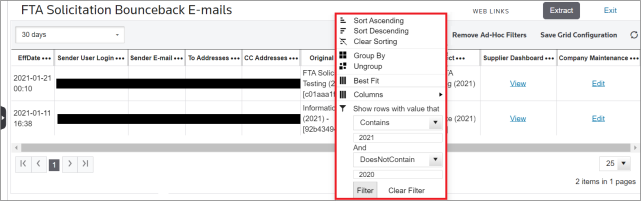
In the
FTA Solicitation Bounceback E-mails
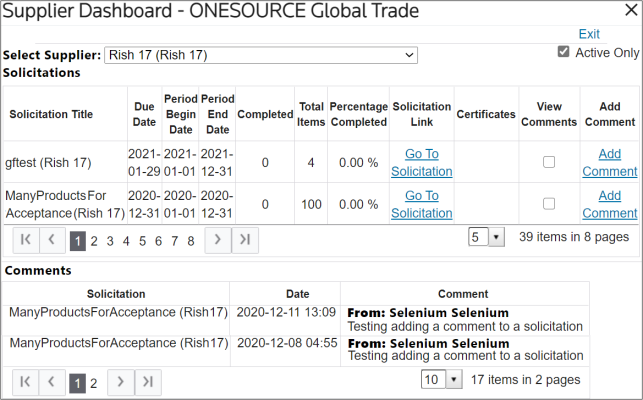
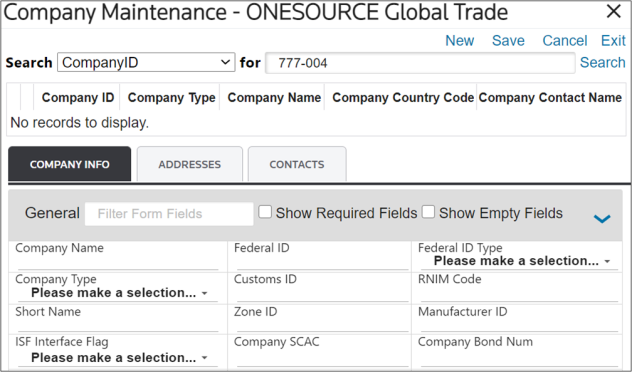
dock, clicking on a View
link will redirect you to the specified Supplier Dashboard or Company Maintenance record that was connected to the undelivered e-mail.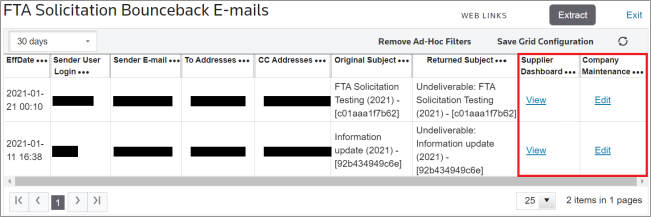
Receiving E-mail Notifications (Email Notifications)
It is also possible to configure e-mail notifications so a set group of users within the company will receive automated notifications as e-mail bouncebacks occur. These undelivered e-mails are checked daily within the central ONESOURCE Global Trade mailbox and forwarded to the configured users.
important
The standard notification recurrency is set to
daily
. However, notifications can be scheduled to shorter periods if desired. If your company is interested in more frequent notifications being enabled, please contact our support team a IntegrationPoint@ThomsonReuters.com.To configure users for notification of undelivered e-mails:
- Click on theToolsmenu.
- SelectEmail Notifications.Within this screen, there is a dock called
 Email Bounceback.
 - Select this dock to view the Email Bounceback feature. In this dock, you will be able to view the notification information for all processes with the Email Bounceback feature that are available.

Recipients
Recipients are the users and additionally specified personnel who will receive automated notification e-mails when e-mail bouncebacks occur. The current recipient list can be viewed and modified by choosing a notification from the grid and clicking its corresponding icon in the
Recipients
column.When setting up the bounceback notifications for the first time, the recipients list will be empty. Please add the desired list of users or additional personnel.

Clicking this icon will open the
Add Recipients
pop-up for the specified notification. - Select one or more recipients from theAvailable Recipientslist.
- Click the → button to move the user(s) to theCurrent Recipientslist. It is also possible to manually enter an e-mail address from outside of the list. This can be done by entering an address in the text box above the list.
- After all names to be considered as recipients are selected, click on theCreate New Recipientbutton.
Additionally, you can remove names from the
Current Recipients
list by selecting them and then clicking the X
button to the right of the Current Recipients
table.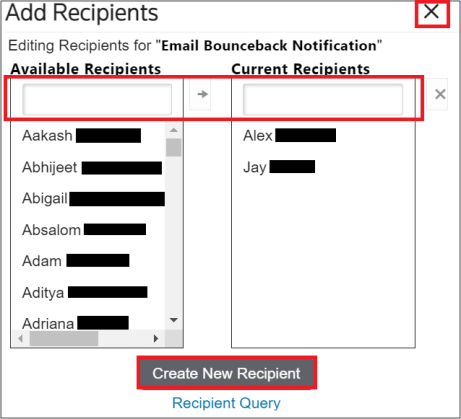
Scheduling
While other parts of the E-mail Notification functionality can be scheduled to provide automated e-mails daily, weekly, monthly, or within a certain date range; this functionality is not supported for E-mail Bounceback Management. Notifications are sent on a daily basis by default.
Message
The
Message
section contains the header and body text of the automated notification e-mail. A standard e-mail body is provided; so viewing and modifying it is not required.To view and modify the existing message text:
- Choose an e-mail notification from the grid.
- Click on its corresponding icon in theMessagecolumn, as shown below.Clicking this icon will open the
 Email Bodypop-up. A pre-existing e-mail template can be selected, or you can create a new notification from scratch by using the tools shown below.
 - After the e-mail body is fully drafted, click onSaveto save all changes.

If the e-mail contains a URL, it will show as a hyperlink when it is sent to a recipient. Clicking on this link (after login) will direct you to the e-mail bounceback lookup, which is shown in the screenshot below.
Related Content
-
FTA: Tools
Format: Article