
FTA: What If? Calculator - Multiple BOM Calculator
The
Single BOM Calculator
tab is used for updating the components for multiple BOMs at a time.Product Selection & Alteration
To select the components to be worked with, click
Select Components
to open the Select Components to Alter
pop-up, which displays all potential products (and their associated BOMs) that can potentially be selected.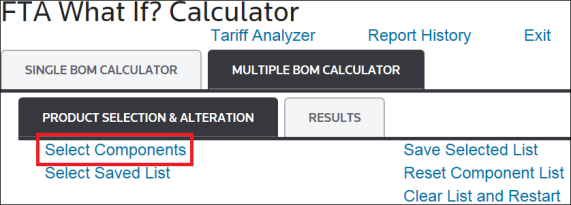
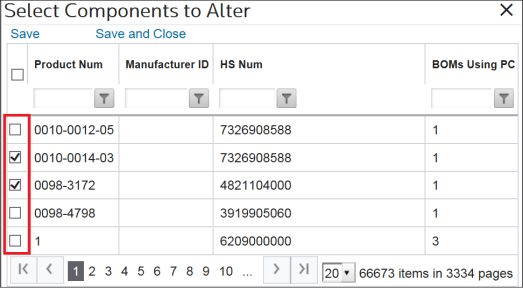
Selecting a Product
To select a product, choose a product and check its corresponding box on the left. Checking the box in the column header line will select all products for the page.
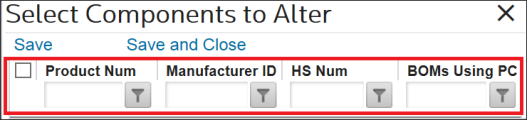
If the list is very long, you have the option to search for a Product Number, Manufacturer ID, HS Number, or the number of BOMs using the part/component by utilizing the filters.
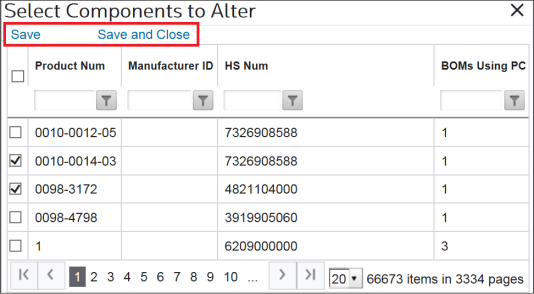
To save progress without exiting the pop-up, click
Save
. Proceed to the next page of listed products as applicable until all necessary products have been selected.After all necessary products have been selected, click
Save & Close
.
After
Save & Close
is clicked, the screen will redirect to the Product Selection & Alteration
sub-tab, where all selected products will appear in a grid.Mass Editing Products/Components
To mass edit a product/component:
- Choose a product/component from the grid.
- ClickEditon the far left. You can update the HS Number, Assume Cert on Hand, or Unit Value.
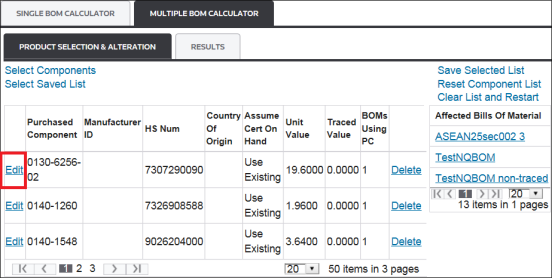
Deleting a Product/Component
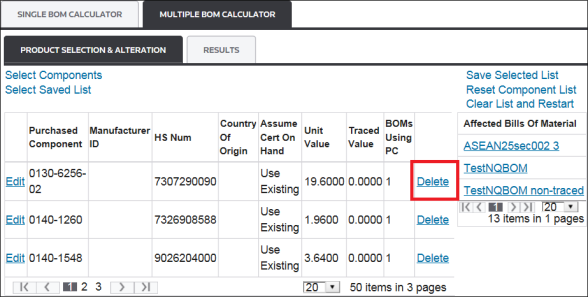
To delete a product/component, click
Delete
.
Affected Bills of Material
On the right of the screen there is an
Affected Bills of Material
box. Clicking one of the links in the Affected Bills of Material
box will open a separate browser tab with the BOM Upload
screen displayed.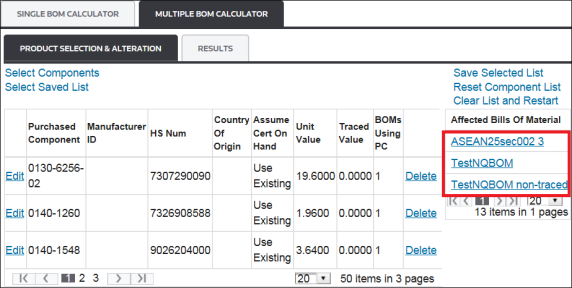
The listed BOM will be pre-selected.
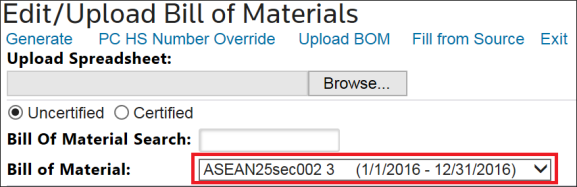
After finishing in the
Product Selection & Alteration
tab, click on the Results
tab to continue.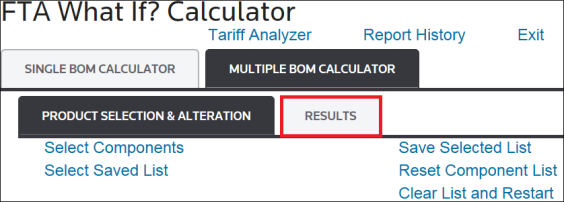
Results
The
Results
tab is used for running a target FTA against the selected products/components from the Product Selection & Alteration
tab.To run the
What If?
calculator for multiple BOMs:- Click theSelect Target FTAdrop-down.
- Choose an FTA.
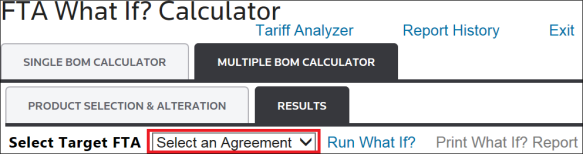
- ClickRun What If?.
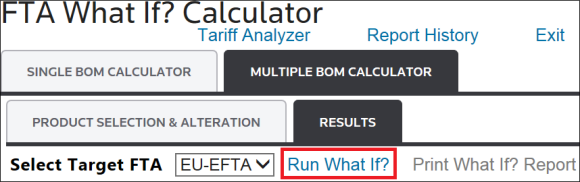
It may take a while to complete the Mass BOM Analysis workflow. At any time, you can click
Refresh
on the top right of the screen to view the workflow’s progress. If the workflow is still running, you will see the following message:
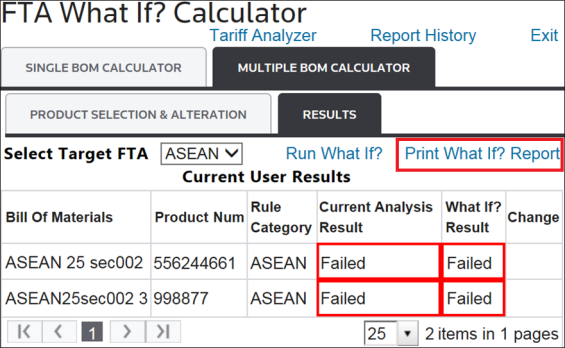
After the workflow is complete, both the original analysis results and the analysis results based off the changes will display on the screen. Failed items will highlight in red. Passed items will highlight in green.
To view the report in Adobe PDF format, click
Print What If? Report
.
To view a history of all printed single and multiple BOM
What If?
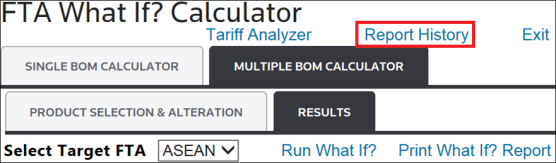
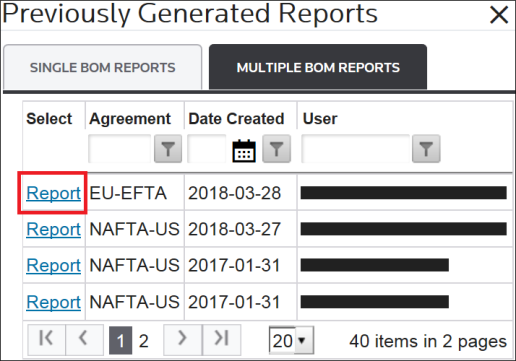
reports:- ClickReport Historyto open the PreviouslyGenerated Reportspop-up.
- From there, determine which report to view.
- Click its correspondingReportlink on the far left.
Related Content
-
FTA: What If? Calculator
Format: Article