
FTA: What If? Calculator - Single BOM Calculator
The
Single BOM Calculator
tab is used for updating the components for one BOM at a time.To select a BOM:
- ClickSelect BOMto open theSelect BOMpop-up, which contains a grid of available BOMs for selection.

- Choose a BOM from the grid.
- Click its correspondingSelectlink on the far left.

To select an FTA:
- Click theFTAdrop-down.
- Choose an FTA to compare the BOM against.

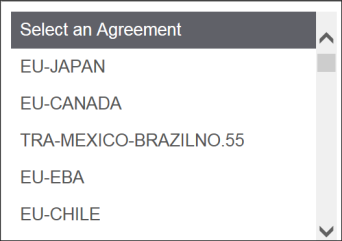
Once an FTA is selected, all components in the BOM will appear in a grid on the screen with their current values. You can then update the following data as needed:
- HS Num
- Cert On Hand
- Unit Value
The information on the right will show the current rule the BOM is running against, as well as the analysis results.

The link under
Target Rule
will display the rule text. When applicable, Product Ex-Works % and Total Ex-Works % may also appear in results.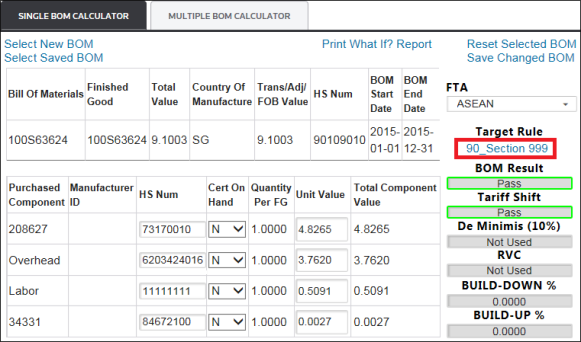
If a field is modified, it will be outlined in blue. As the data is changed, the information on the right will update to reflect the new data.

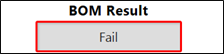
Additionally, green and red color-coding indicates whether an analysis passed or failed.
To view the changes in Adobe PDF format, click
Print What If? Report
. This report will be stored in the Report History
in the upper right corner of the screen.
To remove any changes and reload a BOM, click
Reset Selected BOM
.
To view a history of all printed single and multiple BOM
What If?
reports:- ClickReport Historyto open thePreviously Generated Reportspop-up.

- From there, determine which report to view and click its correspondingReportlink on the far left.

Saving a BOM
To save changes to a BOM:
- ClickSave Changed BOMto open theSave Single What Ifpop-up.
- Choose a name for the BOM.
- ClickSave.

Accessing a Saved BOM
To access a saved BOM, click
Select Saved BOM
to open the Single What If Saved BOMs
pop-up, which contains a grid of all saved BOMs.If a saved BOM has been disabled for analysis, it will display as
Inactive
.
To open a saved BOM for additional
What If?
analysis, click Select
on the far left.To delete a saved BOM, click
Delete
on the far right.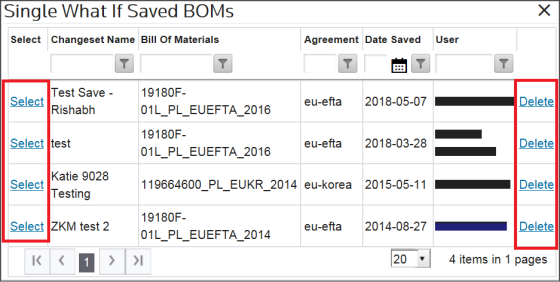
Related Content
-
FTA: What If? Calculator
Format: Article