
FTZ Management: Reports - CF7501 Weekly Entry, Declarations, and Additional Tariffs
tip
To view the images in higher resolution, right-click the image and select
Open image in new tab
.What this screen produces
The
CF7501 Weekly Entry Form
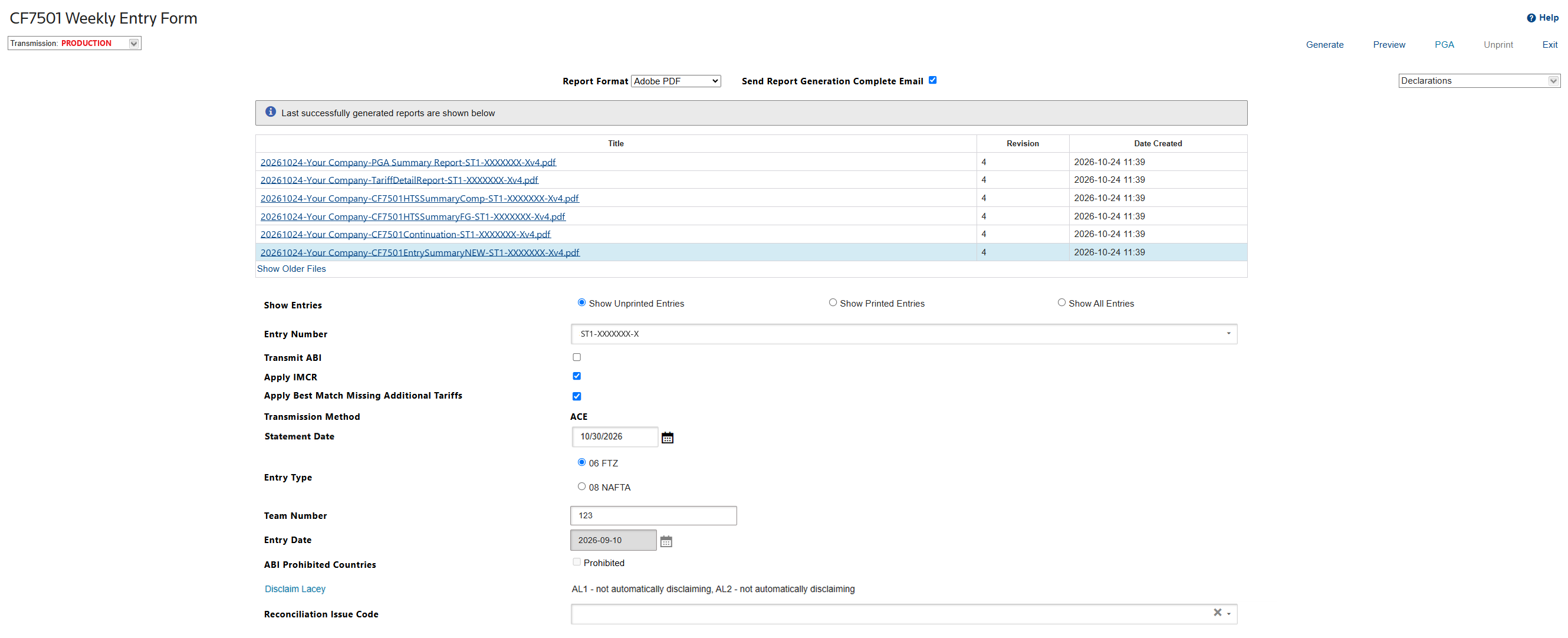
screen is used to create your 7501 documentation. A full generate produces six documents:- CF7501 Weekly Entry Summary
- CF7501 Continuation Report
- Component HTS Summary
- Finished Good HTS Summary
- Tariff Detail Report (if configured)
- PGA Summary Report, when the entry carries PGA data
The ABI Entry File is produced in addition when
Transmit ABI
is checked.Preview produces a subset of these without saving anything or transmitting anything. See Preview below.
To retrieve an entry, select either
Show Unprinted Entries
or Show All Entries
.Setting up the 7501 report
The
CF7501 Weekly Entry Form
carries controls across the top, then the entry fields below them. This section covers every field on the screen, in the order you meet it.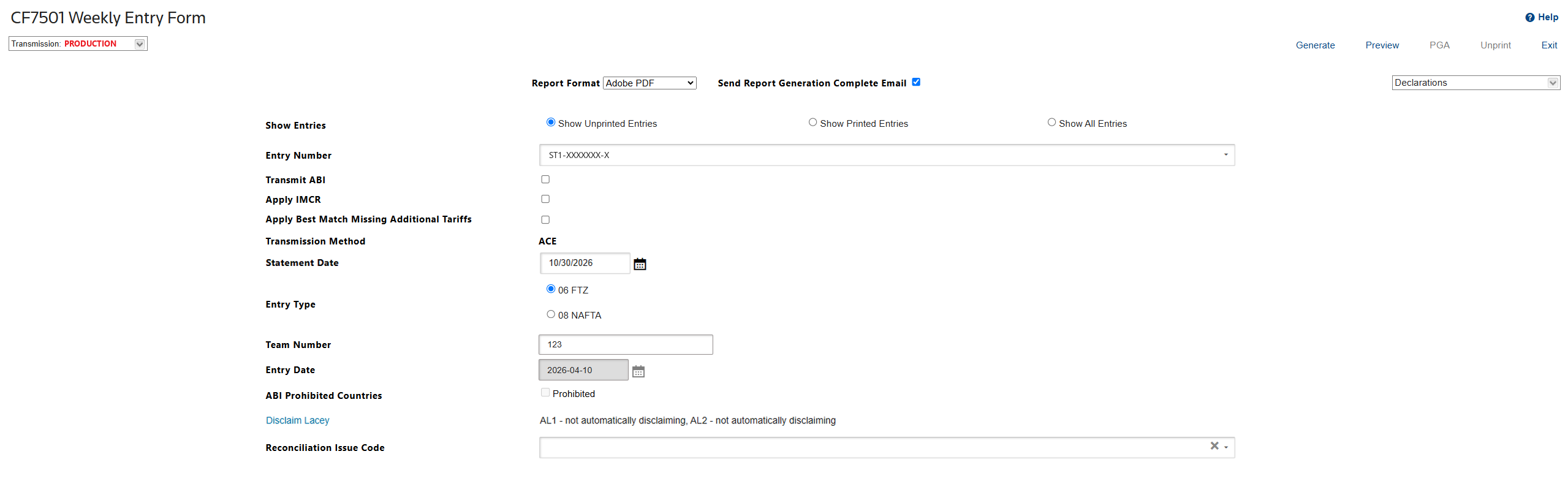
Controls across the top of the form
Report Format
Sets the file type for the documents produced. Adobe PDF is the default; Excel spreadsheet and Word document are also available.
Send Report Generation Complete Email
Checking this option sends an e-mail so other tasks can be performed as the report generates.
Declarations
Opens the AD/CVD Certification, Steel Melt and Pour, and Copper Smelt and Cast options. See Declarations below.
1. Choose the entry
Show Entries
Select
Show Unprinted Entries
, Show Printed Entries
, or Show All Entries
to filter which entries appear in the Entry Number list.Entry Number
Select the entry you are working on. The remaining fields populate from that entry.
2. Choose what gets applied
Transmit ABI
Check this box if you are transmitting a file electronically to an ABI provider or if you are set-up as a self-filer and wish to transmit the file directly to CBP upon Generate.
Apply IMCR
Applies your active Item Master Custom Rules (IMCR) to the lines they match. Requires the entry to be in unprinted status. See Apply IMCR below.
Apply Best Match Missing Additional Tariffs
Allows Best Match determine and fill the Chapter 99 numbers that are missing from a line. Requires the entry to be in unprinted status. See Apply Best Match Missing Additional Tariffs below.
3. Confirm the entry details
Transmission Method
Shows the method the entry will be transmitted by. ACE for US filings.
Entry Type
- 06 FTZ - The only standard FTZ entry type we support at this time.
- 08 NAFTA - Currently not supported. When this entry type was first introduced to ACE, we offered to test with CBP but it was not available for testing purposes. There is also work within the NAFTZ to have manufactured exports to Canada or Mexico included for bonded movements which would eliminate the need for this entry type. We have halted further development until there is more guidance on this zone entry type.
Team Number
The CBP team number used on the entry.
Entry Date
The entry date carried on the 7501. For non-privileged lines this is also the date Best Match and your IMCR are evaluated against. See When an IMCR rule is honored below.
Statement Date
The periodic monthly statement date for the entry.
4. Optional flags
ABI Prohibited Countries
Check
Prohibited
to flag the entry for prohibited country screening.Disclaim Lacey
Shows the current Lacey disclaim status for the entry, for example "AL1 - not automatically disclaiming, AL2 - not automatically disclaiming". See Disclaim Lacey below.
Reconciliation Issue Code
If you wish to flag your entry for Reconciliation in ACE and if you are a self-filer, select the applicable Reconciliation Issue Code.
Declarations
General interface information
- Inbound Interfaces - If you have an internal feed into ONESOURCE Global Trade that you wish to add/modify for Declaration changes, you will need an *SOW project for Implementation/Testing purposes.
- Outbound Interfaces - Self-Filers: File updates for Declaration data directly to CBP will automatically be made for these types of files.
- FTZ Broker Filers - If you utilize the ONESOURCE Global Trade Standard ACE CATAIR version, file updates for Declarations will automatically be made.
- All other broker feeds or interfaces to third parties from ONESOURCE Global Trade will need an *SOW project for Implementation/Testing purposes.
*SOW Projects - The reason these require SOW projects is because every interface is unique to an operation and ONESOURCE Global Trade does not own the specifications. Time is needed to coordinate what should be transmitted between parties for each design and a test site available for testing. If you need an SOW project, please contact your account manager.
Types of declarations
- AD/CVD Cert
- Steel - NPF Manufactured FG/NPF & PF Components
- Copper - NPF Manufactured FG/NPF & PF Components
- Aluminum - NPF Manufactured FG/NPF & PF Components (Located in the aluminum menu options)
AD/CVD Certification Designation
An Importer's Additional Declaration Type Code 06 (AD/CVD Certification Designation) has been added to the Entry Summary.
An AD/CVD Certification Designation is an indication that an AD/CVD certification document or documents are in the importer's possession.
If you wish to add an AD/CVD certification designation to a product on a CF7501 entry summary, additional data entry is required.
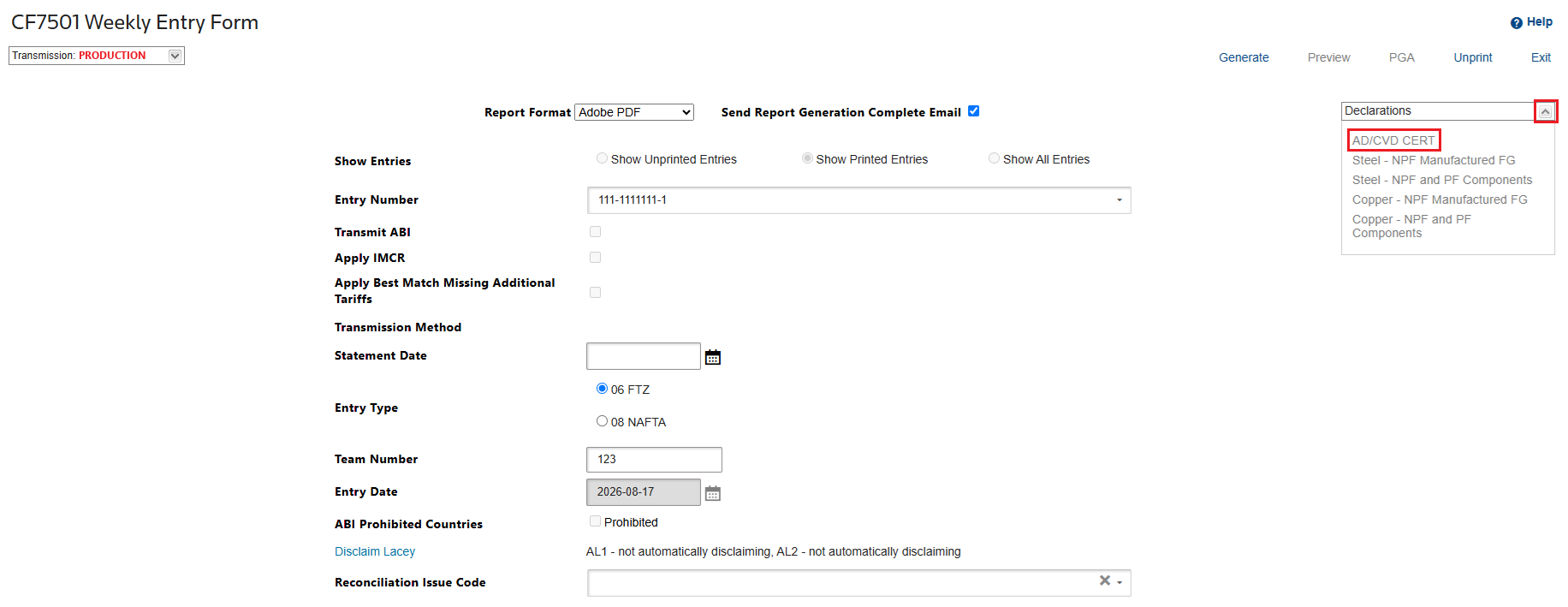
The system will auto-filter for all products on the entry in the
AD/CVD CERT
pop-up. You can mass-apply the designation to multiple lines.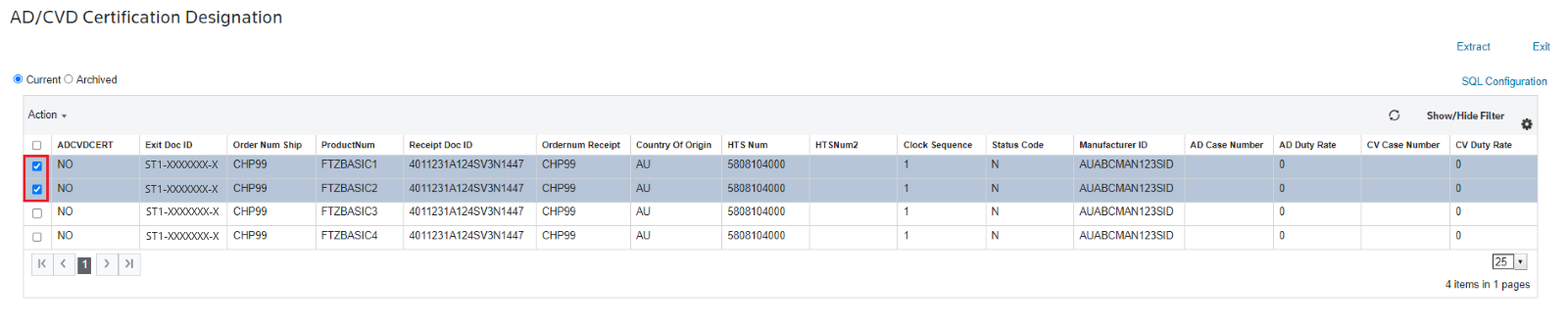
Select the
Action
of AD/CVD Certification Designation
.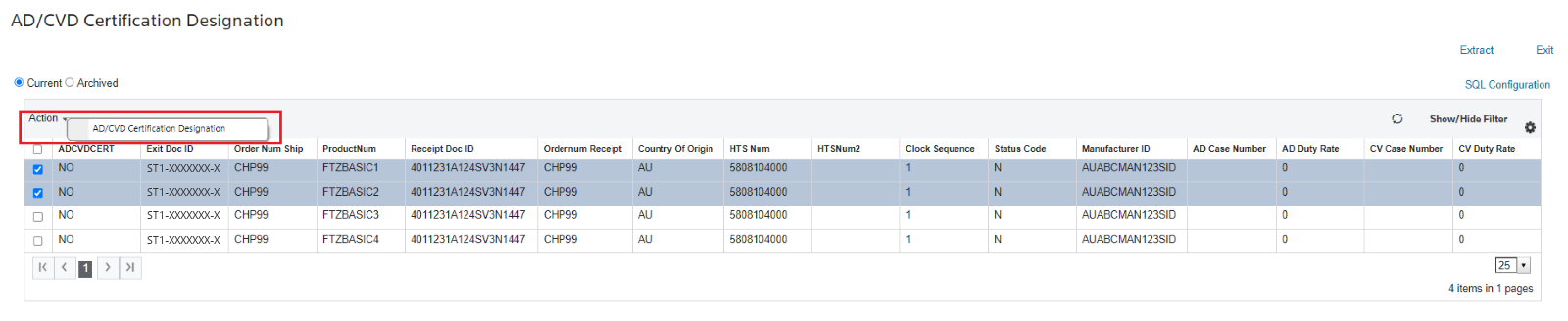
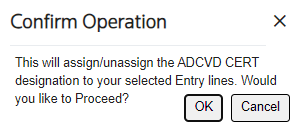
Confirm that you understand that you will be assigning or unassigning the designation to the selected entry lines.
Select
YES
to assign to all of the selected lines or select No
to unassign to all of the selected lines.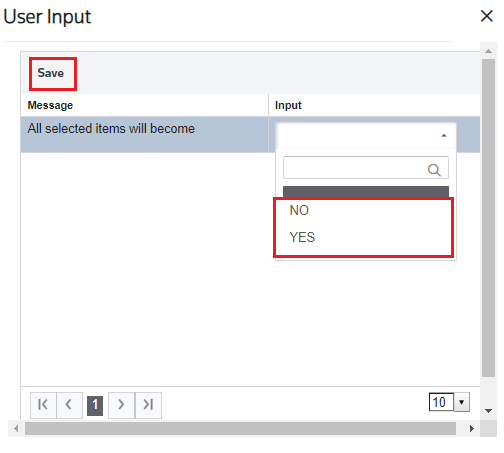
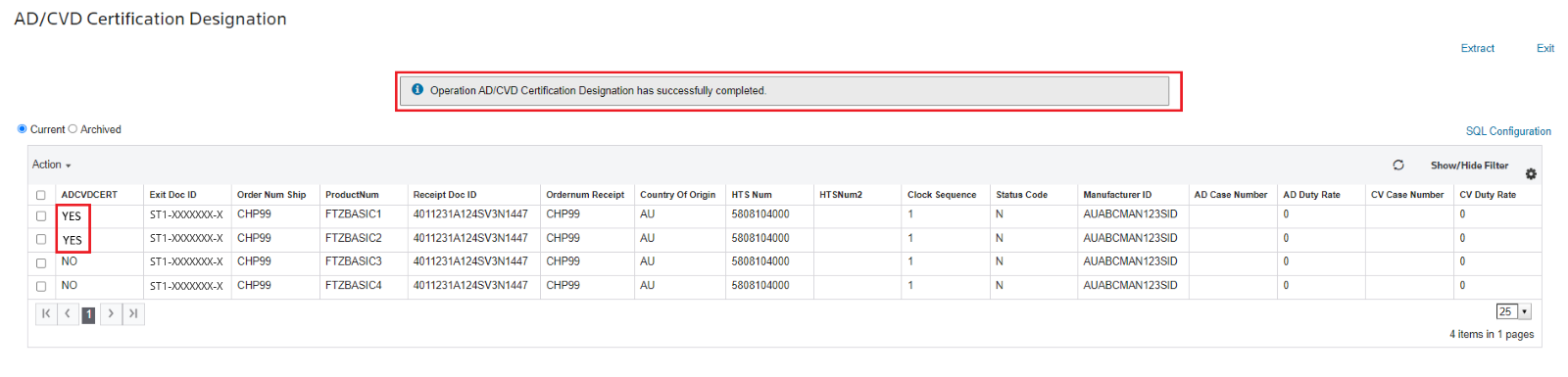
You will see that the AD/CVD Certification Designation has been saved.
Steel Melt and Pour
Proclamation 10783 has been issued that requires new Steel Melt and Pour data elements for importers. These new data elements are required on the Entry Summary and guidance from CBP has been provided in CSMS 62095799 and CSMS 62280558. Please review these documents to see if any of your products fall under the new reporting requirements.
We have created options on the 7501 Weekly Entry Form for you to key in the new data elements at the time of Entry Summary filing.
For FTZ filers, the options will show you all potentially applicable products on an un-generated (unprinted) entry that fall under the HTS listed by CBP. Based on the guidance provided and the data within the application, we are not able to indicate whether you must file for every part that shows in this new screen, but we have provided you the means to do so, should you wish to report.
If the Country of Origin is US, VI, GU, AS, UM, PR, or MP, the steel declaration is not required.
The two options allow you to apply the same data to multiple lines, so you do not need to key this for every line, just every combination you need to file. If a line requires no reporting, do not select that line, or fill out any data.
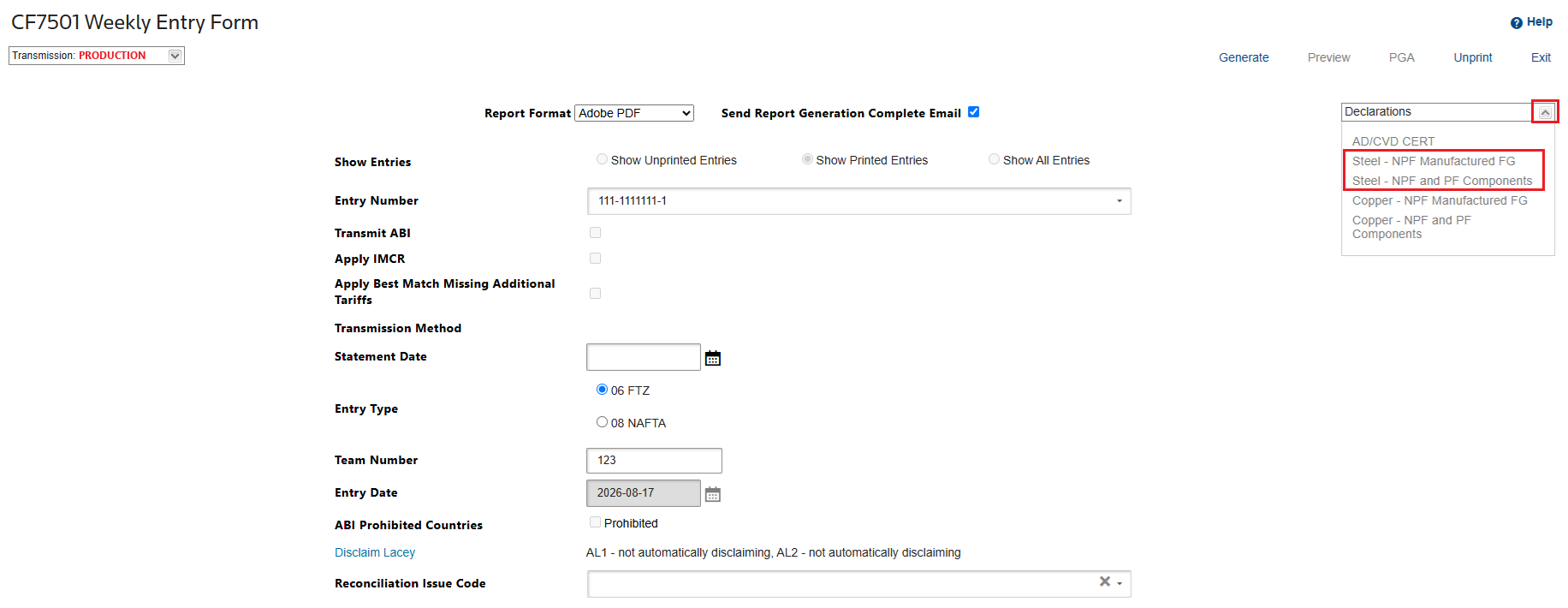
- Steel - NPF and PF Components: for non-manufactured parts or PF components of manufactured parts.
- Steel - NPF Manufactured FG: for Finished Good parts that are classified with the impacted HTS. The FG HTS is what is reported, but we will show you all the NPF/PF components under it to help you research what you need to report.
Both options can be found by clicking the
Declarations
box on the CF7501 Weekly Entry Form
:
To apply the data to lines that require reporting:
important
Both Steel - NPF and PF Components and Steel - NPF Manufactured FG screens have the same procedure and can follow the instructions described below.
- Check the boxes of the entry lines you want to apply the same data to.
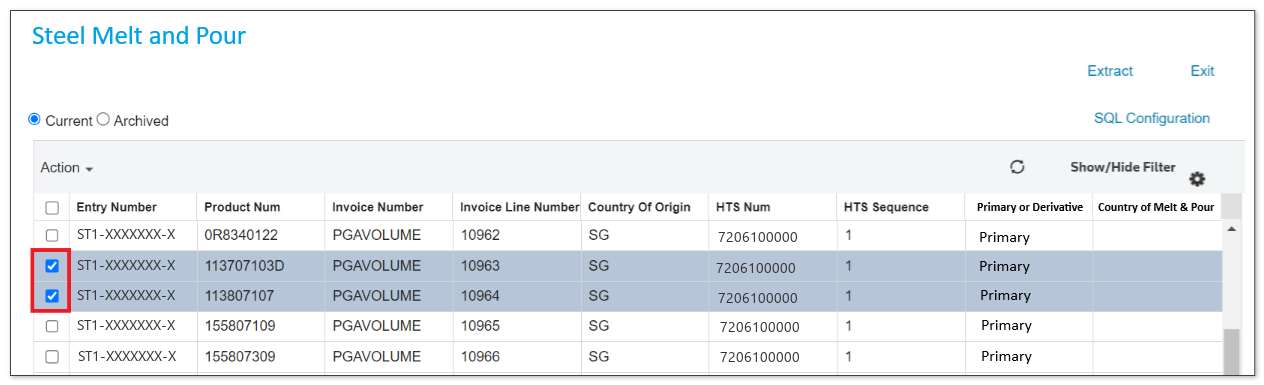
- Hover your cursor to theActionoption and clickSteel Melt and Pour.

- A pop-up will appear that alerts you that data will be applied. ClickOKif you wish to proceed. ClickCancelif you do not wish to change any data.
- TheUser Inputpop-up will appear. On the columnInput, click the dropdowns to select the answer to the messages described below.
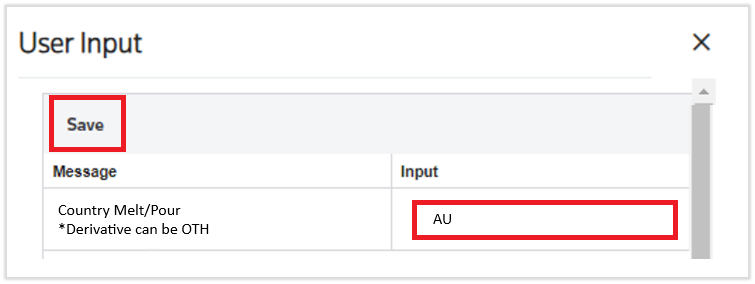
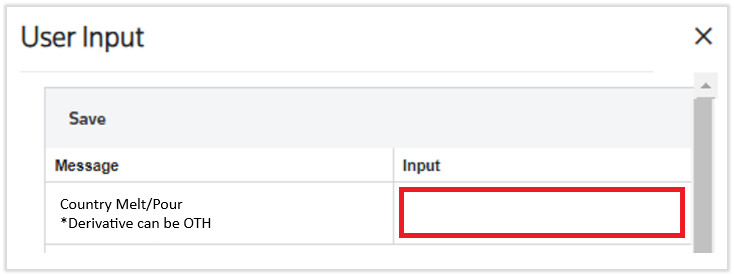 Country Melt/Pour *Derivative can be OTH:The information is required for articles of steel subject to the Section 232 steel articles and derivative steel articles. Type must be submitted if the article is primary steel or derivative steel regardless of whether the Section 232 duty treatment, quota treatment, or exception treatment applies.For products melted/poured in the U.S., report "US" as the Country of Melt and Pour.Provide the ISO country code where steel was originally melted. Country of melt and pour refers to the original location where the raw steel is (1) first produced in a steel-making furnace in a liquid state and then (2) poured into its first solid shape. The first solid state can take the form of either a semi-finished product (slab, billets, or ingots) or a finished steel mill product. The location of melt and pour is customarily identified on mill test certificates that are commonplace in steel production, generated at each stage of the production process, and maintained in the ordinary course of business. This data element is mandatory for all countries importing Primary Steel.For Derivative Steel Products of Mexico, the ISO Country of Melt and Pour code or 'OTH' may be provided.
- ClickSavewhen all fields are filled out.
After saving the input, a successful message is displayed, and the countries are displayed in the grid.
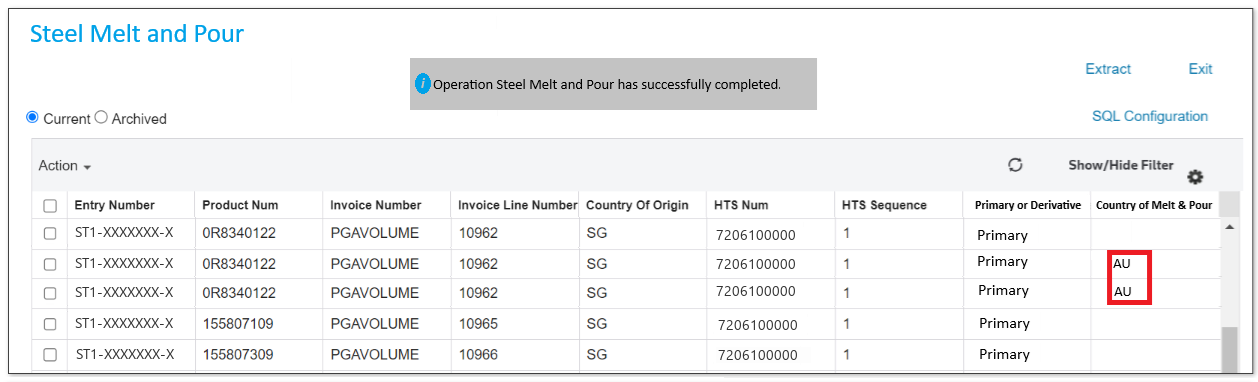
If you determine you need to change data after the entry has been generated (printed), simply unprint the 7501. The Exit Doc ID and the fields will again be available for you to edit in the new menu screen.
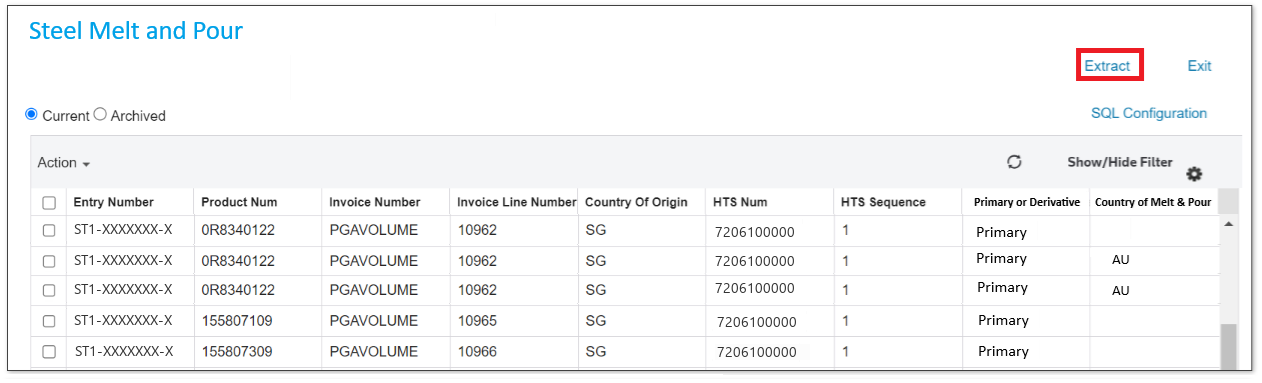
Steel Extract
You can download your Steel Melt and Pour entry lines in an Excel spreadsheet by clicking the action button
Extract
.
Copper Smelt and Cast
Proclamation 11021 (91 FR 18201) has been issued that requires new Copper Smelt and Cast data elements for importers. These new data elements are required on the Entry Summary and guidance from CBP has been provided in CSMS 69252300. Please review these documents to see if any of your products fall under the new reporting requirements.
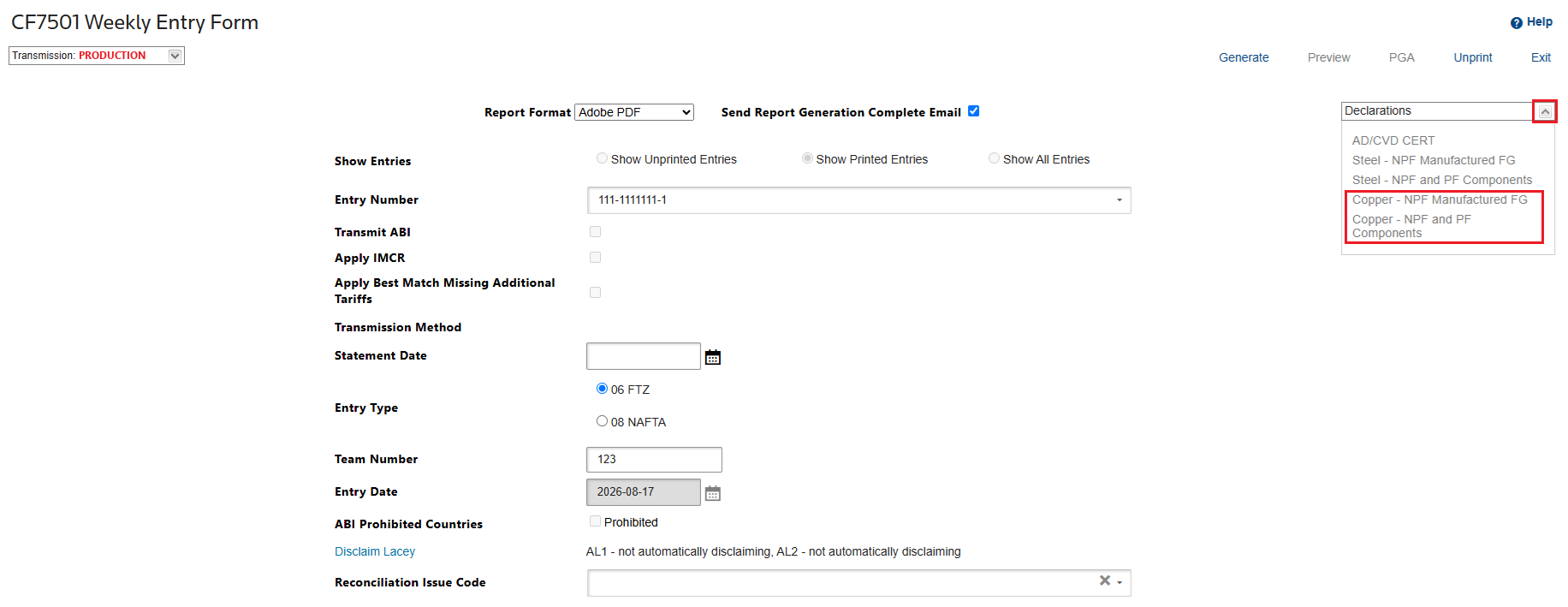
For FTZ filers, we have created two options to enter the new data elements on your CF7501 Entry Summary. Both options can be found by clicking the
Declarations
box on the CF7501 Weekly Entry Form
:- Copper - NPF Manufactured FG: for Finished Good parts that are classified with the impacted HTS. The FG HTS is what is reported, but we will show you all the NPF/PF components under it to help you research what you need to report.
- Copper - NPF and PF Components: for non-manufactured parts or PF components of manufactured parts.
If the Country of Origin is US, VI, GU, AS, UM, PR, or MP, the copper declaration is not required.
The Copper Smelt and Cast options allow you to apply the same data to multiple lines, so you do not need to key this for every line, just every combination you need to file. If a line requires no reporting, do not select that line, or fill out any data.
To apply the data to lines that require reporting:
tip
Both Copper - NPF Manufactured FG and Copper - NPF and PF Components screens have the same procedure and can follow the instructions described below.
- Check the boxes of the entry lines you want to apply the same data to.
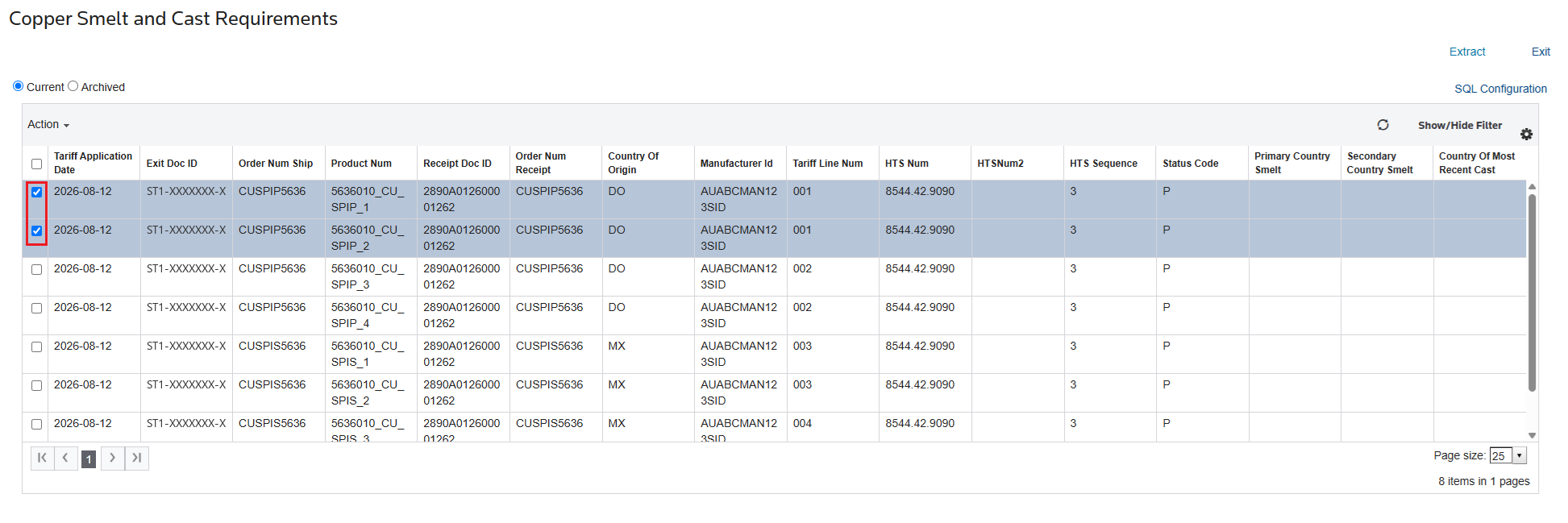
- Hover your cursor to theActionoption and clickCopper Smelt and Cast Requirements.
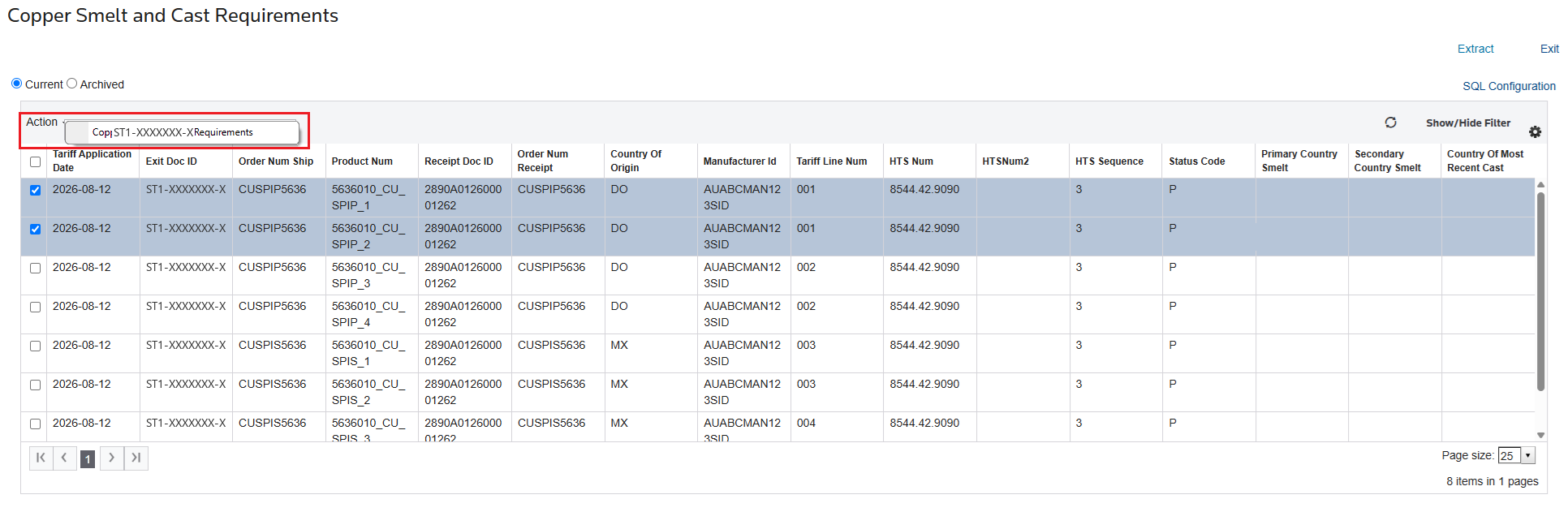
- A pop-up will appear that alerts you that data will be applied. ClickOKif you wish to proceed. ClickCancelif you do not wish to change any data.
- TheUser Inputpop-up will appear. On the columnInput, click the dropdowns to select the answer to the messages described below.
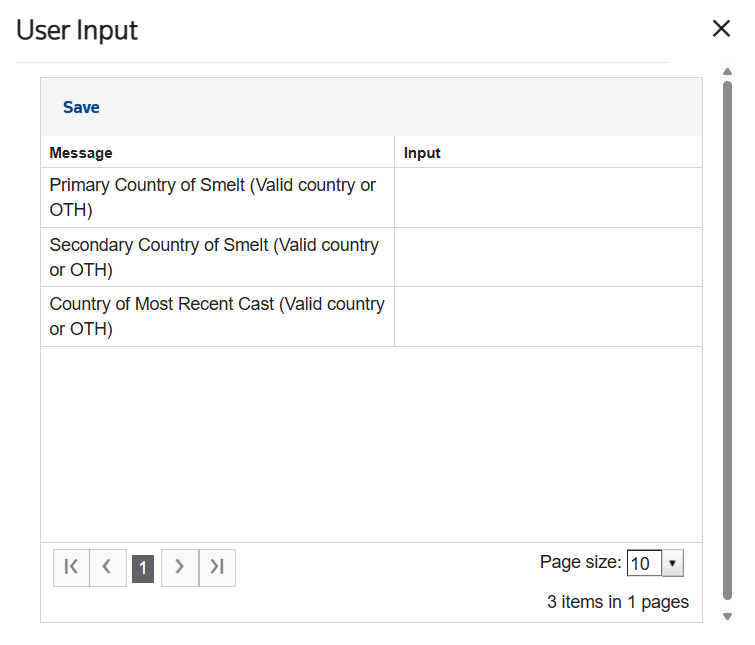
- Primary Country of Smelt (Valid country or OTH): Provide the ISO country code where the copper was originally smelted. If unknown, report "OTH." This field is mandatory.
- Secondary Country of Smelt (Valid country or OTH): If a secondary country of smelt applies, provide the ISO country code or "OTH." This field is optional.
- Country of Most Recent Cast (Valid country or OTH): Provide the ISO country code where the copper was most recently cast. If unknown, report "OTH." This field is mandatory.
- ClickSavewhen all fields are filled out.
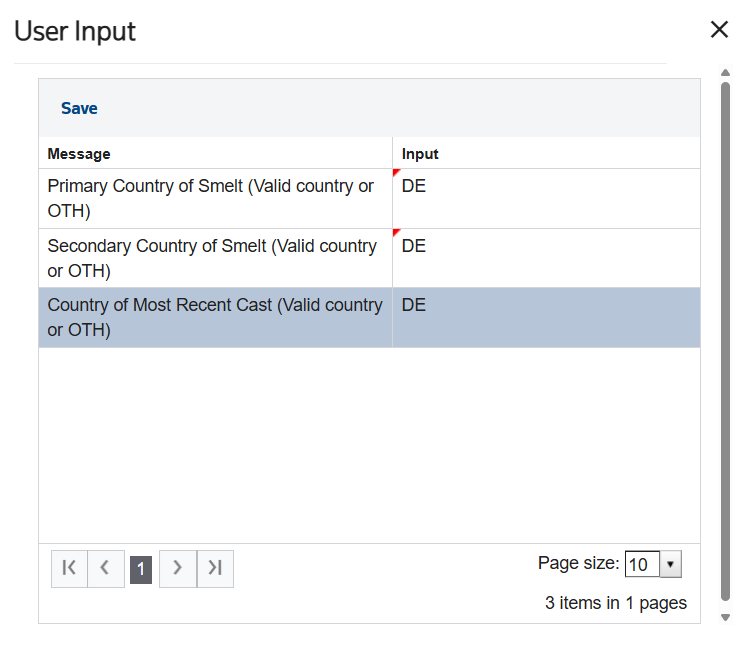
After saving the input, the countries are displayed in the grid.
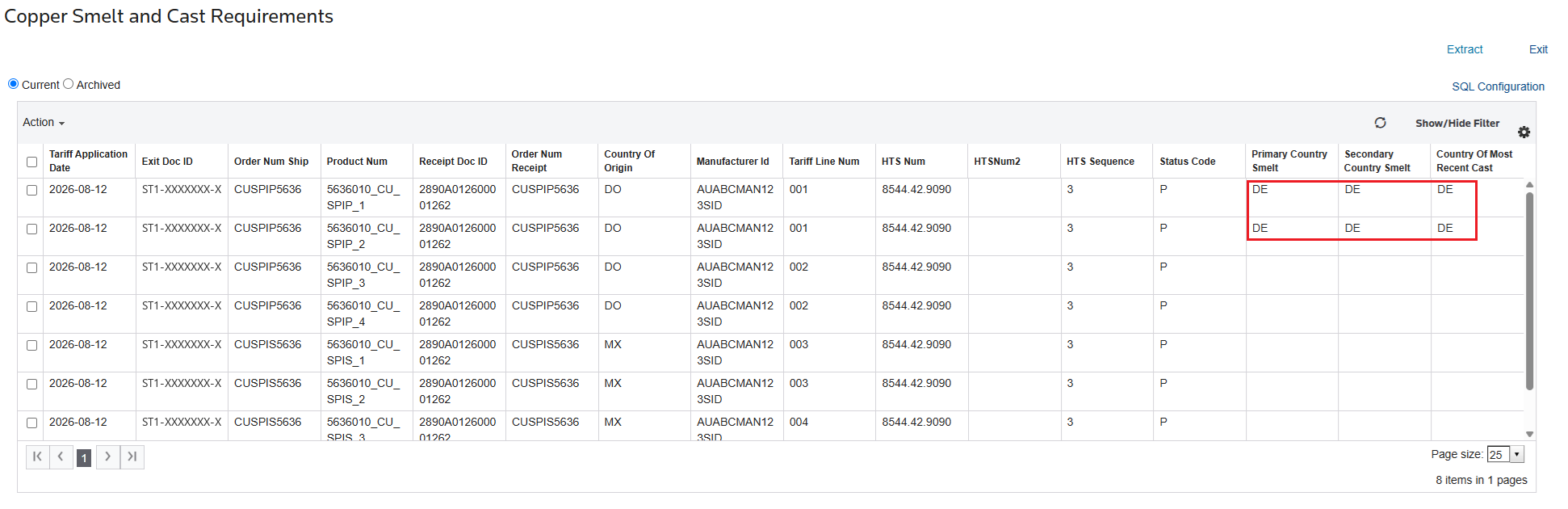
If you determine you need to change data after the entry has been generated (printed), simply unprint the 7501. The Exit Doc ID and the fields will again be available for you to edit in the menu screen.
Copper Extract
You can download your Copper Smelt and Cast entry lines in an Excel spreadsheet by clicking the
Extract
button.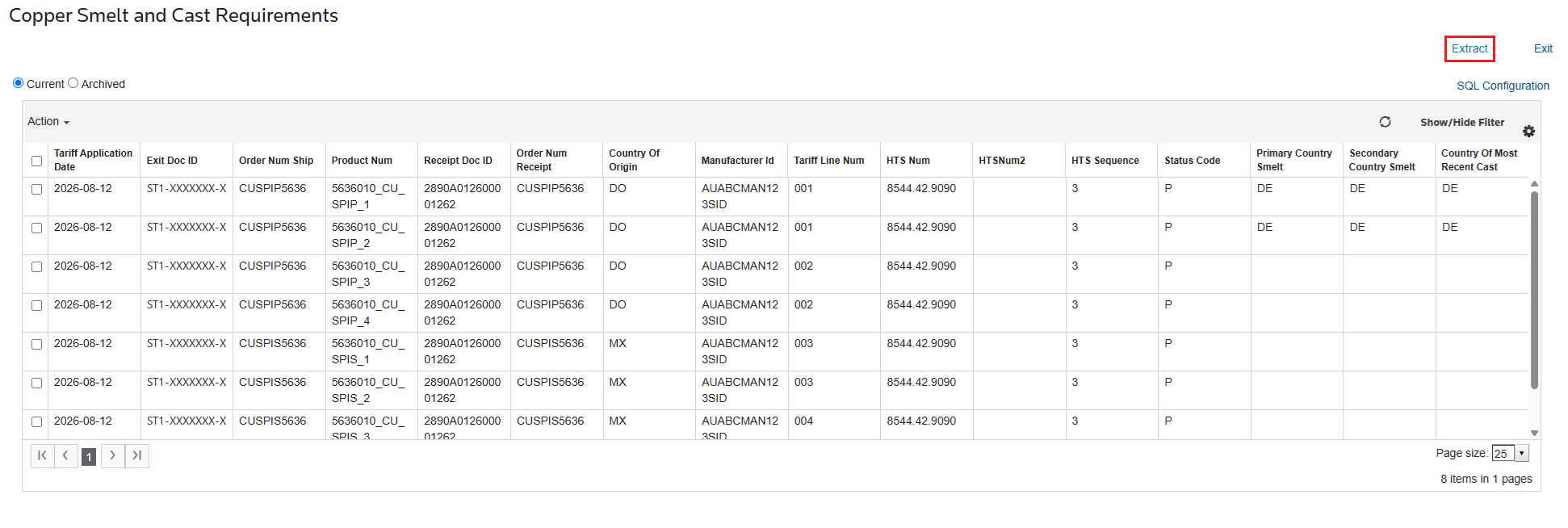
Apply IMCR
Item Master Custom Rules (IMCR) let you define exactly which Chapter 99 additional tariffs a tariff line should carry. When the
Apply IMCR
box is checked and the 7501 is in unprinted status, previewing or generating the entry utilizes your IMCR rules to the lines they match.When an IMCR rule is honored
An IMCR is honored when both of the following are true:
- The IMCR is active.
- The tariff application date on the line falls inside the IMCR's effective date range.
important
The Start Effective Date should be backdated to when the IMCR is first active. This is important because the system uses the date to determine whether to apply an IMCR or not during entry utilization.
The tariff application date is set per line, not per entry, so one entry can carry lines with several different application dates:
- Privileged (P status) lines use the privileged date.
- Non-privileged (N status) lines use the entry date.
Updating a line that already carries Chapter 99s
There may be scenarios where some additional tariffs are already on a layer, but more tariffs need to be added. To do this, the IMCR has to match what the line looks like now, including the Chapter 99s already on it. The best way to check is to use the FTZ Unprinted Shipments Missing Additional Tariffs lookup
This lookup can be found here:
FTZ Processing Audit Lookup > FTZ Unprinted Shipments Missing Additional Tariffs
This lookup will run validations against your Unprinted 7501 to identify any potentially missing additional tariffs from the entry. You can then add any new IMCR rules you would like, and we will apply these new rules during your next 7501 generation if you check the Apply IMCR on your 7501 entry.


When adding a new IMCR rule that already carries a chapter 99:
- The main MatchHTSIndex should always be the HTSSequence 1.
- For each HTS already existing on the layer, mark as a Match Record and populate the "Match HTS Number" in the defined ordering.
- The missing HTS should not be defined as a Match Record, which tells the system to add this HTS in the defined order.
- The StartEffectiveDate should be backdated to when the tariff is first active.
After the IMCR has been added, preview or generate the entry with the Apply IMCR box checked. You can then see the applied rule and the additional tariffs on the line.
A worked example
In this example the line already carries two Chapter 99 numbers and a base HTS, and a third Chapter 99 has to be added between them. The IMCR has to describe the line as it stands and place the new number in the right position.
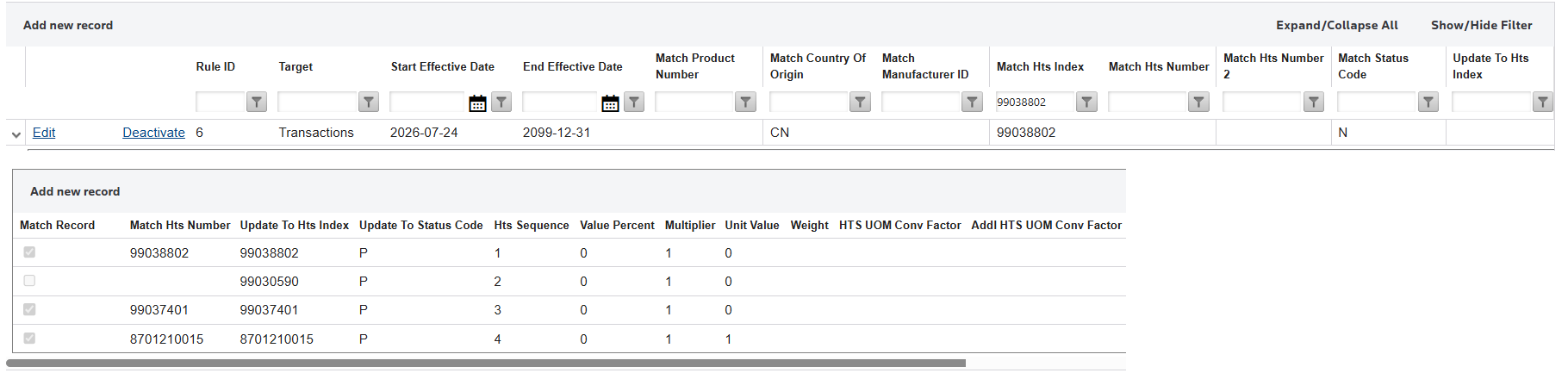
On the IMCR itself, Match Country Of Origin is CN, Match Hts Index is 99038802, which is the Chapter 99 at sequence 1, and Match Status Code is N. Start Effective Date is backdated to 2026-07-24 so the IMCR covers the dates the line can carry.
On the match records underneath, each HTS already on the line is marked as a Match Record and given its sequence:
- 99038802 at sequence 1, marked as a Match Record.
- 99030590 at sequence 2, NOT marked as a Match Record. This is the number being added.
- 99037401 at sequence 3, marked as a Match Record.
- 8701210015 at sequence 4, marked as a Match Record. This is the base HTS.
Every row carries Update To Status Code P, matching the privileged status of the line.
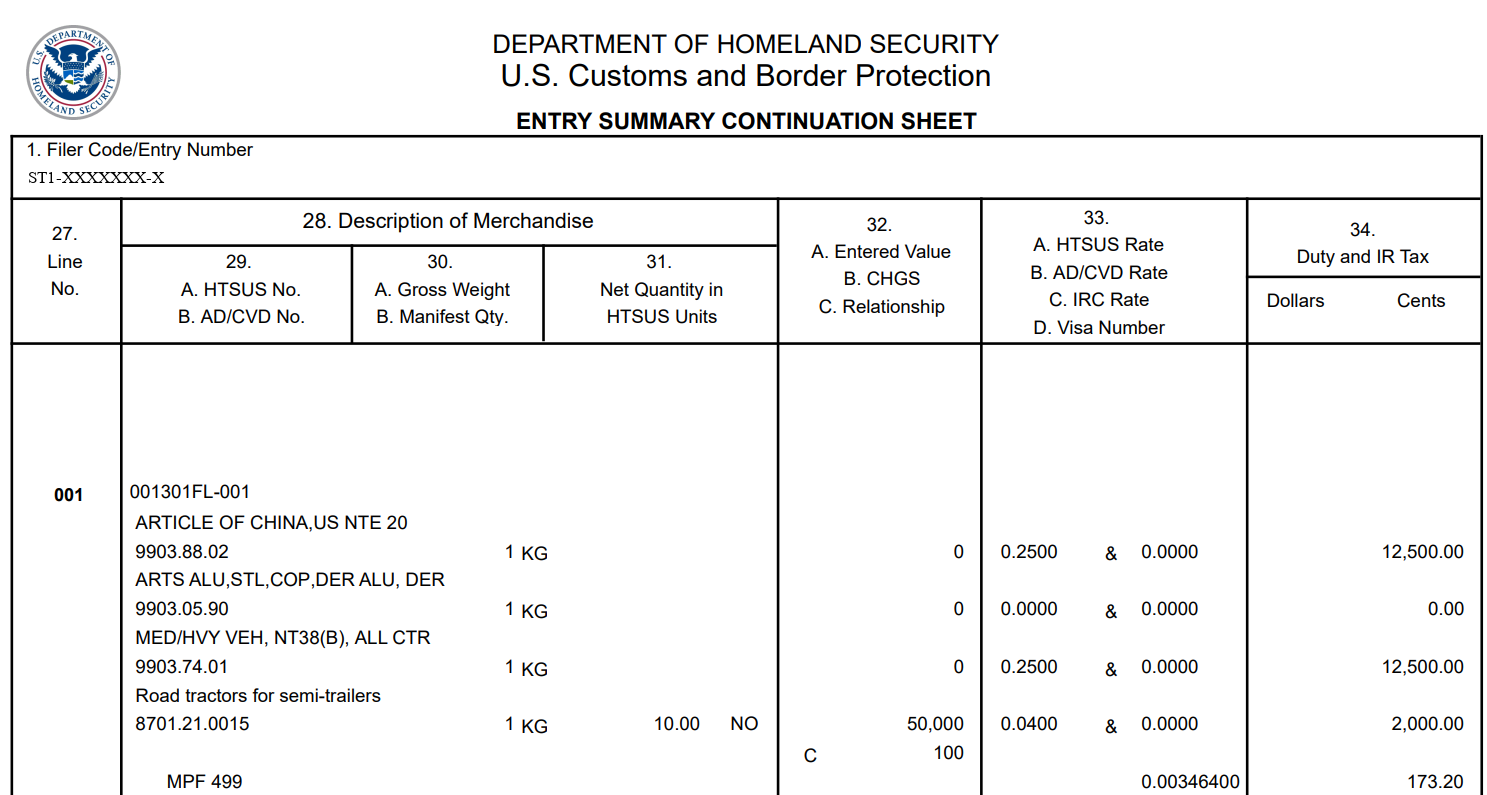
After the IMCR is added, generate the entry with the Apply IMCR box checked. The line now carries all four numbers in the order the IMCR defined, with the new 9903.05.90 sitting at sequence 2 between the two numbers that were already there.
When you do not need an IMCR rule
You do not have to write an IMCR for every missing tariff. See Apply Best Match Missing Additional Tariffs below, which if selected on the 7501, fills the Chapter 99 numbers that can be determined from the line itself and leaves IMCR for the cases that cannot.
Splitting a line into Content and Non-Content
Only IMCR can split a tariff line into two lines of Content and Non-Content. Where value has to be split across two tariff lines, including Section 232 content, the amount has to be defined specifically, so an IMCR is required. Apply Best Match will still apply Chapter 99s to such a line, it just will not create the split of two tariff lines if IMCR is not utilized.
Apply Best Match Missing Additional Tariffs
tip
Click to see a walkthrough video about the automatic tariff application on the CF7501 weekly entry form.
This functionality is available to you when you receive the 26.4 release.
What it is
Apply Best Match uses a tariff logic engine that Thomson Reuters built and maintains from CBP's published requirements. It is not artificial intelligence. It does not learn from your data and it does not guess: every Chapter 99 it applies follows defined logic that we maintain and update as regulations change.
What it does
Best Match determines the Chapter 99 numbers a tariff line requires and fills in the ones that are missing, so you do not have to write an IMCR for every case. It works from the import HS number, the country of origin, the tariff application date and the attributes on the line.
Best Match recalculates each line it touches against that line's tariff application date. It does not treat a Chapter 99 already on the line as settled.
important
Apply Best Match requires the entry to be in unprinted status. To re-apply on a printed entry, unprint the 7501 first, then preview or generate again.
Where an IMCR rule is still needed
Some Chapter 99 selections depend on facts that cannot be determined from a tariff number and a country of origin. These include company identity, patent status, onshoring agreements, generic or specialty designation and end use. Where the correct Chapter 99 depends on one of these, or on a government action we have not yet loaded, an IMCR is still required.
The same applies where value has to be split across a tariff line, including Section 232 content, because the amount has to be defined specifically.
Choosing between Apply IMCR and Apply Best Match
The two checkboxes are independent and you choose per entry. Both require the entry to be in unprinted status.

On an entry with no Chapter 99s yet
Apply IMCR | Apply Best Match Missing Additional Tariffs | What happens |
|---|---|---|
Un-Checked | Un-Checked | Neither is used. The entry generates as it does today, with no Chapter 99s added. |
Checked | Un-Checked | Only your IMCR are applied, exactly as you wrote them. |
Un-Checked | Checked | Best Match determines the Chapter 99 numbers for every line. |
Checked | Checked | Your IMCR are applied first, exactly as you wrote them. For lines where none of your IMCR matched, Best Match determines the Chapter 99 numbers. |
Re-generating an entry that already carries Chapter 99s
This is where the two options behave differently, and it is worth reading before you check Apply Best Match on an entry you have generated before.
With neither box checked, nothing recalculates. The entry reflects the layers as they stand and existing Chapter 99s remain.
With Apply Best Match checked:
- Any update to the tariff determinations will be applied based on the tariff application date.
- If a Chapter 99 is on the line because one of your IMCR put it there, and you run Apply Best Match with Apply IMCR un-checked, Best Match replaces it with its own determination.
Lines that Best Match does not touch, are not affected.
important
If you use IMCR, keep Apply IMCR checked whenever you check Apply Best Match, unless replacing your IMCR values is what you intend.
Changing a line after Chapter 99s are applied
There is no undo. Unprinting does not remove Chapter 99s; they stay on the layers. There are two routes to update:
- Write an IMCR to overwrite. The IMCR has to match what the line looks like now, including the Chapter 99s already on it.
- Deactivate the IMCR and let Best Match recalculate that line.
What generating updates
Generating an entry updates the shipment records belonging to that entry, the remaining receipts for the parts the entry depleted, and the original receipt behind it.
important
Shipment records are linked by receipt layers. If a shipment on another entry came from the same receipt layer, that entry's shipment records are updated as well. Documents you have already generated do not change: a printed 7501 is the record, and it only changes if you deliberately unprint and re-generate that entry.
Preview
A
Preview
link on the entry page produces the 7501 exactly as it would look with the options you selected, without changing anything. Preview works with Apply IMCR on its own, with Apply Best Match on its own, with both, and with neither.Preview does not write to your inventory layers and does not transmit to CBP or ABI.
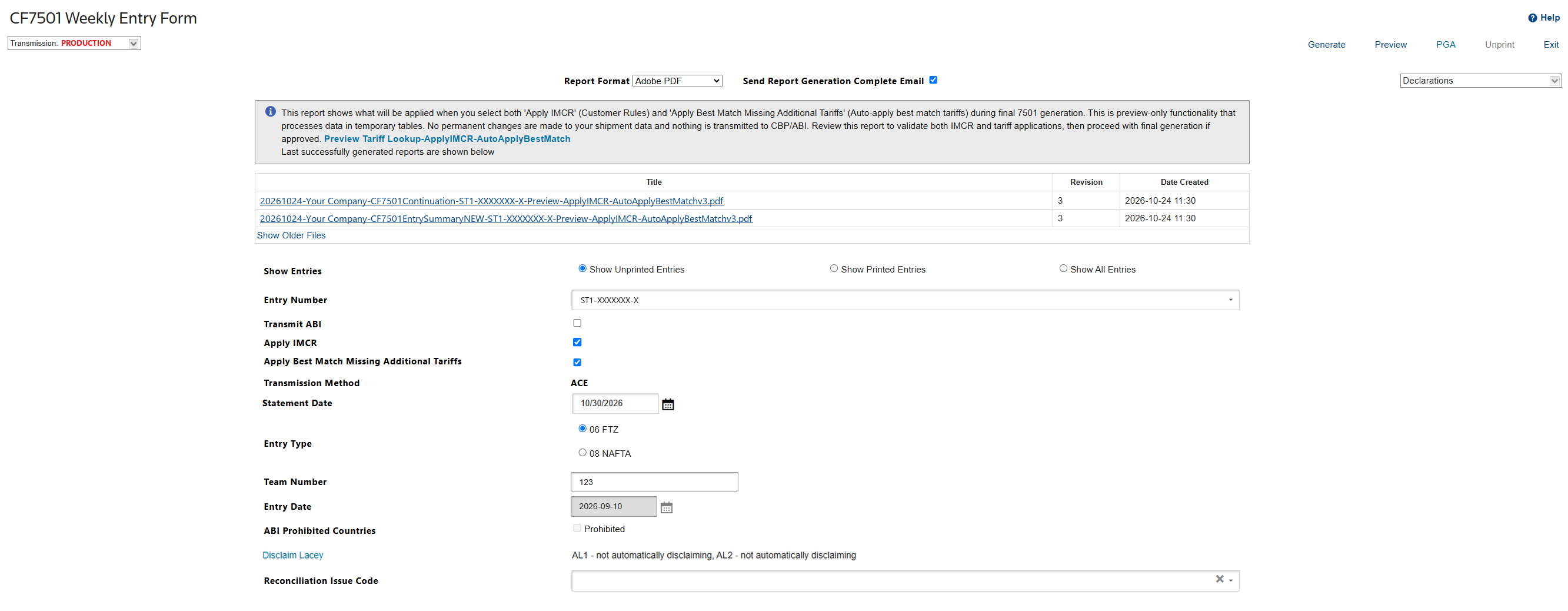
- Preview produces two documents: the Continuation and the Entry Summary. As well as a link to a new Lookup (Preview Tariff Lookup).
- The reports are named with Preview and with the options that were used, for example Preview-ApplyIMCR, Preview-AutoApplyBestMatch, or Preview-ApplyIMCR-AutoApplyBestMatch.
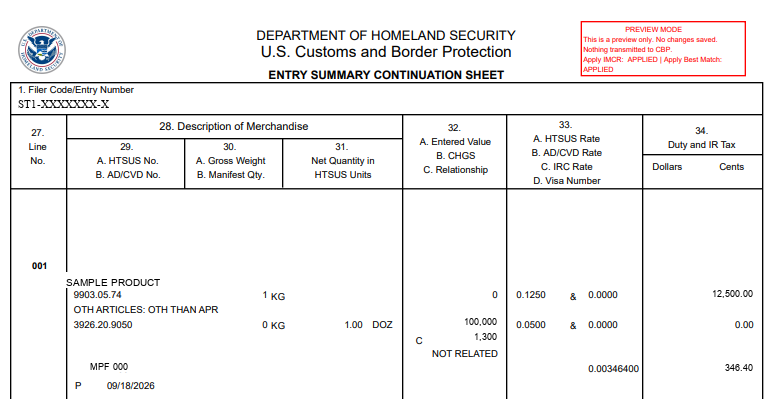
- The preview Continuation and Header carry a PREVIEW MODE stamp that names which options were applied. The final generated document carries no stamp.
- Preview is available on unprinted entries only.
Reviewing every tariff line
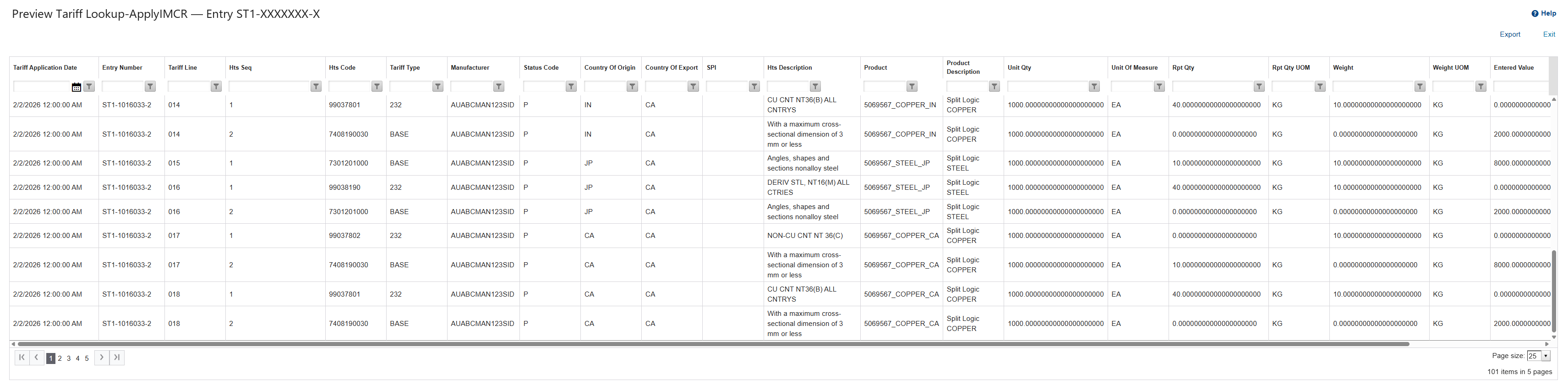
A Preview Tariff Lookup opens the full detail for the entry: every HTS line, part and tariff assignment, including the tariff type behind each Chapter 99. Export it to Excel to review or circulate before you generate. It is named with the options you selected, the same way the preview reports are.
Each tariff line lists its Chapter 99s first and the base HTS last, so the highest sequence on a line is always the base HTS. The first column is Tariff Application Date, which tells you which date Best Match evaluated that line against.
Adjusting and previewing again
If a determination is not what you want, create an IMCR for that line and preview again. Repeat until the 7501 is what you expect.
Generating the entry
To create a report:
- ClickGenerate. A report can be generated as an Adobe PDF (default), Excel spreadsheet, or Word document.
- To view a generated report, click the associated link.
important
It is not possible to undo or stop a 7501 generation. Once it starts, it must complete the process.
Acknowledgment
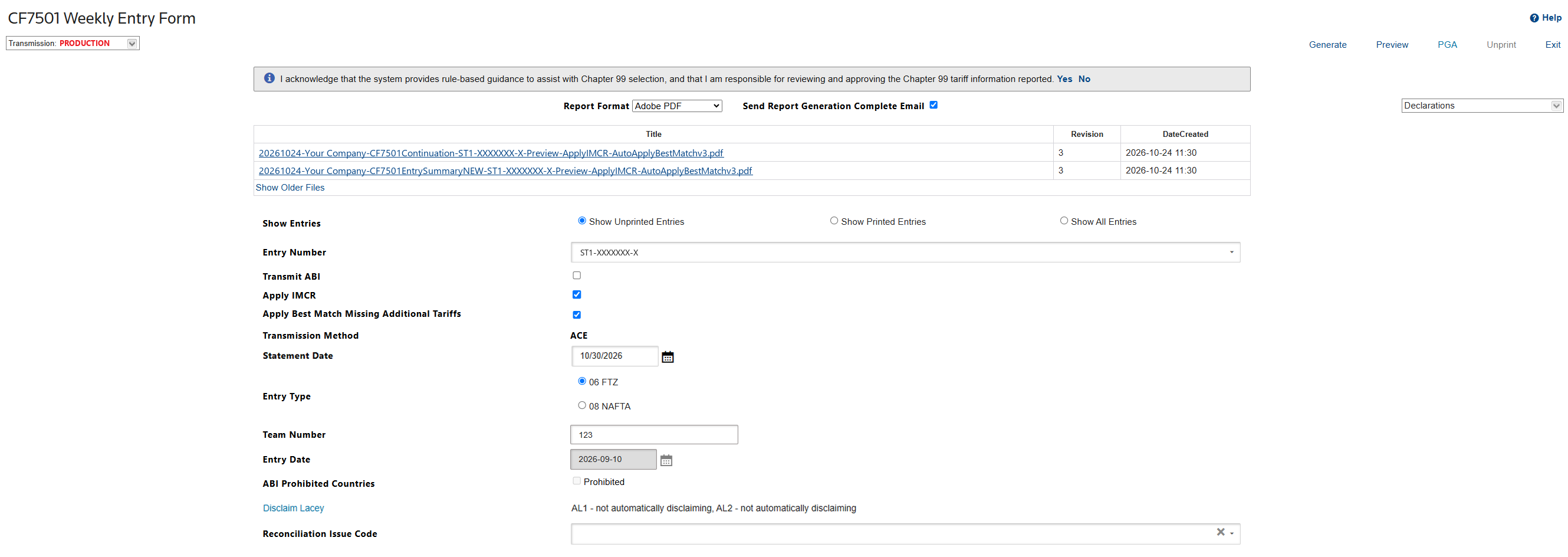
When you select Generate with Apply Best Match Missing Additional Tariffs checked, you are asked to acknowledge that the product provides rule-based guidance to assist with Chapter 99 selection and that you are responsible for reviewing and approving the Chapter 99 information reported. Answer
Yes
to apply the selections and produce the 7501.This prompt appears only when Apply Best Match is checked, and only on Generate. It does not appear on Preview.
Disclaim Lacey
For information on how to add a Mass Disclaim for APHIS Lacey information that was filed through the FTZ Admission process, please see the Disclaim Lacey article.
 Article