
FTZ Management: Reports - CF7512 Outbound
The
CF7512 Outbound
screen allows users to generate three different forms, as listed below. Templates can be used for all three forms to populate header data found at the top of the screen.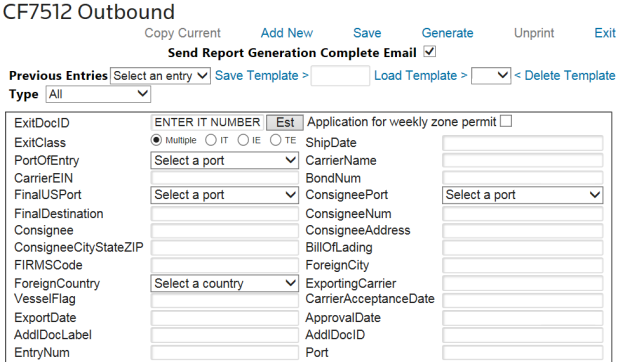
CF7512 Outbound Reports | Description |
|---|---|
Weekly Export Estimate | For an estimate, check the Application for weekly zone permit box. Both the header data and detail data must be keyed into the screen. There is an option to generate the estimate detail from the HTS table or the current inventory in FIFO Receipts. To duplicate a previous estimate:
|
On Demand CF7512 Form | Since no inventory processing has occurred, both the header data and detail data for the export must be keyed into the screen. To create the reports:
|
CF7512 Form for Exports | This report shows system-generated shipments processed as exports where foreign status product was allocated. This requires FIFO to be processed prior to the form generation.
You must enter the applicable header data for the form, as well as the Marks, Manifest Quantity, and Manifest Quantity UOM in the detail section. To create the reports:
|
Generating a New Template
To generate a new template:
- Enter the applicable static data.
- Enter a template name.
- ClickSave Template.

Retrieving an Existing Template
To retrieve an existing template:
- Select the template name.
- ClickLoad Template.

Deleting an Existing Template
To delete an existing template:
- Select the template name.
- ClickDelete Template.

Previous Entries
To retrieve a previously-generated report or print a CF7512 report:
- ClickPrevious Entries.
- Choose a report.

Send Report Generation Complete Email
Checking
Send Report Generation Complete Email
sends an e-mail so other tasks can be performed as the CF7512 generates. To proceed without a confirmation e-mail, uncheck the box.
 Article