
FTZ Management: Tools - FIFO Mass Update
The
FIFO Mass Update
screen allows the user to identify a large amount of transactions needing to be updated and universally apply the same update to all identified transactions. This screen can be opened by choosing FIFO Mass Update
from the Tools
menu. Transactions from staging to production to assignment (and their respective documents) are available.
The fields in the
FIFO Mass Update
grid are configurable and will be set up for the client company during implementation. For any further configurations, contact Support.
- Use the drop-downs to modify which fields will display.
- Once the desired field and desired value have been selected, clickUpdate Display Fields.

- ClickShow/Hide Filterto filter the transactions once the desired field is displayed.
- Enter the value to be searched.
- Select the appropriate filter criteria. This can be done for each field displayed.
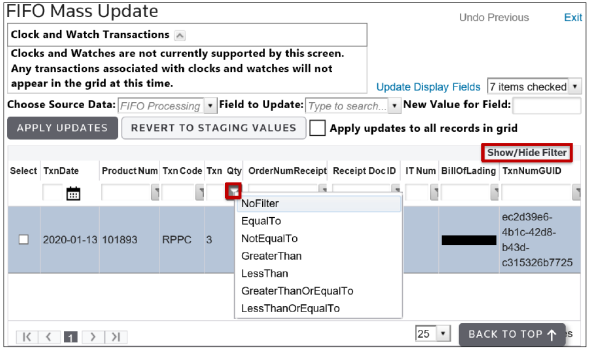
- Click on theField to Updatetextbox.
- Begin typing the name of the field to be modified. Since the box has type-ahead capabilities, all fields matching what was typed will appear as options.
- Select the field to be updated.

- Before applying the update, select the transactions to be updated by checking their corresponding boxes on the far left.

- If the update applies to all transactions, checkApply updates to all records in gridand the boxes will be removed from the grid for individual selection.
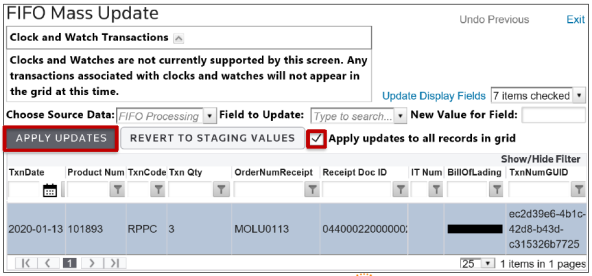
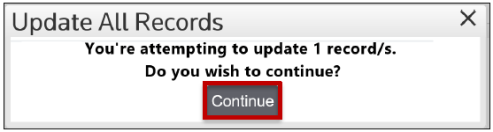
- To apply the change, clickApply Updates. A prompt will then appear on the screen.
- Click Continue to proceed.
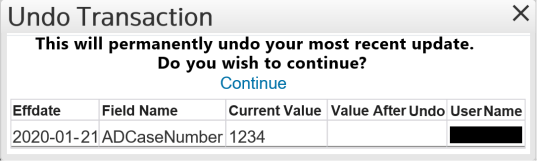
- If for any reason the transactions were updated with the wrong value, click Undo Previous at the top of the screen to revert to the most recent update.
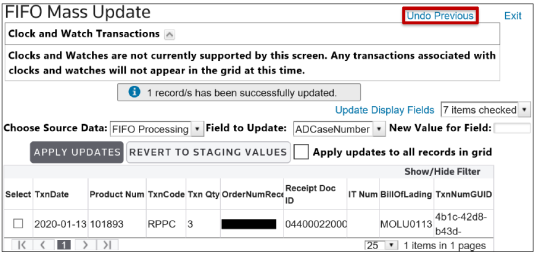 A prompt will be displayed showing the current and previous value.
 - ClickContinueto revert to the previous value. If multiple updates are applied,Undo Previousstep can be performed sequentially reverting changes in the order they were performed.
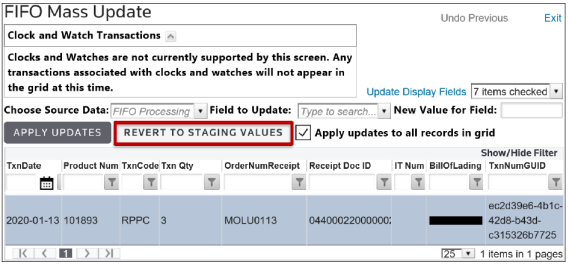
- If for any reason the transactions are to be reverted to their original staging value, select the appropriate records or all in the grid.
- ClickRevert to Staging Valuesand accept the prompt.All transactions selected must have staging history details to use this option.
Related Content
-
FTZ Management: Tools Overview, Task Manager, and FTZ Search
Format: Article