
FTZ Management: Tools - FIFO Transactions in FTZ Lookups
The FTZ Lookup screens provide a high-level overview of all FIFO transactions currently being processed through the system. From each lookup screen, the user can easily select which transactions are needed for viewing or editing at any given point in time.
This screen can be opened by choosing
FTZ Lookup
from the Tools
menu.important
Some users may also have access to the original
Saved Queries
screen, which displays the same information previously described in a slightly more compacted view.There are several different
FTZ Lookup
screens, each of which includes a number of standard and client-specific queries that have been configured to display important information about the transactions stored in the system.
Lookup Screens (Action Links) | Description |
|---|---|
Web Links | Provides a list of customizable links to external sites. Embedded links can be provided to other websites outside of FTZ Management. If added during implementation, these links will display in the upper right corner of each FTZ Lookup screen under the Web Links drop-down. |
Extract | Extracts the details currently being displayed on the FTZ Lookup screen to an Excel spreadsheet, allowing the user to filter & extract custom reports from any FTZ Lookup screen. |
Exit | Returns the user to the FTZ Management platform homepage. |

Docks
The queries provided on an FTZ Lookup screen (also called docks), are set up to display key transactional information users need in order to help quickly identify a particular transaction or important attributes about a transaction housed in the FTZ tables.
Docks can pull dynamic data to represent various milestones in the daily processing cycle and will be configured to the user’s preference during implementation. Some examples of standard queries on the FTZ Staging Lookup screen include:
• FTZ Staging Production Transactions
• FTZ Staging Receipt Transactions
• FTZ Staging Shipment Transactions

Next to each dock title is a number or icon.
Dock title icons | Description |
|---|---|
Number | A number indicates the number of records matching the criteria for the dock. For example, if a record is edited and no longer applies to a specific dock, the record will be removed from the dock when the Lookup screen is refreshed. |
Loading  | This icon indicates that the dock’s query is still loading. If the query is successful, a number will appear in the icon’s place. If the query is unsuccessful, a warning icon will appear in the icon’s place. |
Warning  | This icon indicates that the system ran into an issue while running the query. If one or more Lookup docks show this icon, please contact your system administrator for support. |

Opening a Dock
To open a dock:
- Click on a dock name.
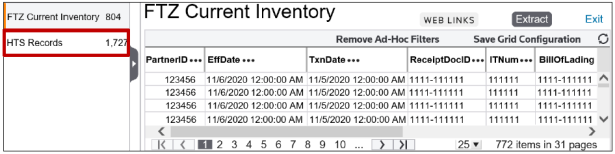
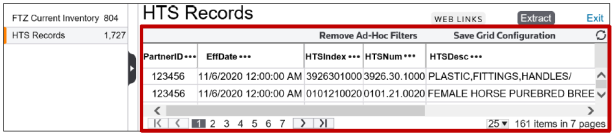
The screen will reload and display the dock results in a new grid. The header will match the name of the selected dock.

Each dock displays key information specific to that record. The fields shown on the Lookup grids are customizable per the client’s preference.
Showing/Hiding the Dock Menu
To make more room on the screen, the dock menu can be hidden. This can be done by clicking the > button on the left of the screen.

The screen will refresh to show the grid without the docks visible. Clicking the icon again will return the dock menu to the screen.

Editing a Record in a Lookup Screen
To edit a record:
- Choose an available query from the dock.
- Select a record.
- ClickEditon the far left. The Edit link will redirect you to anEditpop-up for the specific product record (example: country), facilitating the ability to update and compare all product records.
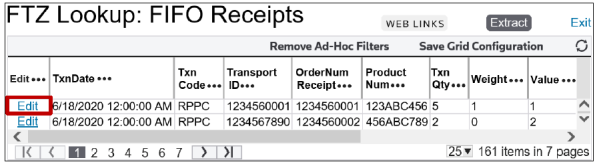
- Make any necessary changes.
- ClickSave.
Filtering
After selecting a dock and view, you can use filters to search and quickly locate specific products. Search results can be refined on additional columns, if needed.
To perform a search:
- Choose a column to search by.
- Click the icon to the right of the column name.

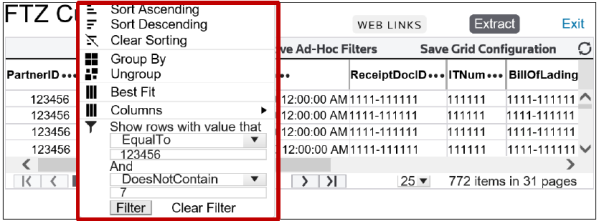
Clicking the advanced filter icon will open a list of filtering options. Each of these options is explained in more detail in the sections below.
Sorting
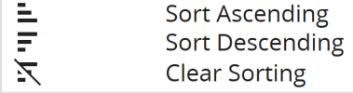
Columns can be sorted in ascending (A-Z) or descending (Z-A) order. You also have the ability to clear sorting to return the column to its original order.
Grouping
Clicking
Group By
will cause the grid to refresh. 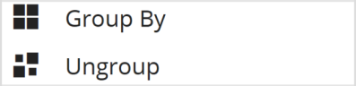
All records sharing the same value for the selected column will be grouped together and can be expanded/collapsed by clicking the arrow button on the far left. In the example below, the grid is grouped by
PartnerID
. As a result, all records with a PartnerID value of 123456 were grouped together.
Clicking
Ungroup
will return the grid to its original state.Best Fit
Some docks may have columns that take up more space than is needed.

The
Best Fit
filtering option shrinks the column width to the best fit for the screen’s parameters.

Column Configuration
The
Columns
filtering option makes it possible to show/hide only the columns the user needs to view.
Column headers with a checked box will remain visible. Column headers with an unchecked box will be hidden.

Filtering
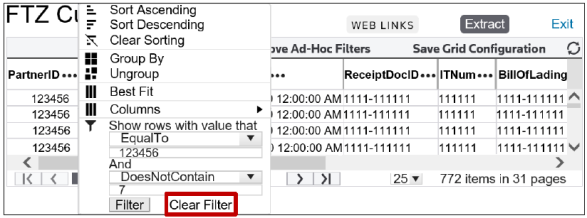
Columns can be filtered to show only rows with values that meet specific parameters.
- Choose a column to search by.
- Enter a value to search by.
- Choose a filter option from the provided list. A series of filter options (e.g. Contains, DoesNotContain, etc.) will appear. These options may vary depending on the type of column (Alphanumeric, Numeric, Date, etc.).

- Once the parameters are set, clickFilter.
The grid will refresh to show only rows with values that match the specified filtering criteria.

To clear all filters from a specific column:
- ClickClear Filter.
Grid Configuration
To save the grid’s current configuration:
- ClickSave Grid Configuration. The next time the grid is opened, it will load with all saved parameters (filtering, fitting, column configuration, etc.) already applied.

To restore the grid to its original configuration:
- ClickRemove Ad-Hoc Filters.

Related Content
-
FTZ Management: Tools Overview, Task Manager, and FTZ Search
Format: Article