
FTZ Management: Assignment - Initiate Inventory Processing - Validation Error, Roll Back and Finalize FIFO
The
Initiate Inventory Processing
screen is used to initiate the First In First Out
(FIFO) consumption of receipts by shipment transaction. This step is where shipments consume inventory in a FIFO manner (oldest receipts are shipped out first). This screen can be accessed by choosing Initiate Inventory Processing
from the Assignment
menu.Once all transactions have been validated and assigned, use this screen to process all inventory transactions within the system.
To begin the FIFO process, click
Process FIFO
. Shipments will then consume receipts in FIFO order.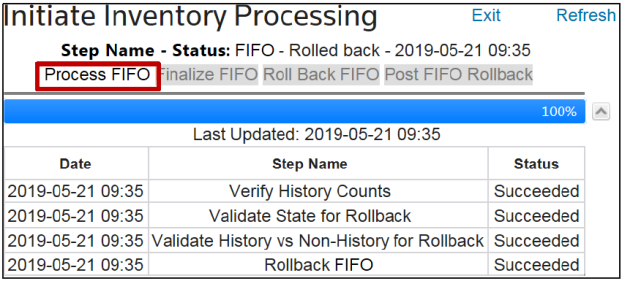
Validation Error Messages
If the transactions in current processing have not been successfully validated, navigating to the
Initiate Inventory Processing
screen will result in an error message with a link to the Transaction Correction
screen as seen below. Clicking this link will redirect the user to the Transaction Correction
screen. In the Validation Status and Report
screen, the user can edit and revalidate any invalid transactions.
If not all transactions have been appropriately assigned to a U.S. Customs document number, navigating to the
Initiate Inventory Processing
screen will result in an error message with a link to the assignment screens necessary to ensure each transaction in processing is properly assigned.
Once all transactions are validated, assigned, and FIFO has processed successfully, the screen will update with a message showing
Step Name – Status: FIFO – Completed
followed by a timestamp of when FIFO successfully completed.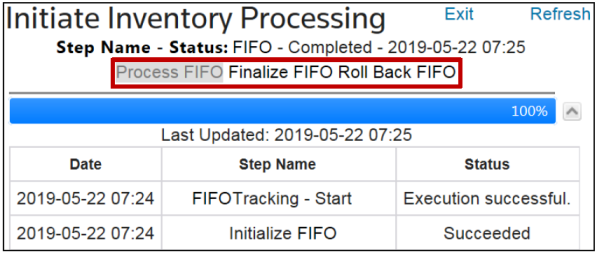
Roll Back FIFO
Since FIFO transactions cannot be edited after finalization, it is important to check for inventory imbalances between the in-house ERP system and FTZ Management prior to finalizing FIFO. This can be done by using the
Component Balance Audit Report and Finished Goods Balance Audit
screens under the Reports
menu. If any variances need to be corrected, open the Initiate Inventory Processing
screen from the Assignment
menu and click Roll Back FIFO
.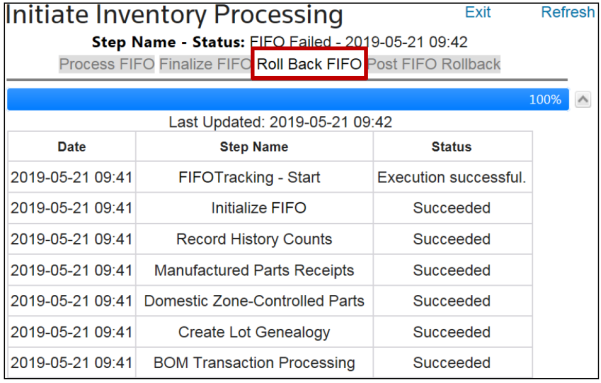
Once the rollback is complete, the user can determine the source of the variance and resolve the issue.
Finalize FIFO
After FIFO has successfully completed and all imbalances have been resolved, click
Finalize FIFO
. Once FIFO has been finalized, transactions cannot be edited or re-assigned. Please make sure to thoroughly audit your data before clicking Finalize FIFO
. Once FIFO is finalized, users may then process reports as necessary.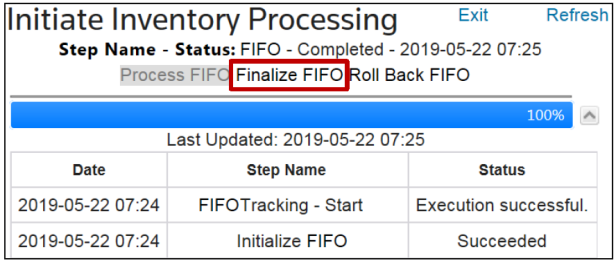
Related Content
-
FTZ Management: Assignment Menu Overview and E214 Data to Foreign Receipts
Format: Article
-
FTZ Management: e214 - Understading the Process
Format:
Article