
FTZ Management: Assignment - Manifest Entry - Entering and Updating Data
Some companies prefer to manually enter manifest information prior to the physical receipt of the goods. In these instances, the
Manifest Entry
screen may be used for this purpose. This screen can be accessed by choosing Manifest Entry
from the Assignment
menu.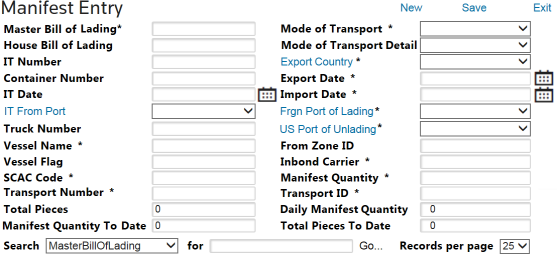
Partial inventory receipts may cause problems in identifying the manifest quantity to report on the daily CF214 (e.g. only 50% of a 5000-piece carton is received in a day, meaning 2500 have yet to be received).
To address this issue, the
Manifest Entry
screen contains a query that may be run during the validation process. Users that manually enter their manifest data will have to enter the new data elements if they plan to use this functionality.If you receive electronic manifest feeds, you will need to add this to your interface or update the records manually.
Entering New Manifest Data
To enter new manifest data:
- ClickNewat the top of the page.

- Use the data entry fields to complete the manual entry.
- Fields noted with an asterisk (*) are required fields. After all data has been entered, clickSave.
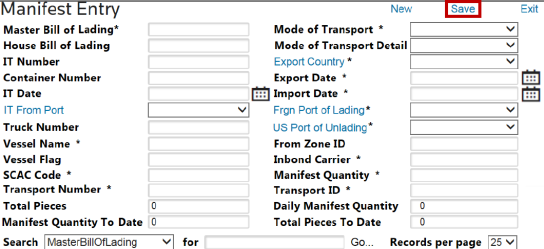
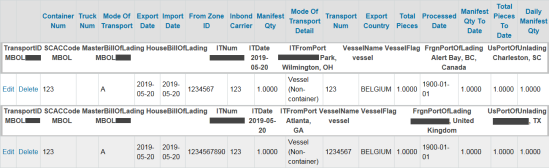
- OnceSaveis clicked, the data will be validated to ensure all required fields are populated. Validation errors will appear on the top of the screen and must be resolved before the record can be successfully saved. Once the data is successfully saved, it will appear in the grid below the form portion of theManifest Entryscreen.
Updating Manifest Data
To update a record:
- Choose a record and clickEditon the far left. This will reopen the form portion of theManifest Entryscreen.
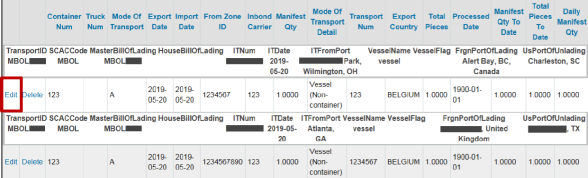
- Make any necessary changes and clickSave. The updated data will appear in the grid portion of the main screen, just like in the picture above.

Reading the Manifest Entry Grid
The
Manifest Entry
grid organizes manifest information into groups of data as shown below.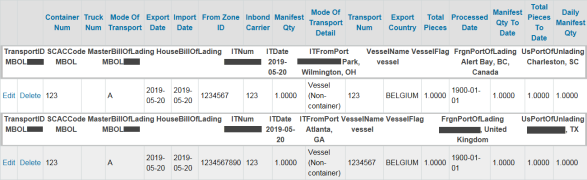
Color | Description |
|---|---|
Light Gray Row | Displays all shared elements of a particular set of manifest records (same Bill of Lading, IT Number, Transport ID, Vessel Name, SCAC Code, etc.) |
Dark Gray Row | Displays the field names for the white row underneath. |
White Row | Displays the information details of each record. |
The grid can also be filtered by choosing a field to search in and a value to look for. After these values have been selected, click
Go
…. The grid will filter to display only records containing the specified search criteria.
 Article