
FTZ Management: PreReceipt - Special Processing
The
Special Processing
screen is used for moving transactions from the production table back to the staging table. This screen can be accessed by choosing “Special Processing” from the “PreReceipt” menu.
PreReceipt Special Processing: Back to Staging
To move production pre-receipts back to staging, navigate to the “Staging Move” heading on the left side of the screen and select one of the below options. Once on the main pane, the white content area populates with checkboxes or a textbox. To select a Transport ID or Invoice to move, check the corresponding box. If “Product Number” is selected, enter the desired product number to move in the displayed textbox.

A prompt will appear on the screen, asking the user to confirm (s)he wants to execute the process. Click “Yes” to move the selected production pre-receipts back to staging.

PreReceipt Special Processing: Modify Transport ID
To modify the Transport ID, navigate to the “Modify Transport ID” header and select either “TransportID”.
Once on the main pane, the white content area populates with checkboxes and a textbox. To select a Transport ID to modify, check the corresponding box. Selecting multiple Transport IDs will combine them as the new entered Transport ID. Enter the new Transport ID into the provided textbox, then click “Execute Process”.

A prompt will appear on the screen, asking the user to confirm (s)he wants to execute the process. Click “Yes” to update the selected pre-receipts.

PreReceipt Special Processing: Delete All Matching
To delete all the pre-receipts matching a certain Transport ID, navigate to the “Delete All Matching” header and select “TransportID”.
Once on the main pane, the white content area populates with checkboxes. To select one or more Transport IDs to delete, check the corresponding boxes. Once the Transport ID boxes have been checked, click “Execute Process”.

A prompt will appear on the screen, asking the user to confirm whether or not to execute the process. Click “Yes” to delete the selected pre-receipts.

PreReceipt Special Processing: Modify Transaction Values
To modify the total charge for a specific Transport ID, navigate to the “Modify Transaction Values” header and choose “Transport ID”. Choose a Transport ID to modify from the drop-down list. Type the new Total Charge into the provided textbox, and then click “Execute Process”.
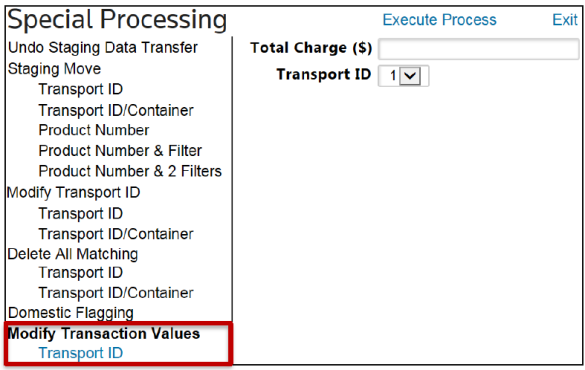
A prompt will appear on the screen, asking the user to confirm whether or not to execute the process. Click “Yes” to update the selected pre-receipts.

PreReceipt Special Processing: Moving Staging Transactions to Production
To move staging pre-receipts forward to production, navigate to the “Production Move” heading on the left side of the screen and select one of the below options.
Once on the main pane, the white content area populates with checkboxes or a textbox. To select a Transport ID or Invoice to move, check the corresponding box. If “Product Number” is selected, enter the desired product number to move in the displayed textbox. Please note that this process can only be run after staging has occurred and before FIFO.

A prompt will appear on the screen, asking the user to confirm (s)he wants to execute the process. Click “Yes” to move the selected staging pre-receipts into production.

Related Content
-
FTZ Management: PreReceipt Processing Overview
Format: Article