
FTZ Management: Reports - Product History Report and Product History by Lot
Product History Report
The Product History Report displays a set of specified transactions for a specific product number within the provided date parameters. This screen can be accessed by choosing
Product History
from the Reports
menu.To generate a report:
- Select theTextradio button to manually enter the product number or select theDropdownoption to select a product number from a drop-down.
- Enter theProduct Number, Beginning Date, andEnd Date.
- Check the appropriate boxes in theTransaction Typessection to determine which types to include.
- ClickGenerate.
A report can be generated as an Adobe PDF (default), Excel spreadsheet, or Word document. These options are available in the
Report Format
drop-down. To view a generated report, click the associated link.Checking
Send Report Generation Complete Email
sends an e-mail so other tasks can be performed as the Product History Report generates. To proceed without a confirmation e-mail, uncheck the box.
Product History by Lot
The Product History by Lot Report displays a set of specified transactions for a specific lot number within specific date parameters. This screen can be accessed by choosing
Product History by Lot
from the Reports
menu.To generate a report:
- Choose a field to search from theSearch Fielddrop-down.
- Enter the value to search for in theSearch Valuefield.
- Enter theBeginning Date and Ending Date.
- Check the appropriate boxes in theTransaction Typessection to determine which types to include.
- ClickGenerate.
A report can be generated as an Adobe PDF (default), Excel spreadsheet, or Word document. These options are available in the
Report Format
drop-down. To view a generated report, click the associated link.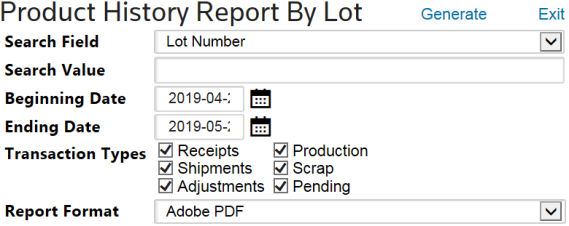
 Article