
FTZ Management: Knowledge Based Articles - Shipment Reassignment User Update
tip
To view the image in higher resolution, right-click the image and select
Open image in new tab
.In some situations, your site may be configured with a
User Update
to assist with shipment reassignment. This is most commonly used when manufactured goods generate a high number of tariff lines and must be split across multiple entries to comply with the CBP entry line limit (998 lines)
.Follow the steps below to reassign tariff lines from one entry to another.
important
Prerequisites
:
- The entrymust already be generated.
- The entrymust then be unprinted.
- Unprinting after initial generation iscritical.
- The reassignment toolwill not move any lines unless the entry is unprinted.
- Generating and unprinting the entry also allows you to confirm the total number of tariff lines and determine how many need to be moved.
Steps to Reassign Shipment Lines
:
- Prepare the Entry
- Generate the entry.
- Unprint the entry after generation to enable line reassignment.
- Access the User Update Tool
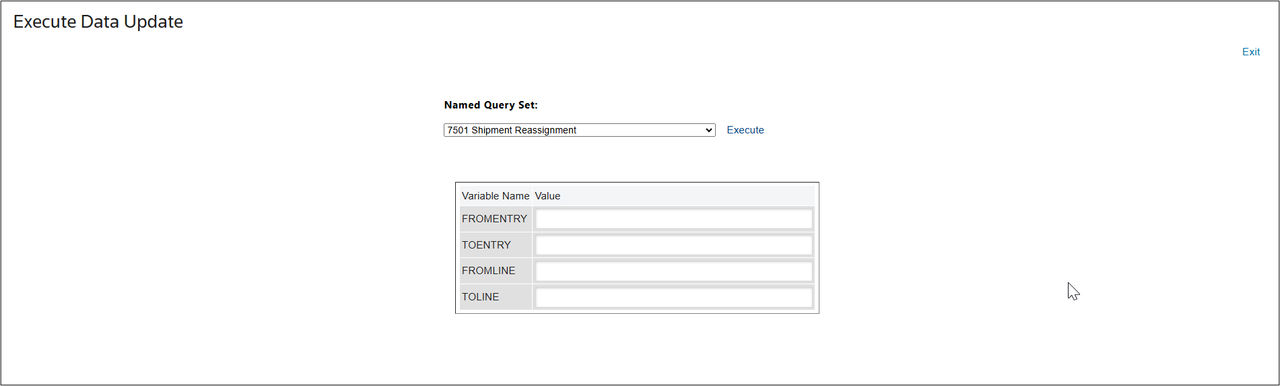
- When the 7501 entry is ready, navigate toTools > User Updates
- Select the Shipment Reassignment Update
- From the dropdown menu, select7501 Shipment Reassignment.
- The screen will populate with several required fields:
- FROMENTRY: The entry number you are moving tariff lines from.
- TOENTRY: The entry number you are moving tariff lines to.
- FROMLINE: The first tariff line number in the range you want to move.
- TOLINE: The last tariff line number in the range you want to move.
- Execute the Reassignment
- ClickExecuteto begin the move.
- The system will prompt you to confirm the action.
- Carefully review all entered values. If correct, clickYesto proceed.
- Review the Results
- If successful, the system will display the tariff lines that were impacted. The number of records shown will vary based on how many lines were moved.
- If an error message is received:
- Recheck all input values for accuracy.
- If everything appears correct, submit a support case for further investigation.
Related Content
-
FTZ Management: Knowledge Based Articles Overview
Format: Article