Creating a Classification Request
Header
Once on the Create
Classification Request
screen, enter as much information as possible so the third party can fully process the request.Use the
Notes
field to provide any specific instructions and note that all required fields are indicated as such with an asterisk (*).The system will not allow the user to create a request without populating all required fields (the required fields as well as the fields appearing are configurable during implementation). Additionally, if an e-mail address does not exist or is no longer in service, the e-mail generated by the system will bounce back and appear on the
Email Bounceback
lookup located in the Tools
menu. This screen is covered in more detail in the Email Bounceback Management
section of this User Guide.
Requests can be made for specific country views by changing the
Country
drop-down at the top of the screen.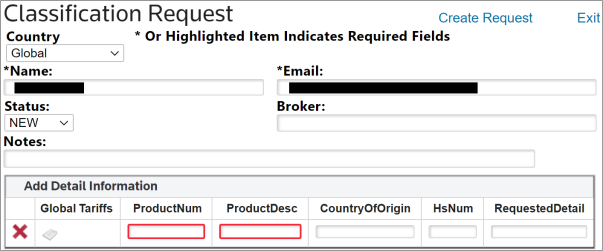
Detail
After completing the top half of the request, add products to the request by entering information in the required product fields (indicated by a red outline).

To browse the Tariff Schedule for the selected country, click the icon in the
Global Tariffs
column. If Global
is selected, the World Customs Organization (WCO) Global HS schedule will open instead.
This screen allows the user to
pre-classify
or guess the appropriate classification to be confirmed later by the third party responsible for completing the request.
Once all available information has been provided, click
Create Request
. The request will then be generated in the system and appear within the Classification Request Lookup
.
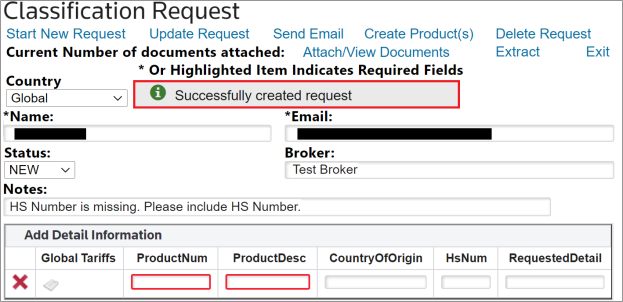
Once the request has been successfully created, a notification message appears on the screen: