
Edit Custom Mappings
The
Edit Custom Mappings
screen contains a list of all current custom HS mappings in a grid. This screen can be opened from the Maintenance
menu.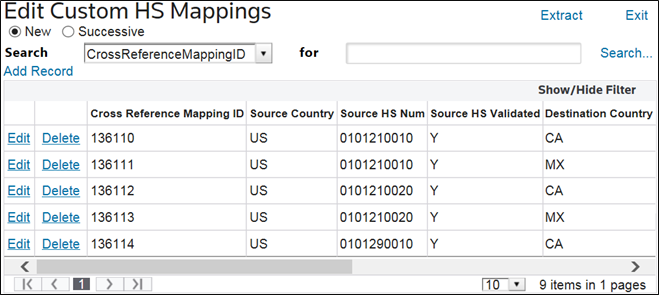
When searching the
Source Country
column, choose a country to view and then click Search
. These countries will be listed by their 2-character ISO Country Code.
Once a country is selected, the screen will automatically refresh to display all existing custom mappings for the selected country.

The
Edit Custom Mappings
screen contains the following five columns:Columns | Description |
|---|---|
Source HS Number | The source country HS Number the user wants to use as a base for the Custom HS mapping. |
Source HS Number Valid | This column tells the user whether the Source HS Number is valid (Y) or invalid (N). An HS Number’s validity is determined by ONESOURCE Global Trade Content. This column will automatically populate every time a new HS mapping is added to the system. |
Mapped Country | The country to which the HS mapping should apply. |
Mapped HS Number | The HS Number that will apply to a product in the Mapped Country, provided the product is classified with the Source HS Number in the Source Country. |
Mapped HS Number Valid | This column tells the user whether the Mapped HS Number is valid (Y) or invalid (N). An HS Number’s validity is determined by ONESOURCE Global Trade Content. This column will automatically populate every time a new HS mapping is added to the system. |