
Link to Global Trade Content
HS Number
Clicking the
HSNum
field link will redirect the user to Global Trade Content.
If the field is populated, the user will see the classification description from Global Trade Content. Otherwise, the user will be taken to the starting search screen.

Chapters can be expanded until the specific HS Number for a product is identified.
To maximize a drop-down, click on the “
+
” to the left of the HS Number to be maximized.To minimize a drop-down, click on the “
-
” to the left of the HS Number to be minimized.
Once the product’s correct and complete HS Number is identified, click
Select
next to the HS Number.
The HS Number will be automatically applied to the product on the
Edit Classification
screen.
ECNNum
Clicking
ECNNum
redirects the user to Global Trade Content.
If the
ECNNum
field is already populated, the user will be redirected to the specific ECN contained within Global Trade Content. Otherwise, the user will be directed to the starting search screen in ECN Search
. On this screen, choose a country and regulation list to search.
Users can expand chapters until they reach the specific ECN number for a product.

To automatically apply an ECN Number to a product, click the ECN Number’s
Select
button. The ECN Number will be automatically applied to the product on the Edit Classification
Screen.
Binding Rulings
Clicking
Binding Ruling
will redirect the user to ONESOURCE Global Trade Content.
If the
Binding Ruling
field is already populated, the user will be redirected to the specific binding ruling contained within Global Trade Content.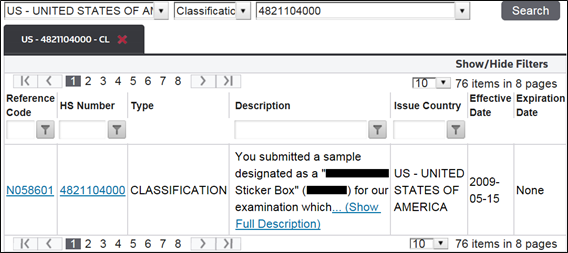
Otherwise, the user will be directed to the starting search screen in
Rulings Search
.
If an HS Number is populated in the
HS Number
field, the system will automatically search for binding rulings associated with the listed HS Number.
It is also possible to locate other binding rulings by utilizing the search functionality at the top of the screen. To open the full description and classification ruling, click on the
Reference Code
(far left).
Clicking the
Reference Code
opens the Binding Rulings Detail
pop-up, which contains the full binding ruling.
Once the correct Binding Ruling is found, copy and paste the Reference Code to the
Binding Ruling
box to apply it to the product on the Edit Classification
screen.
