
Needs Review
The
Needs Review
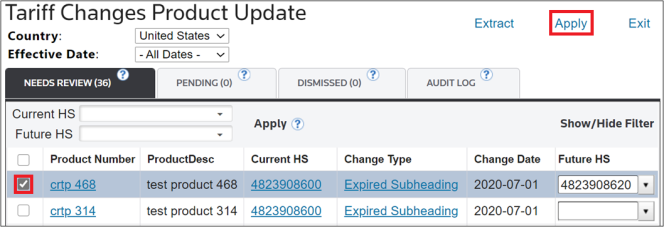
tab displays a complete list of products that:1. Match the
Country
and Effective Date
criteria specified at the top of the screen2. Have an HS Number change enabled on the “Tariff Update Manager” screen
Users are able to select future HS mappings for each product and stage them together under a future apply date.
Columns | Description |
|---|---|
Product Number | A unique key set up within ONESOURCE Global Classification. Clients may have other unique keys installed during implementation. |
Current HS | The product’s currently listed HS Number. |
Change Type | The type of change impacting the product. Clicking this link will open the “Tariff Changes Details” pop-up, which contains more information about the change. |
Change Date | The date the affected HS Number change takes effect. |
Future HS | This drop-down contains a list of potential new HS Number choices from which the user can select a replacement number. The user can also type a different number. Note: There is also a “Dismiss” option, which moves the product to the “Dismissed” tab instead of the “Pending” tab. |
In the
Future HS
column, select a suggested number from the drop-down, type a new number, or (if no change in HS Number is desired) select“Dismiss
.
Next, check the box next to the product and click
Apply
.
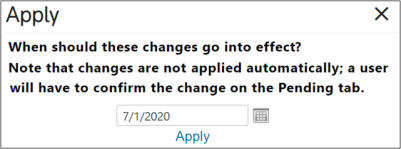
A pop-up opens, requesting a date be selected for the changes to be implemented.
important
Changes are not automatic. They will still need to be manually applied by the user from the
Pending
tab.Applying a Future HS Number en Masse
To apply a Future HS Number to products en masse, open the
Needs Review
tab.Click on the
Current HS
drop-down and choose the Current HS Number. Once the Current HS
number has been selected, the grid of Product Numbers will be narrowed down to only the products classified with the selected HS Number. In addition, the Future HS
drop-down will populate with a list of Future HS mappings correlated to the selected Current HS Number.Select a
Future HS
number to apply to the selected products. Once a Future HS
number has been selected, select the products to update and click Apply
. This can be done individually or en masse for up to 500 products at once.
Clicking
Apply
will open a confirmation pop-up, which requests an effective Apply Date for the change. Choose an Apply Date and then click Apply
.
The selected products will move to the
Pending
tab.