
Performing a Mass Update
To perform a mass update, select a
Country
from the drop-down.
Once a country has been selected, click on the
Fields To Add
field and check the boxes for all fields that need to be mass-modified.
These additional fields can be used to search for specific groups of products to be updated.
To filter within columns, click
Show/Hide Filter
.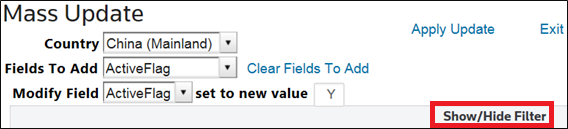
Clicking
Show/Hide Filter
will make the filter fields visible beneath each column header. Choose a column to sort by and enter a value. Next, click on the filter button and select a filter option. Filter options will vary depending on the type of column (Alphanumeric, Date, Numeric, etc.).
Recursive searches (filtering multiple columns) make it possible to create searches with multiple parameters for further refined results. In the example below, only products with a Product Description containing
IP
appeared. All lines with an empty HS Number and Product Number were also filtered to hide empty lines.
Once the desired search results are displayed within the grid, click on the
Modify Field
drop-down and choose the field to be modified.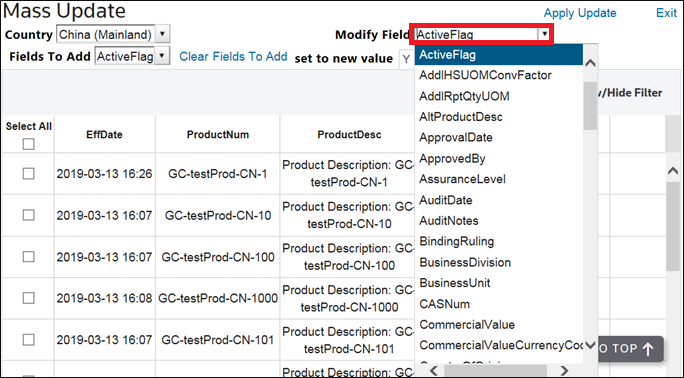
In the
set to new value
field, enter the value the field should show once it’s updated.
To apply the update to one or more individual records, review the grid to determine which product records need to be updated. Once these records have been identified, check their corresponding boxes on the far left.

To apply the update to all records, check the
Select All
box at the top left of the grid.
To see more records, select the appropriate amount (up to 500) from the
Page size
drop-down on the bottom of the grid.
To commit the changes, click
Apply Update
.
A confirmation pop-up will appear, asking for confirmation to update the selected records.

Once
OK
is clicked, a Mass Update Confirmation
message will appear on the screen. This message is confirmation that the mass update was successfully applied to the selected records.