
Smart ECN
The
Smart ECN
functionality can be used to classify a product with an Export Control Number (ECN) quickly and compliantly by offering users three ways of selecting the appropriate ECN for the product being classified.To classify a product via Smart ECN, select a country profile. Next, select a product. Once a product has been selected, click the
Smart ECN
button at the top of the screen.
Clicking
Smart ECN
will load the Smart ECN
screen, as shown below. The Product Number, Product Description, Manufacturer
, and Country Profile
fields will be shown across the top; reminding the user which product is being classified. In the screenshot below, no ECN has yet been selected for the product:
In the screenshot below, an ECN has already been selected for the product:

The screen provides three ways to help in deciding how to classify the product with an ECN. Users may choose to consider any or all in making the classification decision.
Search ECN
The first of these options is
Search ECN
. To use Search ECN
, enter a product description or ECN into the box and then click on the Go to Content
button on the right side of the screen.
If a description has been entered, a list of all ECNs where that word appears will be returned for the user to choose from. If a keyword is used instead of an ECN number, the keyword will be highlighted, like in the screenshot below.

Clicking on the desired ECN will bring the user to the ECN in the Dual Use list in order to be reviewed. If desired, the
View Details
link can be clicked to open the full ECN details. For more information about ECN Details, please refer to the ONESOURCE Global Trade Content User Guide and/or the ONESOURCE Global Trade Content ECN User Guide.To classify your product with this ECN, click
Select
.Clicking
Select
will open up the Select ECN
pop-up. Click OK
to classify the product or Cancel
to close the window without classifying the product.
Similar Product
The second method is the
Similar Product
panel, which provides suggestions of ECNs to consider based on products which have been previously classified with ECN in the same country profile. The system compares the Product Description of the product being classified with the Product Descriptions of other classified products and assigns a percent similarity based on an algorithm driven primarily by word matches.Then each unique ECN found is presented in the
Similar Products
panel once. If only one product is currently classified with that ECN, its Product Description, Product Number, and percent similarity are shown. If more than one product is currently classified with that ECN (as in the second line below), the Product Description and percent similarity of the product with the highest percent similarity will be shown. In place of Product Number, the word “Multiple” followed by the total number of products classified with the ECN will be provided.
To classify a product with one of these ECNs, click on the
Select
button for the desired line. A pop-up window will then appear, asking if you want to select the code. Click OK
to classify the product or Cancel
to close the window without classifying the product.
HS to ECN
The third method is the
HS To ECN
panel, which provides the user with suggestions of ECNs to consider based on the HS classification of the product. In some countries, government agencies (usually Customs) publish a correlation table between HS Numbers and ECNs which may be either required or just recommended to provide guidance on how to classify a product with ECN based on its HS classification. In some cases, what is published is export statistics, which provide data about how all exporters reported ECNs in association to HS Numbers. When that is the case, a percentage can also be calculated.If the product has been classified with an HS Number and the country is one that published correlation data (held in ONESOURCE Global Trade Content), the
HS To ECN
panel will show the ECNs that are associated to the HS Number that the product is classified with. If the country is one that publishes export statistics (and hence a percentage of occurrence is calculated), a percentage will also be shown and the ECNs appear in descending order by percentage.
To classify your product with one of these ECNs, click on the
Select
button for that line. A pop-up window will appear, asking whether or not you want to select the code. Click OK
to classify the product or click Cancel
to close the window without classifying the product.
important
All blue ECN and HS Numbers provide hover-overs of their descriptions. They can also be clicked to open up full ECN or HS Details.

Classification Confirmation
After classifying the product (via any of the three methods listed in the sections above), the user will then be directed to the classification confirmation screen (as shown below). A validation message confirming that the product was successfully classified will appear at the top of the screen.
This screen also:
- Repeats the Product Number, Product Description, Manufacturer, and Country Profile
- Provides the information about the classification: the ECN selected and (depending on which method was used) additional information that the user may have used during the ECN selection process.
In the example below, the
Similar Product
method was used. Therefore, the Ranking and associated Product Numbers are shown.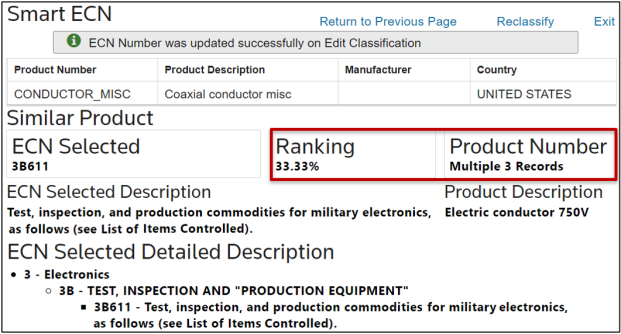
Return to Previous Page
To return to the
Edit Classifications
screen, click on the Return to Previous Page
link.
The ECN that has been selected will now appear in the
ECN
field. From there, any time the Smart ECN
link is clicked, users will be directed to the classification confirmation page in order to provide the record of why the product was classified the way it was.Reclassify
If the product needs to be reclassified to a different ECN number, click
Reclassify
.
Doing so will remove the ECN from the database and reload the
Smart ECN
screen to provide the three methods with current data to ensure up-to-date visibility and accuracy in classification.