Smart HS Batch Classification
The
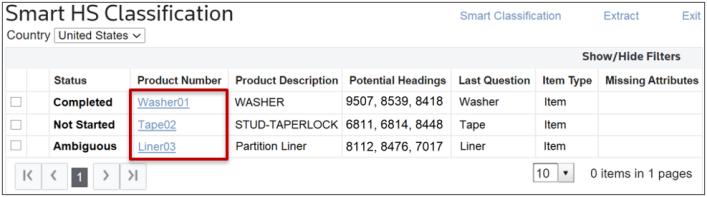
Smart HS Classification
screen can be used to view parts that have been received via an ERP feed and run automatically through the Smart HS API. Once this task is completed, any part that Smart HS returns only one fully-qualified HS for, will have the HS Number saved to the product and the Classification Certificate saved to the product as well.The grid on the
Smart HS Classification
screen will populate to show all products registered in the system that are missing a fully-qualified HS Number.The grid contains the following columns:
Columns | Description |
|---|---|
Status | The status of the classification (see below for all possible statuses)
|
Product Number | If clicked on, this link will redirect the user to the Edit Classifications screen for the given product. |
Product Description | The given description for the given product. Smart HS uses this description to run the API. |
Potential Headings | Potential HS headings suggested by the Smart HS tool. |
Last Question | The last question the automated running was able to answer for the given product in the Smart HS tool |
Item Type | The type of item selected |
Missing Attributes | Missing attributes still missing for the classification |
Just like for most other ONESOURCE Global Trade grids; the contents can be sorted by column or filtered by utilizing one or more filters (which become visible once
Show/Hide Filter
is clicked).In order for this screen to work, the user must also be subscribed to ONESOURCE Global Trade Content. Without the subscription, the below error message will appear on the screen:

Clicking on the
Product Number
link will redirect the user to the Edit Classification
screen with the product’s information prepopulated into the fields. This link can be used to review additional information not shown on the Smart HS Classification
screen as well as modify the product’s information from the product that Smart HS Classification
screen is attempting to classify.