
Using GTV Search
GTV Search
is laid out in multiple sections with each section serving a different purpose in query creation. To begin using GTV Search
, choose which records are to be searched from the Choose Source
drop-down.
Once a source is chosen, move to the
Display Fields
section of the screen to create the data set for the query. The fields displayed in Source Columns
are determined by the source the user chose in the Choose Source
filter. Source Columns
will show all available fields from the source table.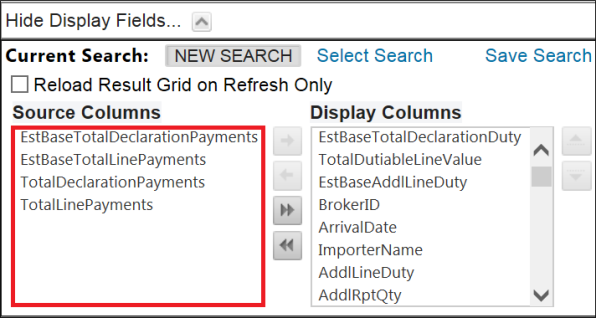
Next, create the data set by choosing the needed fields from
Source Columns
and moving them to Display Columns
. This can done by dragging and dropping the available field and moving from one side to the other or using the provided arrows ( / ) to move fields from the Source Columns
side to the Display Columns
side and vice versa.Additionally, the field order can be changed by using the buttons or by dragging fields and moving them to the desired location.

Once all fields have been chosen and properly ordered, the data can be viewed in the
Report Fields
section of the screen. All newly-created searches will be included under the New Search
tab. This tells both the system and the user that this is a new search that has not been saved yet. Saving searches
is detailed below in the Savings Searches section.
Once the data set is created, you can begin using the searching capabilities available in the
Search Fields
section to search for key information contained in the data set.The
Current Search Criteria
section allows you to narrow down a search further by determining search criteria (Search Parameter, Comparison, and Value).To enable the search criteria fields, click
Add New Parameter
.
Use the
Search Parameter
drop-down to choose a search parameter (e.g. OrderNum). The available choices in the drop-down are driven by the fields selected when creating the data set. The fields displayed in the Search Parameter
drop-down match the column names in the Report Fields
data set.Use the
Comparison
drop-down to choose a comparison search parameter (e.g. Contains).Use the
Value
field to enter a value to be used in the search (e.g. '1').Once all three search parameters are entered, click
Insert
to continue with the search or Cancel
to clear search parameters.
If
Insert
is clicked, the query will run based on the entered search parameters. The screen will highlight the results of the query as seen in the example below.Additional search parameters can be added by following the steps above.
To edit an existing search parameter, click
Edit
in the Search Fields
section.
Related Content
-
GTV Search
Format: Article