
Substitute Components
In the
Substitute Components
screen, you can include alternative products if a primary component used in a bill of material is not available for any reason, for example a lack of balance. In such cases, the system uses the alternative products to replace the primary component and complete the production order.important
The configuration on config.xml file must be: <allow_susbtitute_components>
Y
</ allow_susbtitute_components>When a substitute is associated, the FIFO process will prioritize the substitute when the primary component is unavailable according to the following rules.
Data | Rules |
|---|---|
Product number |
|
Substitute number |
|
Unit of measure (UOM) |
|
HS |
important
If there is at least one line in the Excel spreadsheet with an error, no substitute item will be inserted. You must correct the file and upload it again.
Adding Substitutes (spreadsheet upload)
To add alternative products to a primary product en masse, you can do so by uploading a spreadsheet with a list of components.
- ClickLoad Substitutesto open theSpreadsheet Uploadpop-up window.importantIn the Spreadsheet Upload pop-up window you can view previous added spreadsheets.

- Fill in the Excel spreadsheet with the corresponding data. You can download the template by clickingDownload Excel Template.importantThe excel template contains two columns: “ProductNumber”, that must be used to declare the main product; and “SubstituteProduct”, that must be used to declare the substitute part number, respectively. The Excel spreasheet must have the “.xls” or “.xlsx” format.
- The excel template contains two columns,ProductNumberthat must be used to declare the main product andSubstituteProductthat must be used to declare the substitute part number, respectively.
- The Excel spreasheet must have the “.xls” or “.xlsx” format.
- ClickChoose Fileto select the spreadsheet from your local drive.

- ClickUpload and Import Dataon the top right corner.

The data will be loaded on a temporary table and a successful message will be displayed.
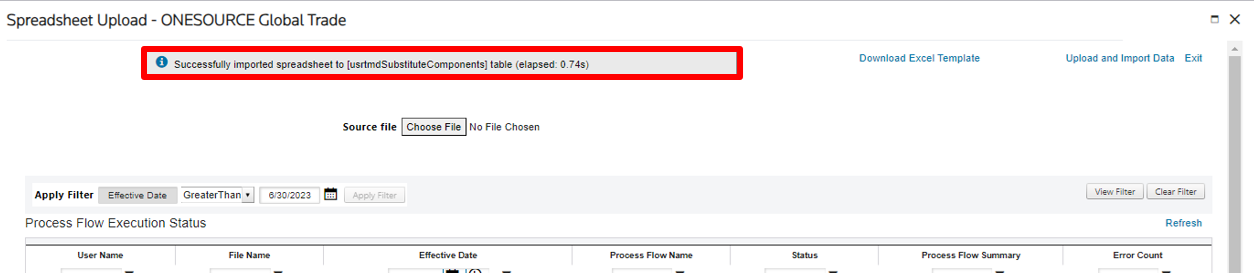
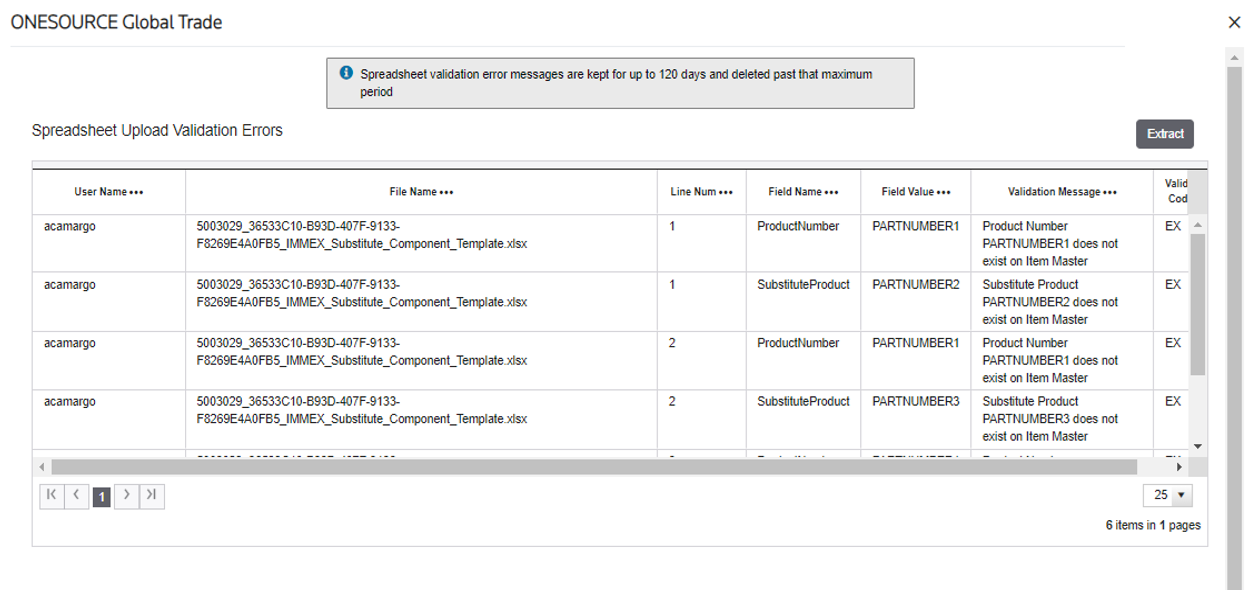
After loading the data, it’s necessary to launch the BPM Workflow IMMEX_Substitute_Components or check if it is scheduled. This process will run a complete validation of the data previously loaded in order to load it into the final table. Errors can be viewed clicking on the number of errors presented in the screen used to load the spreadsheet.

Adding Substitutes (one by one)
You can also add substitutes components one at a time.
- In theMaterial Numberfield, insert the identification number of the original product you want to associate substitutes to.tipThis field has type-ahead capabilities so you can insert a digit and select your desired number from the dropdown list.
 The page automatically refreshes and populates the grid with the product information.
 - Click the + icon to open theAdd New Substitute Productpop-up window.

- Insert the substitute product number in theProductfield.

- ClickSave.
The page automatically refreshes and populates the grid with the substitute product information.
important
You can remove a substitute product by clicking the
X
next to the product entry.Pedimento Reports
It is possible to validate the FIFO process after export and consumption of items by generating a report. The report will be generated with all the data used in this guide and including the substitutes components.
- On the IMMEX sub-menuReports, clickPedimento Reports.
- On the Report dropdown, selectMultilevel BOMS.

- Click the calendar icon to select theStart and End Dates.

- Select thePedimento Codeused to export the finished good.
- Select thePedimento Number.
- Enter theMaterial Number.

- Click Generate.

The page will automatically refresh and display the report available for download.
Related Content
-
IMMEX
Format: Article