
Assists
The
Assists
tab identifies additional values tied to specific line items. Fields displayed in this screen are configurable per column in order to meet client demands. Data corresponding to these fields is inserted via the Add New Record
or Edit functions
as discussed below. As with the Details
tab, the Assists
tab also contains navigation tools to aid in viewing the information across pages (e.g. scroll bars, page size, navigation arrows).
Add Assist Detail
To add an assist, click
Add New Record
.
This will open a blank
Edit
pop-up with assist detail fields. Use the Detail Line
drop-down to select the line number to associate with the new assist record. Use the other fields to enter any other required data for the record. These fields will correspond to those listed in the Assists
tab.To save the assist and keep the pop-up open for further editing, click
Save
.To save the assist and close the pop-up, click
Save and Close
.To drop all changes without saving, click
X
.
Edit Assist Detail
To edit an assist, choose a record to edit. For that record, move the cursor to the downward arrow to the left of the
Product Num
column and click Edit
.
Clicking
Edit
will open the Edit
pop-up. Make all necessary changes.To save the assist and keep the pop-up open for further editing, click
Save
.To save the assist and close the pop-up, click
Save and Close
.To drop all changes without saving, click
X
.
Each section will have a
Filter Form Fields
search box. As the user types a value into this textbox, the section will refresh to only show fields matching what was typed.
To filter a section to only show the required fields, check the
Show Required Fields
box. The grid will refresh to only show required fields.
To filter a section to only show the empty fields, check the
Show Empty Fields
box. The grid will refresh to only show empty fields.
Copy Assist
This function is useful for copying/modifying lines with similar details.
To copy an assist, choose a record to copy. For that record, move the cursor over the downward arrow to left of the
Product Num
column. When the options menu appears, click Copy
.
A confirmation pop-up opens, prompting for confirmation of the copy action.
Click
Cancel
or X
to return to the Assists
tab without a copy.Click
OK
to confirm the copy, creating a duplicate record in the Assists
tab.
Open the copied line item and make modifications as described in the
Edit Assist Detail
section of this User Guide.Delete Assist
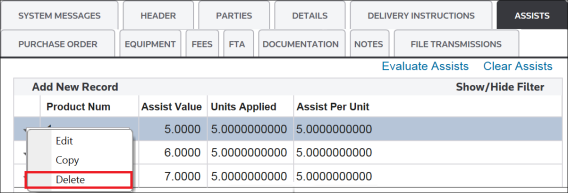
To delete an assist, choose a record to delete. For that record, move the cursor over the downward pointing arrow to the left of the
Product Num
column. Once the options menu appears, click Delete
.
To remove the assist, click
OK
in the confirmation pop-up.To cancel the deletion and close the pop-up, click
X
or Cancel
.
Sorting Assists
To sort assist detail records, determine which column to sort by and click the column header.
- Click once to sort in ascending order.
- Click again to sort in descending order.
- Click a third time to return the table to its original order.
Numerical values will precede alphabetical values.

Filter Assists
To use the advanced filter options, click
Show/Hide Filter
.
A field will appear in the bar above each column header. Choose a column to filter by and then click the filter button to the right of the field. Choose a filter option. Filter options may vary depending on column type (alphanumeric, numeric, etc.).
NoFilter
removes the filter from the selection and IsEmpty
recalls fields with no data.
Multiple columns can be filtered at the same time to further refine a search.

Related Content
-
Import Management
Format: Article