
Automatic Tariff Application
tip
To view the images in higher resolution, right-click the image and select
Open image in new tab
.Import Management can automatically determine the additional tariffs that apply to each detail line, so you do not have to enter and maintain those tariff rules manually for each line. The system works out which additional tariffs apply to the scenario on the line, adds them as Chapter 99 overlays, and updates the duty calculation.
How it works
For each line, the system uses:
- Import HS number (Import Tariff Num)
- Country of origin
- Tariff application date
- Other line-level attributes on the transaction
From these, it determines the additional tariffs that apply and generates them on the line. The additional tariff details for each line appear in the
Edit Detail
pop-up.important
Automatic determination depends on accurate Import Tariff Num and Country of Origin values. Check these on each line before processing.
Opting in or out
You decide whether determination runs. You can opt in or out of Auto Apply from the shipment screen directly. If you opt out, additional tariffs are not determined automatically and you manage them manually, as before. Your choice applies to this shipment and to shipments processed afterward.
Clicking
Auto Apply Tariffs - Opt out
will disable the auto application functionality. You will receive a confirmation that the disablement was successful.

Clicking
Auto Apply Tariffs - Opt in
will enable the auto application functionality. You will also receive a confirmation that the enablement was successful.

Reviewing what was added
After you process a shipment, the "Auto Apply Tariff Report" appears on the
Documentation
tab. It lists every additional tariff the system determined for the shipment and serves as the audit record of what was added and why.
The top of the report shows the shipment's "Order Num Ship", "Import Country" and "Export Country". It also has two flags: "Auto Apply Enabled?" shows whether determination ran for the shipment, and "IMCR Applied?" shows whether Item Master Custom Rules were applied.
"Section 1 – Auto-Applied Tariffs" lists the tariffs the auto-tariff engine determined from the line's input criteria. Each detail line appears once. The line summary shows:
- Line
- Product Num
- Product Desc
- Import Tariff Num
- SPI Code
- Country of Origin
- ManufacturerID
- Export Date
- Import Date
Under each line is the list of tariffs that were added. For each one, the report shows:
- Additional Tariff: the Chapter 99 tariff number, or the line's Import Tariff Num for the base duty.
- Tariff Type: for example 301, IEEPA, IEEPA-R or 232-COPPER. The base duty is labeled "BASE".
- Tariff Sequence: the sequence number of the tariff on the line.
- Advalorem Rate
- Specific Rate
- Addl Specific Rate

If Item Master Custom Rules (IMCR) were applied to the shipment, the report also includes "Section 2 – IMCR Applied Rules". This section lists the tariffs determined from your active item master custom rules, rather than by the auto-tariff engine.
Each line affected by a custom rule appears once. The line summary shows the same information as Section 1: Line, Product Num, Product Desc, Import Tariff Num, SPI Code, Country of Origin, ManufacturerID, Export Date and Import Date. It also shows a "CR ID Applied" column, which identifies the custom rule that was applied to the line.
Under each line is the list of tariffs from that custom rule. For each one, the report shows:
- Additional Tariff: the tariff number.
- Tariff Sequence: the tariff's sequence number on the line.
- Unit Value
- Total Value
- Weight
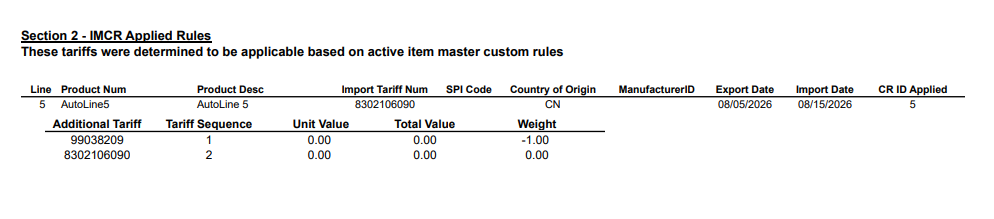
Use Section 2 together with Section 1 to see how each line's tariffs were determined. Tariffs from Auto Apply are in Section 1, and tariffs from your custom rules are in Section 2. If a line has no custom rule, it appears only in Section 1.
Use the report to confirm that each line received the tariffs you expect. If a line looks wrong, check its Import Tariff Num, Country of Origin and Import Date. You can also override the line.
Overriding a line
You can override the determination on any line. To do this, set the Override Flag on the
Edit Detail
pop-up to Y and update the tariffs as needed. This will indicate to Auto Apply that it should not overwrite the information already placed on the line.
Working with Item Master Custom Rules (IMCR)
Automatic determination and IMCR work together. Continue to use IMCR in these cases:
- Split value reporting
- Certain qualifying scenarios
- Exceptions and exclusions
- When you prefer to keep manual control
- When a government update is published before the system's tariff logic is refreshed