
Create a New License
To create a new license, click
New
.
Clicking
New
will open the Create New
pop-up. Enter a license number, and then click Save
.
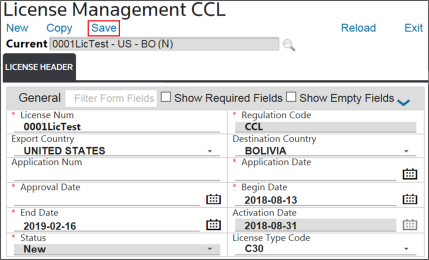
Enter information into the appropriate fields and then click
Save
.
After the system saves the new license, additional tabs will appear. Add additional licensing information as needed. These tabs will be covered in more detail in sections below. Licenses can be configured to allow the Import and/or Export country to be blank when creating licenses.
Reload
To revert license information to the previous save, click
Reload
.
Activate License
To activate the current license and make it available for allocation, click
Activate License
. No further edits can be made to an activated license.
Deactivate License
To reopen an activated license for further changes or allocations, click
Deactivate License
. Licenses already allocated to a shipment(s) cannot be deactivated.
Close License
To close a license from further edits and allocations, click
Close License
. Expired licenses cannot be closed. Licenses automatically expire in the system after the expiration date passes.
License Header
The contents of the
License Header
tab are in a form view. Depending on how the system was configured, the fields on this tab may be broken into one or multiple sections, as indicated by a gray bar.
Hiding/Expanding Sections
To hide a section, choose a section to hide and then click its corresponding arrow on the far right.

The fields for that section will now be hidden on the screen. Clicking the arrow a second time will make the fields visible again.

Fields
Fields with a red asterisk (*) beside the field name are required fields and cannot be omitted.

If the user attempts to save the license and a required field is blank; the system will generate an error message on the screen, similar to the one shown below:

Filter Form Fields
Each section will have a
Filter Form Fields
search box. As the user types a value into this textbox, the section will refresh to only show fields matching what was typed.
Show Required Fields
To filter a section to only show the required fields, check the
Show Required Fields
box. The grid will refresh to only show required fields.
Show Empty Fields
To filter a section to only show the empty fields, check the
Show Empty Fields
box. The grid will refresh to only show empty fields.
Related Content
-
Import Licenses
Format: Article