
Saving Searches
The
Import Search
screen allows the user to save searches for future use.To save a search, click
Save Search
in the Display Fields
section of the screen.
Clicking
Save Search
will open the Save Search
pop-up. Enter a name for the search in the Search Name
field.To save a search under an existing category, click
Use Existing
and select the category name from the drop-down to the right.To create a new category, click
Create New
.To share the search with others, click
Yes
in the Share This Search
drop-down. Other users will then have access to the search under the Shared
search category.To help find saved searches more easily, searchable descriptions can be included. Once saved, key words in the description can be used to locate similar searches or to find a saved search.
Click
Save Search
to save the search or X
to drop all changes. Either action will close the Save Search
pop-up. If the search was saved, the tab name in the Report Fields
section will change to the name of the newly saved search.How to locate saved searches is detailed in the
Retrieving Saved Searches
section.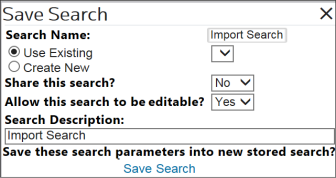
Retrieving Saved Searches
Once a search is saved, it can be found by clicking
Select Search
.
Clicking
Select Search
will display all saved searches. The tabs available will be the categories created by the user or the Saved Searches
that contains all available saved searches.To select a search, click on the search name.

Related Content
-
Import Search
Format: Article