
System Messages
The
System Messages
tab displays any hold or informational messages in conjunction with the invoice. System messages are grouped by message type: Hold or Informational.Message type | Description |
|---|---|
Hold | This message type indicates a validation error that needs to be cleared before an invoice can move to the next processing step. |
Informational | This message type indicates less critical notifications of which the user should be made aware. |

When referencing an item within the Message Type group, a link directs to the appropriate item for the selected system message. Clicking this link opens the
Edit Detail
pop-up for the line item.
In the
Edit Detail
pop-up, clicking Show Hold/Info Messages
will display system message summaries. Clicking X
closes the pop-up and redirects back to the System Messages
tab.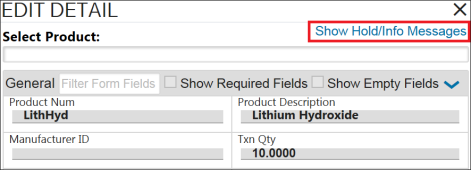

Currency Conversion
For clients configured to use Import Management’s standard Currency Conversion functionality, when an invoice is saved (by clicking
Save
), the Commercial Value of each line item detail will be converted from an Original Currency to the Customs (declarable) currency using the exchange rate supplied by ONESOURCE: Global Trade Content.If the Original Customs Currency Code and Header Currency Code are the same or the Original Customs Value is 0, there will be no need to perform the conversion and the system will skip this step.
If no exchange rate can be found, a
Hold
message will generate.
If the found exchange rate is older than 15 days, a warning message will generate.

Content Controls
Detail lines on import shipments can be validated against ONESOURCE Global Trade Content data to check for possible controls that may be applicable for certain shipping scenarios. This validation step:
1. Provides more visibility into situations when imported goods may be subject to governmental controls
2. Makes it easier to ensure all appropriate regulatory actions (e.g. utilizing licenses, populating additional declaration filing elements, and/or submitting paperwork, etc.) have been taken in a timely manner
When an import shipment is validated, in most cases the system compares the Export and Import Countries on the shipment and the HS Classification of each detail line to the data inside Content’s controls. If the HS Classification/Export Country/Import Country combination matches a potential control, a Content_Control Hold Message will appear in the
System Messages
tab and the shipment will be placed on hold. One message will display for each HS Number that has control(s), indicating how many controls the HS Number has.
Additional information will appear in the expanded text. Clicking the
More Information
link will open another browser tab to ONESOURCE Global Tariffs (Quick Lookup), pre-filtered to the specific Control.
When validating antidumping (ADD) or countervailing (CVD) duty Controls, the system compares the Import Country on the shipment and the Country of Origin and HS Classification of each detail line to the data inside Content’s controls to determine if ADD/CVD Controls may apply.

Sorting/Filtering System Messages
Users can sort and filter system messages by clicking column names within the Message Types.
For more information about the control(s), click on an HS Number.

To use the advanced filter options, click
Show/Hide Filter
.
Messages can be grouped by Date, Message, Message Type, Record Type, or Hold Flag.
Applying a Group Condition
To apply a group condition; hover the cursor over a column name, then drag the column name to the group bar. The user can add as many group conditions as needed.

Groups can also be made up of sub-groups. Clicking a group’s expansion arrow on the far left will display all matches within the specified type.


Removing a Group Condition
To remove a group condition, click the
X
to the right of the group condition name.
Related Content
-
Import Management
Format: Article