
Creating a Questionnaire (View Questionnaires)
Go to the
View Questionnaires
screen under the Questionnaires
menu. This screen shows a list of Questionnaires the user has saved. Each of these Questionnaires can be sent to partners.
If the system has been configured to utilize the Renewal Questionnaire functionality, a
Renewal Questionnaire
column will appear on the grid. This column shows whether the Questionnaire is a Renewal Questionnaire.
Archiving a Questionnaire
To archive one or more Questionnaires.
- Choose which Questionnaires in the grid need to be archived.
- Once these Questionnaires are identified, check their corresponding boxes in theIDcolumn.
- ClickArchive Checked.
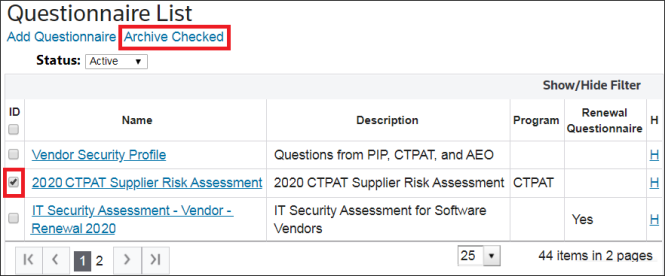
The selected Questionnaire(s) will then be archived. An archived Questionnaire can be reactivated by checking its ID box and selecting
Activate Checked
.
Creating a New Questionnaire
To create a new Questionnaire, click
Add Questionnaire
to open a blank version of the Edit Questionnaire
screen.

Edit Questionnaire (Add Items)
Before adding items/questions to a Questionnaire, create a name and description. Click
Save
. A status message will then appear, stating that the questionnaire was successfully saved.
A Questionnaire should be associated to a
Type
of program (e.g., CTPAT). In doing so, this ensures the proper associated scoring for that program in Settings will be applied. Questionnaires without an associated Type
are scored using the default Importer
score settings in the Company Profile.
The
Add Items
tab shows all questions and Questionnaires that can be added to a Questionnaire. Questionnaires may consist of questions and/or other Questionnaires.
To add an item.
- Open theAdd Itemstab and determine which questions to add to the Questionnaire.
- Once the items to be added have been identified, check their corresponding boxes on the leftmost column.
- ClickAdd.

To filter items or narrow a search, click
Show/Hide Filter
and select filters.
The
Show Only Owned
checkbox displays either all questions in the shared question database or the questions created (owned) under the importer partner.
Edit Questionnaire (Rules)
The
Rules
tab provides the ability to skip questions based on certain answers or end the Questionnaire after specific answers.To add rules to a Questionnaire.
- Click theRulestab.
- ClickAdd New Record.

This screen requires the user to enter the question and answer tied to the rule, the rule to take (e.g., End or Go-To) and the result question (for Go-To rules). Once those items are selected, click
Insert
to save the rules to the Questionnaire.Using rules within a Questionnaire provides a good flow to the Questionnaire and makes it more efficient for the recipient to respond. It ensures questions that the recipient is not required to answer or that may not be applicable under their circumstances are skipped.

Header options | Description |
|---|---|
Group By | Groups the questions by the category used in the Create/Edit Question screens.
Example: Questions categorized as personnel security would group together on the Questionnaire. |
Back | If clicked, this button returns you to the previous screen. |
Send | Redirects to the Send Questionnaire screen with the currently open Questionnaire pre-selected. |
Generate PDF | Generates an Adobe .pdf version of the Questionnaire. |
Copy To | Copies the Questionnaire to the same/other partners. Options to include the Questionnaire’s rules and Add Questions to Importer will be given. |
Print View | Opens the screen with a list of all questions and answers that may be printed. |
Create Renewal Questionnaire | Activates the Renewal Questionnaire functionality, creating a new version of the selected Questionnaire. Renewal Questionnaires include all previously provided answers, notes, and attachments for the purpose of review and renewal/re-certification. Business Partners can update/edit answers that have changed since the prior response, as well as confirm prior answers that are still considered applicable. Past Corrective Actions will also carryover for review and application where deemed appropriate. |

Editing Questionnaires
To edit a Questionnaire, choose
View Questionnaires
from the Questionnaires
menu to open the Questionnaire List
screen. Click on a Questionnaire’s name to open the Questionnaire in the Edit Questionnaire
screen.
The name and description of the Questionnaire appear at the top of the screen. Underneath is the message that will display your partner upon login.
You will be able to associate a specific Questionnaire to one or more program types (e.g., CTPAT, AEO, Internal Compliance, etc.). This provides for more flexibility in reporting and queries, as well as the ability to sort and filter by program in the
Questionnaire Status
screen.The list on the
Selected Items
tab under Detail Information
includes all the questions attached to this Questionnaire at the bottom of the screen.
Removing a Question from a Questionnaire
To remove a question from Selected Items.
- Choose one or more questions and check their corresponding boxes.
- ClickRemove.
 If one or more selected questions are associated to a rule; a confirmation pop-up will appear on the screen, stating that removing the question will also remove the associated rule.
 - ClickOKto proceed.

Edit Questionnaire (Add Items)
The
Add Items
tab adds a new question to the Questionnaire.The
Show Only Owned
checkbox allows you to elect to show only “owned” questions on the Add Items
tab to limit the view of optional questions to only their own questions (vs. shared questions).
To change the order of the questions, the screen provides a “drop-drag” feature. Place the cursor over the far-left box of the question to move (the box appears to have little dots in it). Left click and hold to highlight the question. While holding, drag the question to the preferred location. Multiple questions can be moved together by using the control button at the same time.

Edit Questionnaire (Rules)
The
Rules
tab adds a new rule to the Questionnaire. Click on the question description to go to the Edit Question
screen. “QSTN” stands for question. “QSTR” stands for Questionnaire.
Edit Questionnaire (Create Renewal Questionnaire)
important
This functionality must be configured to be operational. If you are interested in having this feature configured for your system, please contact your Thomson Reuters System Administrator.
The
Create Renewal Questionnaire
functionality makes it possible to resend a previously sent/answered Questionnaire at a designated date to the same supplier(s). The supplier’s prior answers, notes, and attachments will be included in the Renewal Questionnaire. Where applicable, the supplier can make updates to the original responses. Corrective Actions triggered as a result of the previous answers will carryover as well and will be updated based on any new answers subsequently provided.To create a renewal Questionnaire.
- ClickCreate Renewal Questionnaire.

- Change the name of the Questionnaire.
- ClickSave Renewal Questionnaire.
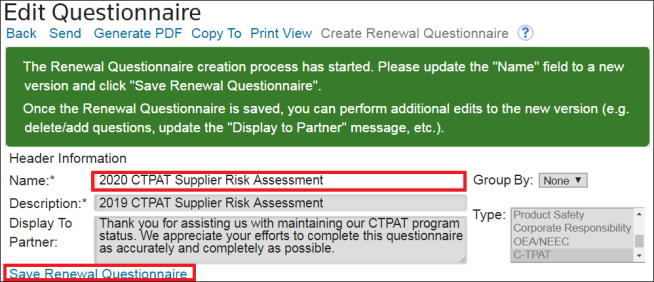
Attempting to save the Renewal Questionnaire without changing the Questionnaire name will result in the below error message:

After the Renewal Questionnaire has been successfully saved,you will be able to perform additional edits to the new version (e.g., delete/add questions, update the “Display to Partner” message).
Renewal Questionnaires (Program Type and Description)
For Renewal Questionnaires, you cannot update the Program Type or Description. This information must be consistent for system organization purposes.

Renewal Questionnaires (Adding, Editing, and Removing Questions)
For Renewal Questionnaires; you can edit, add, and/or remove questions. Any questions that are deleted will remove any associated rules with that question.

You can also update existing questions. However, if you change the question’s Answer Type (e.g. Yes/No to Multiple Choice), no previously stored responses will be carried over. The question will be treated as a new question.
Attempting to save a question with a changed Answer Type will open a confirmation pop-up, like the one shown below. Click
OK
to continue.
Archiving the Original Questionnaire
Before a Renewal Questionnaire can be sent, you must archive the original Questionnaire. Once a Questionnaire is archived, the recipient will no longer be able to make any changes or edits to that Questionnaire. It will be locked.
Attempting to send a Renewal Questionnaire from the
Send Questionnaire
screen will open a confirmation pop-up like the one shown below.Clicking
OK
will send the Renewal Questionnaire to the supplier and move the original Questionnaire to the archived Questionnaires table.Clicking
Cancel
will return you to the Send Questionnaire
screen.
EU-AEO Updates
When an update becomes available for the standard version of the EU-AEO Questionnaire, an e-mail notification is sent to you to notify that an updated version is available, including:
1. Which questions were added, updated, or deleted
2. How the impacted questions are distinguished in the question database
Updated questions are stored in the
Question List
screen to allow you to update their relevant Questionnaires. Should assistance be needed in completing those updates, please contact IntegrationPoint@ThomsonReuters.com