
Open Search
The
Open Search
screen offers capabilities to search against the database and create customized queries outside of the standard report features offered with the product.You can select from various search parameters to create useful searches based on the metrics most important to them. This provides more flexible reporting capabilities beyond standard reports. You also can save past searches using the
Save Search
link.You can create any number of search parameters (e.g. name, partner number, partner type, etc.). Once a useful search is created, it can be saved or exported to other users or third parties.

To use
Open Search
.- Select a source from the drop-down menu (Questions, Partner Data, or Sent Questionnaires).

- Choose and highlight a set of data fields from theSource Columnsbox.
To move data from the
Source Columns
box to the Display Columns
box, perform one of the following two methods:- Click on theSource Columnfield to be moved. Drag the field toDisplay Columns.
- Click on theSource Columnfield to be moved. Use the arrow buttons between the two boxes to move this field toDisplay Columns.
As fields are selected or dragged to
Display Columns
, the data will populate on the report. This data becomes visible in the New Search
tab at the bottom of the screen.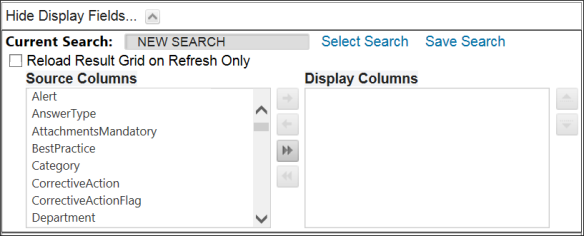
Saving a Search
To save a search, click
Save Search
.
You will be prompted to provide a name, description, and editable/sharable designation for the search prior to saving.

Export a Search
To export the search, click
Extract
.
The search results will be generated as a Microsoft Excel Spreadsheet.