
Trade Lane Risk Analysis (Trade Lanes)
Trade Lane Risk Analysis is used to identify trade lanes with the highest risk by providing a method to perform the following:
- Map out the specific business partners involved in a given trade lane
- Incorporate the roles and processes of those partners in the supply chain
- Calculate the risk factors specific to each business partner in the trade lane (e.g. vulnerability, threat, and consequence scores)
To access the
Trade Lane Risk Analysis
screen, click the Trade Lane Risk Analysis
selection from the Reports & Analysis
menu.
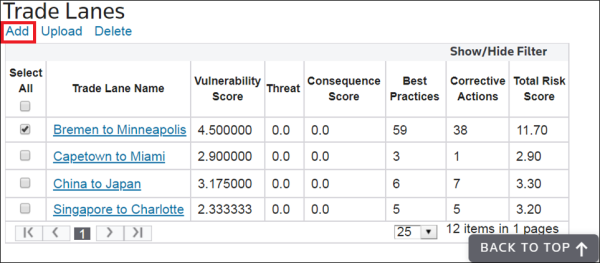
The
Trade Lane
screen will list all trade lanes that have been created by any user.Trade Lane Risk Analysis | Description |
|---|---|
Vulnerability Score | The average vulnerability score of all business partners in the trade lane. |
Threat | The average threat of all business partners in the trade lane. |
Consequence Score | The average consequence score of all business partners in the trade lane. |
Best Practices | The total number of best practices of all business partners in the trade lane combined. |
Corrective Actions | The total number of corrective actions of all business partners in the trade lane combined. |
Total Risk Score | The sum of the Vulnerability Score, Threat , andConsequence Score for the trade lane. |
Modifying an Existing Trade Lane
To view or modify an existing trade lane.
- Click the trade lane name.
 Clicking on a trade lane name will open theEdit Trade Lane Risk Analysisscreen with the trade lane’s existing data prepopulated.
 - Make any necessary changes.
- ClickBack.Clicking Back will save all changes and return you to theTrade Lane Risk Analysisscreen.

To add more partners to a trade lane and choose the display order.
- ClickAdd Newto open thePartnerspop-up.

- Select the additional partners and their display order.
- ClickAdd.
- Once all partners have been added, clickX.

Removing an Existing Trade Lane
To delete a trade lane.
- Choose one or more trade lanes to be removed.
- Once these trade lanes have been determined, check their corresponding boxes on the far left.
- ClickDeleteat the top of the screen.

Creating a New Trade Lane
To create a new trade lane.
- ClickAddat the top of the screen to open theEdit Trade Lane Risk Analysisscreen.
- Enter a trade lane name in theTrade Lane Risk Analysis Namefield.
- Select the corresponding partners from thePartner(s)drop-down by clicking each applicable name.
- Once this data has been entered, clickSave.

The screen will refresh to show additional data entry fields, along with a Partners grid. The first added partner will have a Display Order of “1”.
To add more partners.
- ClickAdd Newabove the grid to open thePartnerspop-up.

- Select the additional partners and their display order.
- ClickAdd.

Viewing Trade Lane Corrective Actions
When viewing a specific trade lane, you can view the partner’s Corrective Actions by clicking the number link under the
Corrective Actions
column. The link redirects to the Questionnaire Status
screen for the specified partner.
The
Edit Trade Lanes Risk Analysis
screen displays the specific results for each added partner (based on the existing partner profile) and vulnerability score (based on their completion of a Questionnaire).If a field on the grid is empty for a partner, it is because that field has not been completed in the partner’s profile and/or a Questionnaire has not been completed for that partner. As a result, no score could be calculated to populate the field.
This screen also provides the option for you to apply weighted values for risk components (vulnerability, threat and consequence). As a default, the system weights each component the same.
However, if you would prefer to weight the components differently (e.g. heavier weight applied to the vulnerability scores) the
Risk Component Weight
box will allow for this. Enter the weighted values and click Set
.