
User Profile
The
User Profile
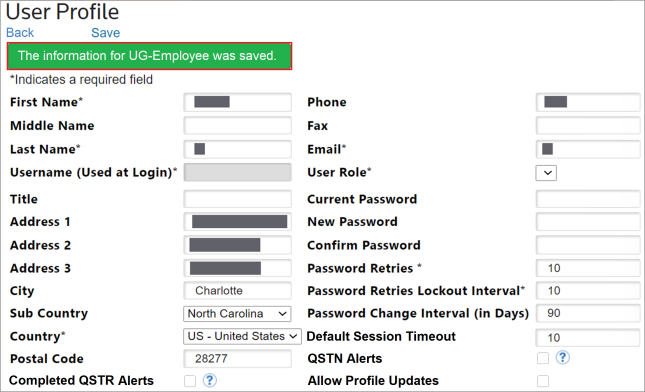
screen reflects the profile of the user currently logged into ONESOURCE Supply Chain Compliance.User profile information | Description |
|---|---|
User Role | This drop-down feature is used for assigning access levels for users. The Administrator level provides access to all screens.
Available by Default: Administrator, Auditor |
Password Retries | The total number of retries a user has made to enter the correct password. |
Password Retries Lockout Interval | The number of retries a user can have before being locked out of the system for entering an incorrect password. |
Force Password Change | If this box is checked, the user must change the password by the specified time interval. |
Password Change Interval | The number of days that will trigger a password change if the Force Password Change box was checked. |
Allow Profile Updates | This checkbox gives the importer the ability to control the capability of a Supplier to update company profile data from the Supplier view. This feature gives the importer more control over who can update supplier profile data within ONESOURCE Supply Chain Compliance.
If enabled, the supplier user can edit the Company Profile screen.If disabled, the supplier user cannot edit anything on the Company Profile screen. The screen will be read-only and the Save link will be absent. |
QSTN Alerts | If this checkbox is enabled, the user will receive an e-mail alert when a question is answered in a specific manner. Question-specific alerts are configured in the Create/Edit Question screen. |
Completed QTNR Alerts | If this checkbox is enabled, the user will receive an e-mail alert every time a Questionnaire is completed. |
Updating User Profiles
To update the current user’s profile.
- Open theMaintenancemenu from the drop-down at the top right of the screen.
- Once theMaintenancemenu is open, select and clickUser Profile.
- Make any necessary changes and clickSave.

To update information for other users.
- Open theMaintenancemenu and clickUsers.
- Choose a username to open theUser Profilescreen shown below and make any necessary changes.
- ClickSave.

A message will appear at the top of the screen, stating information was saved.
Related Content
-
Administration
Format: Article