
ABI: Entry Summary (Entry 7501)- Validation Summary and Correcting a Validation Error
After you have entered all data, click
Validate
at the top of the screen. Clicking Validate
will change the status of the entry from NEW
to VALIDATING
. While the entry is in the process of validating, it cannot be updated.
If any validation errors occur, they will appear under the
Validation Summary
tab.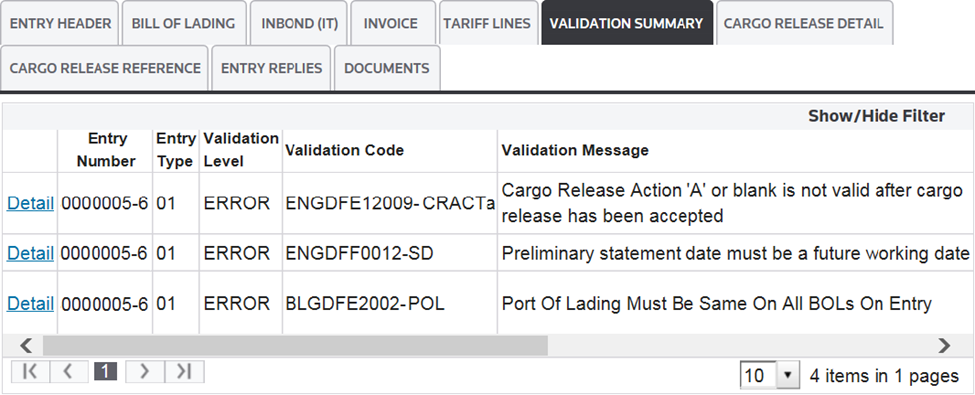
The Entry Status will change to
HOLD
until all validation errors are fixed. After all validation errors are resolved, the Entry Status will change to VALIDATED
.
Correcting a Validation Error
To correct a validation error, select an error from the
Validation Summary
grid and click Detail
on the far left.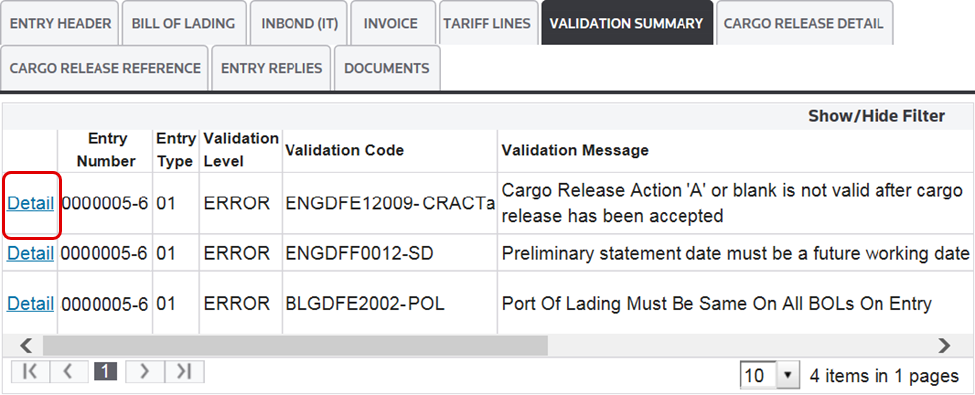
The
Show/Hide Filter
option at the top of the grid can be used to search through validation errors more efficiently.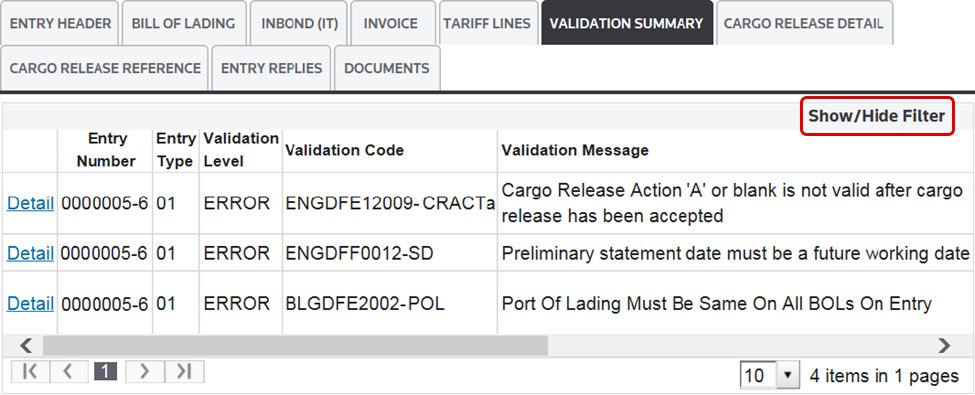
Clicking
Detail
will redirect you to the tab where the erroneous field(s) is located. Click Edit
to make the required changes to the field(s) containing the error(s).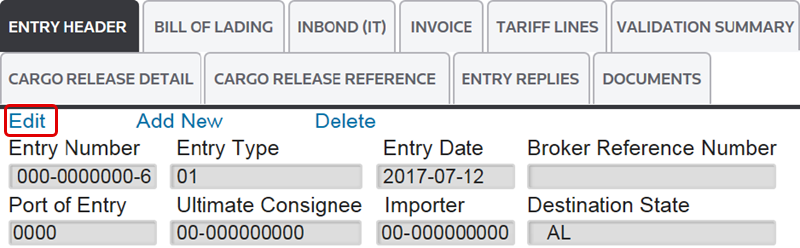
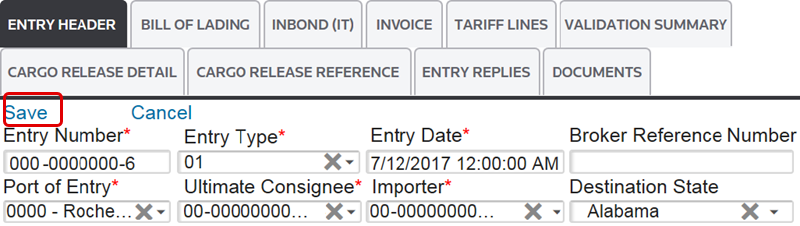
Make all necessary changes and then click
Save
.
After the error has been corrected, click
Validate
at the top of the screen. This will re-run the validation workflow.
If there are still open errors for the entry, repeat the steps listed above until all errors are resolved. After all errors are corrected, the
Validation Summary
section will be blank and the Entry Status will update to VALIDATED
.Related Content
-
Automated Broker Interface (ABI)
Format: Article