
ABI: Invoice Assignment to Entry Summary - Filter/Add/Edit Invoices and Assign Records to Shipments
If the list needs to be narrowed down to find the correct invoice faster, the
Invoice Assignment
screen has a Show/Hide Filter
button and filtering capabilities. You can filter the entry number or any other column within the grid.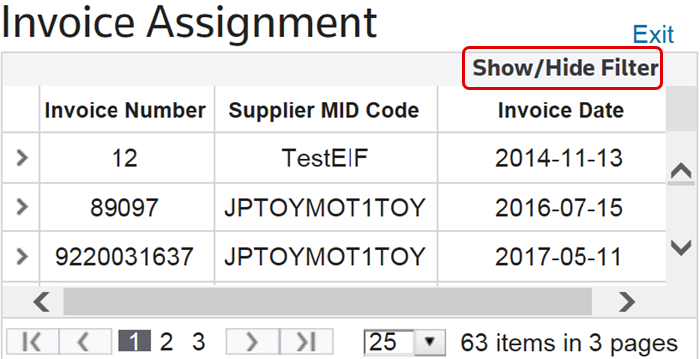
Adding a New Invoice Line Number
To add a new invoice line number, select an invoice from the
Invoice Assignment
screen and click the expansion arrow on the far left.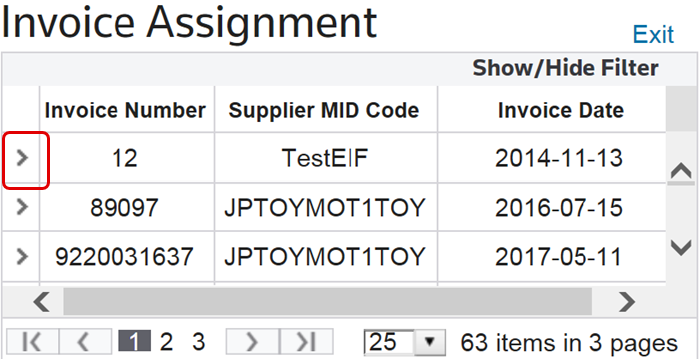
Next, click
Add New
.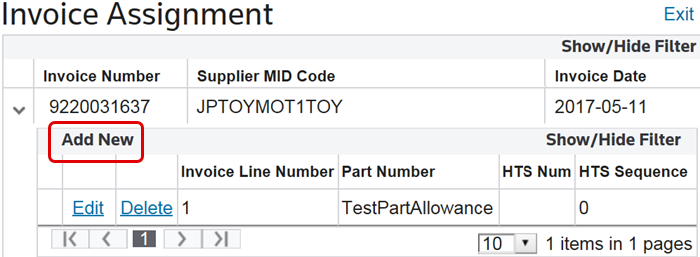
Clicking
Add New
will create a new line containing read-write fields. Enter the necessary data, and then click Insert
.
Editing an Existing Invoice Line Number
Select an invoice from the “Invoice Assignment” screen and click the expansion arrow on the far left.
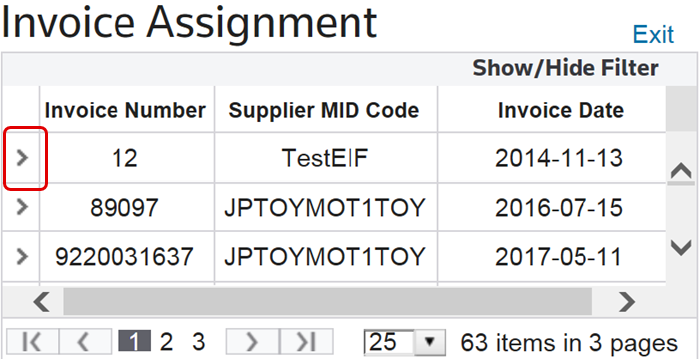
Next, click
Edit
.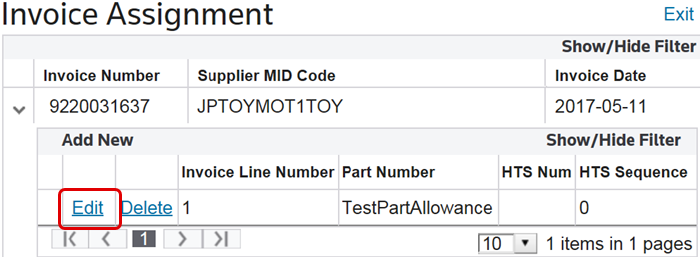
Clicking
Edit
will open the invoice line for modifications. Make any necessary changes, and then click Update
.
The HTS Number (HTS Num) and HTS Sequence must be filled out. The sequence determines the order of the HTS on the paperwork. If this information is not a set, the sequence will default to 1.

Assigning a Record to a Shipment
To assign a new or edited record to a shipment, select a line item and then click its corresponding
Assign Shipment
button on the far left.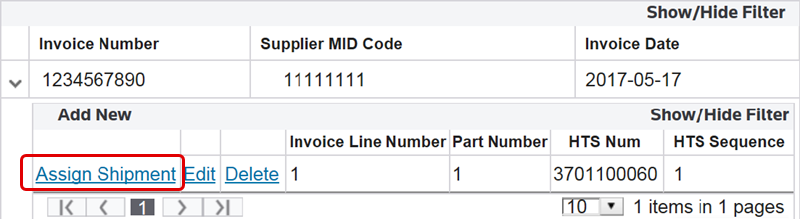
Clicking
Assign Shipment
will open the Shipment
pop-up window. Select one or more invoices to assign to the shipment and check their corresponding boxes on the far left. After all invoices to be assigned to the shipment have been selected, click Save Shipment
. The invoice(s) will now be assigned to the shipment.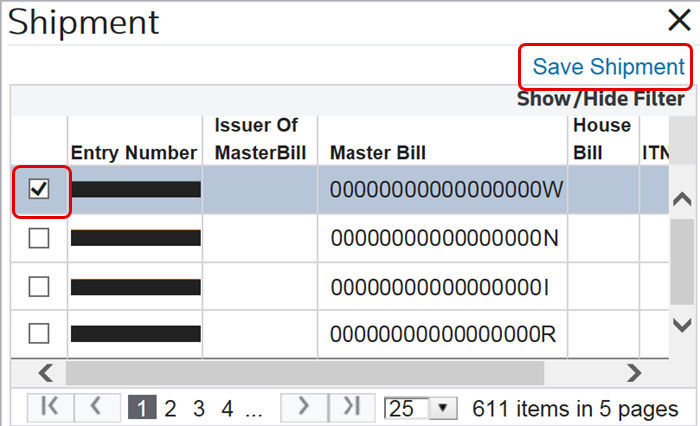
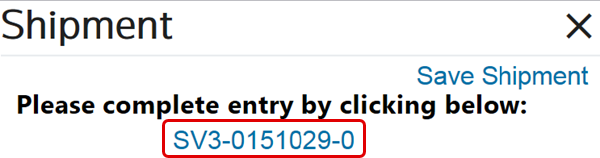
A link will appear at the top to link you to the shipment entry to continue filling out.
Related Content
-
Automated Broker Interface (ABI)
Format: Article