
ABI: Entry Summary (Entry 7501) - Invoice
The Invoice tab contains a search grid for the user to more easily locate a specific invoice. The user can search by the categories listed below:
Invoice (Columns) | Description |
|---|---|
Invoice Number | Search entered invoices by Invoice Number. |
SupplierMIDCode | Search entered invoices by Supplier Manufacturer ID (MID) code. |
Invoice Date | Search entered invoices by Date. |
Status Description | Search entered invoices by Status Description. |
CBP Status | Search entered invoices by CBP Status. |
Unlike the other tabbed sections described in this help, the
Invoice
tab has multiple sub-tabs.
Searching Within the Invoice section
The
Invoice
tab contains a search grid for you to more easily locate a specific invoice. You can search by the categories listed below:Invoice (Columns) | Description |
|---|---|
Invoice Number | Search entered invoices by Invoice Number. |
SupplierMIDCode | Search entered invoices by Supplier Manufacturer ID (MID) code. |
Invoice Date | Search entered invoices by Date. |
Status Description | Search entered invoices by Status Description. |
CBP Status | Search entered invoices by CBP Status. |
Invoice Header
The first of the
Invoice
sub-tabs to appear is the Invoice Header
sub-tab.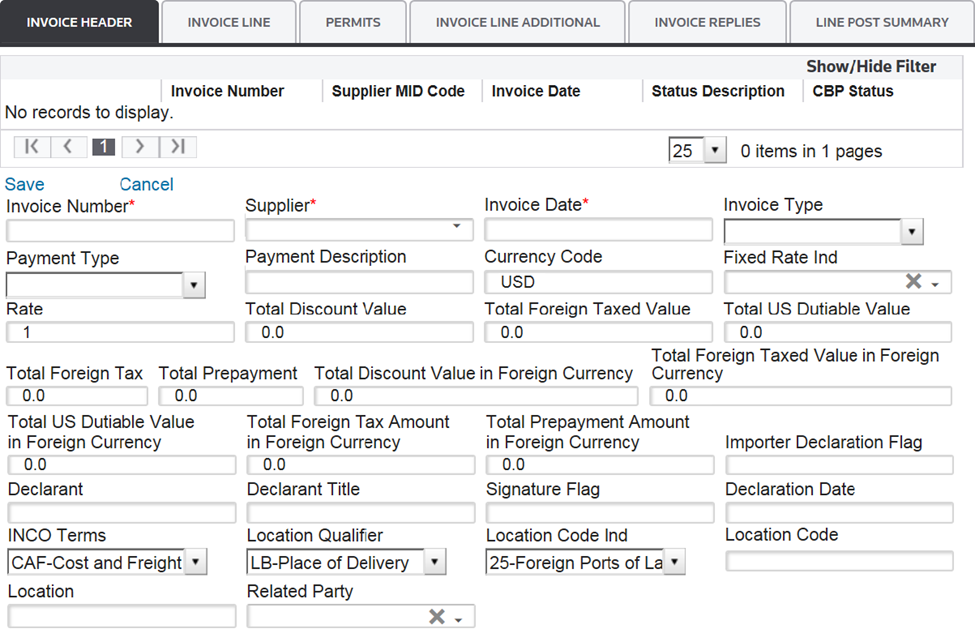
Several links are located at the top left corner of the tab. Some of these may not appear, depending on user permission levels.
Links | Description |
|---|---|
Save | Saves any data added or changed since the Entry Summary screen was last saved in Edit mode. |
Cancel | Discards any changes to the Entry Summary screen since the last save and returns the screen to Read Only mode. |
Edit | Changes the Entry Summary screen to Edit mode so additions/modifications can be made. |
Add New | Adds a new Invoice. |
Delete | Deletes the currently open Invoice. |
In order to complete this section, you must fill out the information in the fields below. Required fields are marked by an asterisk (*) on the application screen:
Invoice Header (Data Entry Fields) | Description |
|---|---|
Invoice Number | The invoice number is issued by the supplier. Use alphanumeric and dash (“-”) only. |
Supplier | The party or other entity (individual or firm) that manufactures, produces, or grows the imported commodity.
See CBP Directive 3500-13 (November 1986) for algorithm directions. The Supplier/Manufacturer IT must be listed in the “Manufacturer ID” Maintenance table. |
Invoice Date | The date of the invoice. |
Fields to Complete (EIF Participants)
The information below is transmitted if the customer is part of the Electronic Invoice Filing (EIF) program. This program allowed invoice data to be transmitted to CBP electronically for approved participants.
However, with the transition to ACE, the EIF program is no longer active and this data will not be transmitted to CBP.
Future additions will allow for the printing of the commercial documentation from ONESOURCE, so this information could be utilized. This data is currently not utilized for non-EIF filers. For more information, refer to the “Transmit Invoice” section of this User Guide.
Fields | Description |
|---|---|
Invoice Type |
|
Payment Type |
|
Payment Description | A description stating the terms of payment of an invoice line. |
Currency Code | The ISO Currency Code used on the invoice (if not in USD). |
Fixed Rate Ind | If the currency on the invoice is anything other than “USD”, this field indicates if you would like to provide an exchange rate for the entry or use one stored within the ONESOURCE system.
|
Rate | If Fixed Rate Ind is “Yes”, provide an exchange rate in this field. If Fixed Rate Ind is “No”, this field should be left blank. |
Total Discount Value | The total portion of the invoice value that is subject to payment discount. |
Total Foreign Taxed Value | The total portion of the invoice value that is subject to a non-US tax. |
Total US Duty Value | The total portion of the invoice value that is subject to US duty. |
Total Foreign Tax | The total US dollar (USD) invoice amount of any non-US tax payable to the supplier. |
Total Prepayment | The total US dollar (USD) amount prepaid and unaccounted for on the invoice. |
Total Discount Value in Foreign Currency | The total portion of the invoice value that is subject to payment discount in the foreign currency listed in the “Currency Code” field. |
Total Foreign Taxed Value in Foreign Currency | The total portion of the invoice value that is subject to a non-US tax in the foreign currency listed in the “Currency Code” field. |
Total US Dutiable Value in Foreign Currency | The total portion of the invoice value that is subject to US duty in the foreign currency listed in the “Currency Code” field. |
Total Foreign Tax Amount in Foreign Currency | The total invoice amount of any non-US tax payable to the supplier in the foreign currency listed in the “Currency Code” field. |
Total Prepayment Amount in Foreign Currency | The total amount prepaid and unaccounted for on the invoice in the foreign currency listed in the “Currency Code” field. |
Importer Declaration Flag | Enter “X” to acknowledge declaration. |
Declarant | The name and contact phone number of the person authorized to declare the veracity of the invoiced data. |
Declarant Title | A code identifying the position of the person validating the invoiced data to CBP. Valid Title of Declarant Codes are:
|
Signature Flag | Enter “X” to denote the electronic signature is that of the declarant. |
Declaration Date | Date of the declaration by an importer or agent. |
INCO Terms |
|
Location Qualifier |
|
Location Code Ind |
|
Location Code | The code obtained from the Location Code Indicator.
|
Location | A narrative description identifying the terms of delivery location when the location is not listed in Schedule K, Schedule D, or the ISO Country Codes. |
Related Party | A code indicating if the transaction is between related parties. This will automatically populate from the Manufacturer table on “Save”, but can be overwritten if needed. |
Allowance Charge | A code representing the allowance/charge/adjustment. |
Allowance Charge Number | A code assigned by a vendor referencing an allowance/promotion/charge. |
Allowance Description | A concise narrative description of the reported allowance/charge/adjustment. |
Currency | The code specifying the currency of the invoiced allowance/charge/adjustment. |
Fixed Rate Indicator | If the “Currency” on the invoice is anything other than “USD”, this field indicates if you would like to provide an exchange rate for the entry or use one stored in the ONESOURCE system. |
Rate | The specific monetary amount on which an allowance/charge is based. If Fixed Rate Ind is “Yes”, provide an exchange rate in this field. If Fixed Rate Ind is “No”, leave the field blank. |
Amount | The total monetary value of the allowance/charge/adjustment being described in US dollars (USD). If a foreign currency is listed in the “Currency Code” field, this field should be left blank. On “Save”, the conversion will occur based on the “Fixed Rate Ind” and “Rate” fields. |
Amount in Foreign Currency | The total monetary value of the allowance/charge/adjustment being described in the foreign currency listed in the Currency Code field. |
After the data in these fields has been filled out, click
Save
.An
Allowances
link will then appear at the top of the section. The Allowances
link can be used to report additional charges to CBP, not including the Census charge of freight. Clicking Allowances
will open a pop-up where you can add any necessary additional information to the invoice. An explanation of the fields on this screen is below: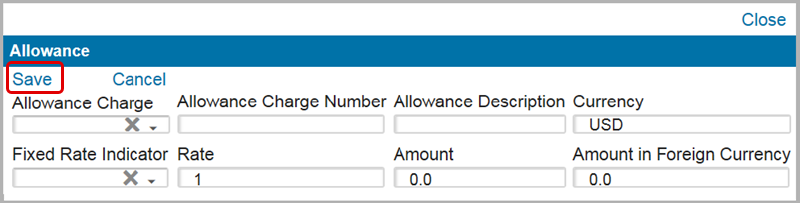
Allowance (Data Entry Fields) | Description |
|---|---|
Allowance Charge | A code representing the allowance/charge/adjustment. |
Allowance Charge Number | A code assigned by a vendor referencing an allowance/promotion/charge. |
Allowance Description | A concise narrative description of the reported allowance/charge/adjustment. |
Currency | The code specifying the currency of the invoiced allowance, charge, or adjustment. |
Fixed Rate Indicator | If the “Currency” on the invoice is anything other than “USD”, this field indicates if you would like to provide an exchange rate for the entry or use one stored in the ONESOURCE system. |
Rate | The specific monetary amount on which an allowance/charge is based. If Fixed Rate Ind is “Yes”, provide an exchange rate in this field. If Fixed Rate Ind is “No”, leave the field blank. |
Amount | The total monetary value of the allowance/charge/adjustment being described in US dollars (USD).
On “Save”, the conversion will occur based on the “Fixed Rate Ind” and “Rate” fields. |
Amount in Foreign Currency | The total monetary value of the allowance/charge/adjustment being described in the foreign currency listed in the Currency Code field. |
After the data in these fields has been filled out, click
Save
and proceed to the next tab.Invoice Line
After completing and saving the
Invoice Header
tab, the you will then move to the Invoice Line
tab. The first section of the screen will be titled Invoice Line
.Select Product
At the top of the screen, a
Select Product
box appears. If your company has subscribed to ONESOURCE Global Classification, this box can be used to pull part information from Global Classification.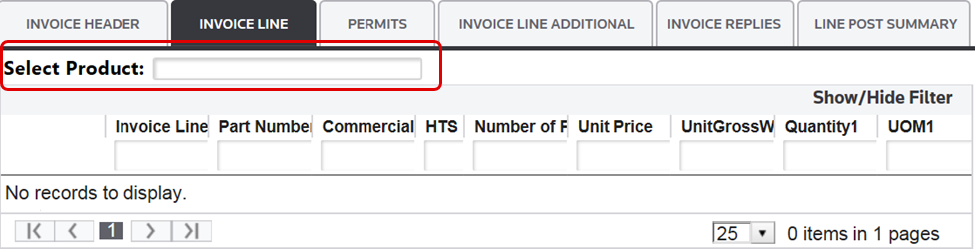
Invoice Line
Beneath the
Select Product
grid is the Invoice Line
section. The following two links are located at the top left corner of this section:Links | Description |
|---|---|
Save | Saves any data added or changed since the screen was last saved in “Edit” mode. |
Cancel | Discards any changes to the screen since the last save. Returns screen to “Read Only” mode. |
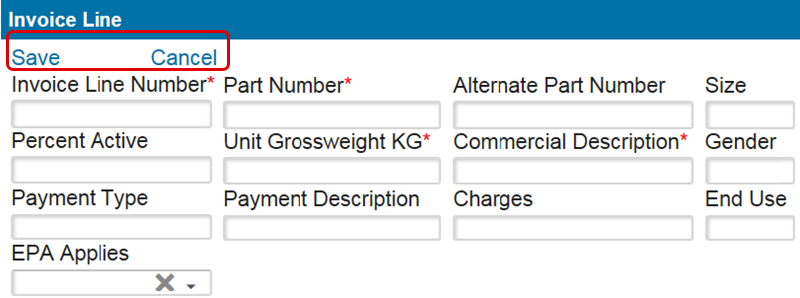
To complete this section, you must fill out the information in the fields below. Required fields are marked by an asterisk (*) on the application screen:
Invoice Line (Data Entry Fields) | Description |
|---|---|
Invoice Line Number | A sequential number that is assigned to each invoice line item. |
Part Number | If the Product Lookup functionality from ONESOURCE Global Classification is being used, the part number field will auto-complete.
If this functionality is not being used, enter the product part number in this field. |
Alternate Part Number | A second part number or code assigned by a supplier/buyer to similar or identical articles or products. For example, if Part Number is the Customer’s Part Number, theAlternate Part Number could be the Supplier’s Part Number. |
Size | The size of the product. This field is optional if stored on the Product Record in ONESOURCE Global Classification. |
Percent Active | The percentage of a specified material in a total product. This percentage is often cited for certain chemical products. If the percent active is pertinent to the unit price, this percentage is multiplied by the product of Unit Price and Number of Pricing Units to arrive at the line item amount. |
Unit Grossweight KG | Gross weight of the unit in kilograms (kg). |
Commercial Description | A narrative description of the commercial product as stated on the invoice and any other pertinent document.
Broad, generalized language is unacceptable, as are tariff descriptions. Complete commercial terminology in the English language is mandatory. |
Gender | Gender of the product. This field is optional if stored on the Product Record in ONESOURCE Global Classification. |
Payment Type | When filing EIF, this field is used to represent the payment terms. Valid Payment Terms Type Codes are as follows:
|
Payment Description | A narrative message describing the terms of payment of an invoice which is populated when filing EIF. |
Charges | The aggregate cost (excluding duty) of freight, insurance, and other incurred costs. This field is only needed if you did not enter a Bill of Lading freight charge to be prorated.
This field can be entered at the line level as desired. If you entered a freight charge at the Bill of Lading level, this field can remain blank. |
End Use | This field is only needed if the End Use functionality is utilized in the ONESOURCE Global Classification solution. |
EPA Applies | This field is utilized for EIF filers only to indicate whether the part is TSCA certified. This field can be left blank if this action is not part of EIF filing.
|
After the data in these fields has been filled out, click
Save
.Allowance
An
Allowances
link will then appear at the top of the section. The Allowances
link can be used to report additional charges to CBP, not including the Census charge of freight.Clicking
Allowances
will open a pop-up window where you can add any necessary additional information to the invoice. An explanation of the fields on this screen is below: 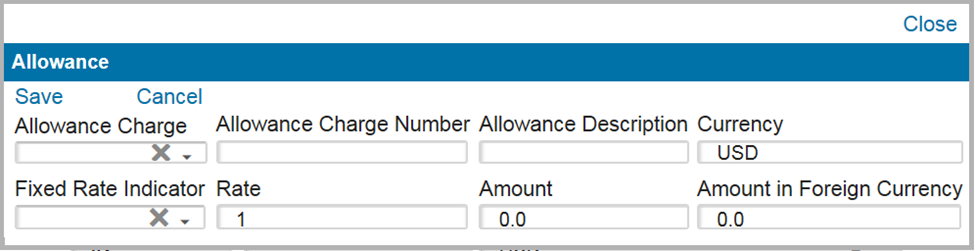
Allowance (Data Entry Fields) | Description |
|---|---|
Allowance Charge | A code representing the allowance/charge/adjustment. |
Allowance Charge Number | A code assigned by a vendor referencing an allowance, promotion, or charge. |
Allowance Description | A concise narrative description of the reported allowance, charge, or adjustment. |
Currency | The code specifying the currency of the invoiced allowance, charge, or adjustment. |
Fixed Rate Indicator | If the “Currency” on the invoice is anything other than “USD”, this field indicates if you would like to provide an exchange rate for the entry or use one stored in the ONESOURCE system. |
Rate | The specific monetary amount on which an allowance/charge is based. If Fixed Rate Ind is Yes , provide an exchange rate in this field. If Fixed Rate Ind isNo , leave the field blank. On “Save”, the system will populate with the exchange rate from the exchange rate table if one exists for the export date on the Bill of Lading. |
Amount | The total monetary value of the allowance/charge/adjustment being described in US dollars (USD). On save, the conversion will occur based on the Fixed Rate Ind andRate fields. |
Amount in Foreign Currency | The total monetary value of the allowance, charge, or adjustment being described in the foreign currency listed in the Currency Code field. |
After you have completed entering the data in these fields, click
Save
and then proceed to the Invoice Line Entity
section.Invoice Line Entity
The next section under the
Invoice Line
tab is the Invoice Line Entity
section. This section is used for associating entity information at the invoice line level of the Cargo Release. Any entities associated to the entry in this section will apply only to specific line items on the entry.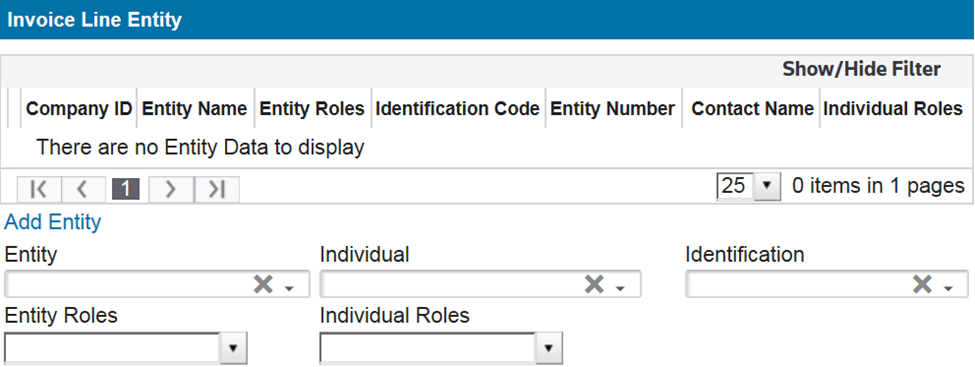
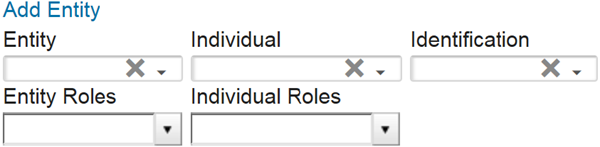
To add an entity, first select a system entity from the
Entity
drop-down menu. After you select an entity, use the Entity Roles
drop-down menu to select the entity role codes to apply to the entity for this entry. Next, apply any individual information and roles that may be associated to the entity being reported as applicable. Currently, no individual information is required for ACE Cargo Release.
To view the company details associated with the
CompanyID
, click on the expansion arrow on the far left.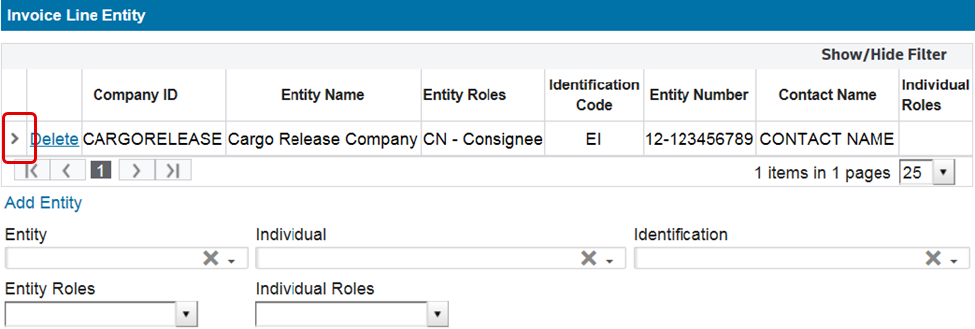
The
CompanyID
details then become visible.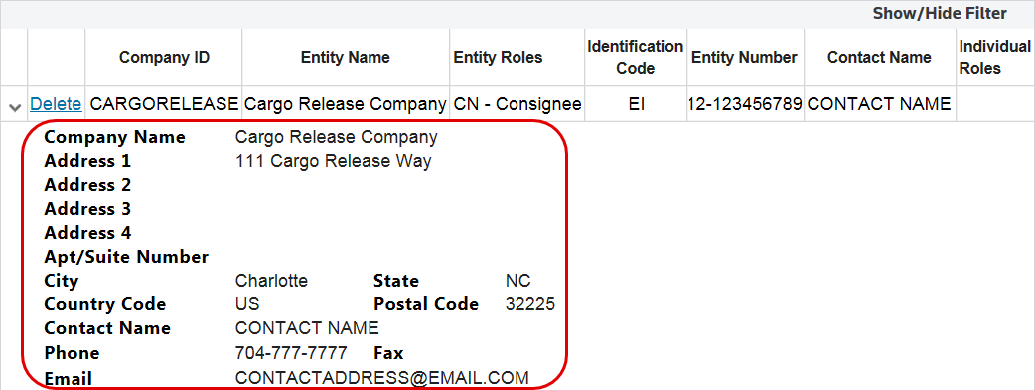
If entity identification numbers are available for the selected entity, the useryou has the option to associate an ID number to the Cargo Release.
Entity Role Codes Required for ACE Cargo Release | Meaning |
|---|---|
IM | Importer (including an EIN Number) |
BY | Buyer (including an EIN Number) |
CN | Consignee (including an EIN Number) |
MF | Manufacturer |
SE | Seller |
After the data in these fields has been filled out, click
Save
and proceed to the Invoice Line Classification
section of the screen. Invoice Line Classification
After you save the information in the
Invoice Line Entity
section of the screen, proceed to the Invoice Line Classification
section.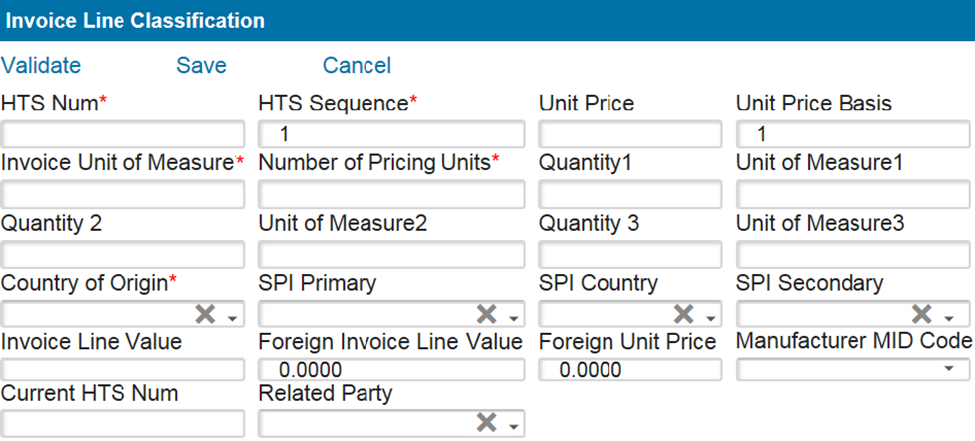
Several links are located at the top left corner of this section, as follows:
Invoice Line Classification (Action Bar) | Description |
|---|---|
Save | Saves any data added or changed since the last save in Edit mode. |
Cancel | Discards any changes since the last save in Edit mode. This returns the Entry Summary screen to Read Only mode. |
Validate | Validates what is entered to ensure required fields are populated and condition fields are correct. Some Customs validation will be performed. Validate can be performed at any time. Any errors will appear in theValidation Summary tab. |
To complete this section, you must fill out the information in the fields below. Required fields are marked by an asterisk (*) on the application screen:
Invoice Line Classification (Data Entry Fields) | Description |
|---|---|
HTS Num | A numeric code from the Harmonized Tariff Schedule that fully or partially describes/classifies the article. HTS Numbers must be listed in the HTS maintenance table. If classification was selected in Invoice line, this field will auto-populate. If classification was not selected in Invoice line, manually select an HTS for this field. |
HTS Sequence | The desired sequence for the lines to appear on the entry. |
Unit Price | The dutiable price per unit. |
Unit Price Basis | The number of units to which the unit price applies. For example, if the invoice line item reads $575 per 100 dozen, 100 is the unit price basis. |
Invoice Unit of Measure | The unit of measure abbreviation used on the invoice. |
Number of Pricing Units | The number of units appearing on the invoice. For example, if the Invoice Unit of Measure filed above isPC and 200 appear on the invoice, this field will be 200. This field is used in calculating the value for the invoice. |
Quantity (1, 2, 3) | The total number of units, associated with the HTS Number that corresponds to the Unit of Measure1, Unit of Measure2, and/or Unit of Measure3 fields respectively. |
Unit of Measure (1, 2, 3) | A unit of measure code that corresponds to the Quantity1, Quantity2, and/or Quantity3 fields respectively as prescribed by the reported HTS Number. |
Country of Origin | The country from which the article originated. The country must be listed in the “Country” maintenance table. |
SPI Primary | Trade Agreement/Special Program Indicator Codes. |
SPI Country | The ISO Country Code associated with the Trade Agreement/Special Program. |
SPI Secondary | Secondary Special Indicator Codes |
Invoice Line Value | The value of the goods on the line level in USD. |
Foreign Invoice Line Value | The value of the goods on the line level in the foreign currency (not USD) listed in the Currency Code field on the Invoice header tab. IfCurrency Code isUSD , this field can be left blank. |
Foreign Unit Price | The price per unit for the goods on the line level in the foreign currency (not USD) listed in the Currency Code field on the Invoice header tab. If the invoice is in USD, this field can be left blank. |
Manufacturer MID Code | If the Manufacturer is different than the supplier listed on the Invoice header, this field can be populated with the Manufacturer ID (MID) code. If the Manufacturer is the same as the supplier listed on theInvoice” Header , this field can be left blank. |
Current HTSNum | The current Harmonized Tariff Schedule number for Foreign-Trade Zone goods that have been privileged with an expired HTS Number. |
After you have entered the data in these fields, click
Save
and proceed to the Partner Government Agencies
section of the screen.Partner Government Agencies
After saving the information in the
Invoice Line Classification
section, proceed to the Partner Government Agencies
section of the screen. This is where you report any relevant PGA information.To add Partner Government Agency Information to an invoice line, click
Add/Edit PGA
. Refer to the PGA User Guide for additional guidance about how to manage PGA data through the PGA screen.After the data in these fields has been entered, click
Save
and proceed to the next tab.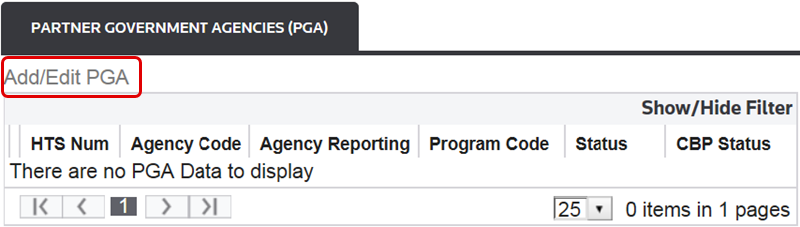
Permits
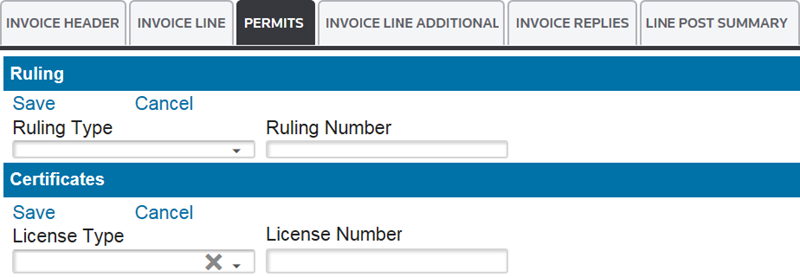
This section is used to capture information on rulings, certificates, and other permits relevant to the entry.
Permits: Ruling
You use the
Ruling
section of the Permits
sub-tab for capturing rulings data. The following two links are located at the top left corner of this section:Permits: Ruling (Action Bar) | Description |
|---|---|
Save | Saves any data added or changed since the screen was last saved in Edit mode. |
Cancel | Discards any changes to the screen since the last save. Returns screen to Read Only mode. |

To complete this section, you must select items from the drop-down menus provided. The table below provides descriptions of the available fields and drop-down menu options:
Permits: Ruling (Data Entry Fields) | Description |
|---|---|
Ruling Type | An indication as to the type of information provided in the record.
|
Ruling Number | Enter the corresponding administrative number assigned by CBP to a binding ruling or under the pre-importation review program. |
After the data in these fields has been filled out, click “Save” and proceed to the “Certificates” section of the screen.
Permits: Certificates
The
Certificates
section is located beneath the Ruling
section.
The following two links are located at the top left corner of this section:
Certificates (Action Bar) | Description |
|---|---|
Save | Saves any data added or changed since the screen was last saved in Edit mode. |
Cancel | Discards any changes to the screen since the last save. Returns screen to Read Only mode. |
To complete this section, you must select from the drop-down menus provided.
Certificates (Data Entry Fields) | Description |
|---|---|
License Type | Use this drop-down menu to select any applicable licenses. |
License Number | Enter the applicable license number corresponding to the selected License Type. |
After the data in these fields has been filled out, click “Save” and proceed to the next tab.
Invoice Line Additional
The
Invoice Line Additional
tab contains additional fields for the invoice form. The following two links are located at the top left corner of this section:Links | Description |
|---|---|
Save | Saves any data added or changed since the screen was last saved in Edit mode. |
Cancel | Discards any changes to the screen since the last save. Returns screen to Read Only mode. |
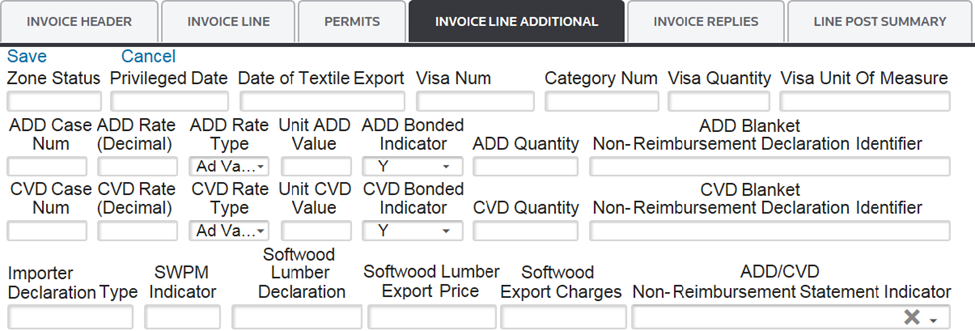
To complete this section, you must enter the information in the fields in the table below. Required fields are marked by an asterisk (*) on the application screen:
Invoice Line Additional (Data Entry Fields) | Description |
|---|---|
Zone Status | This field is only applicable for the Foreign-Trade Zone CF7501-06 entry type.
|
Privileged Date | Represents the privileged status filing date. This date cannot represent a future date and is only required if the Zone Status is privileged. |
Date of Textile Export | Represents the date the textiles were exported from the Country of Origin. This field is only applicable for textile products. |
Visa Num | A number located on a visa that is furnished by the Country of Origin (if applicable). |
Category Num | A number representing the textile or textile product category. This field is only applicable for textile products. |
Visa Quantity | A number representing the textile or textile product category. This field is only applicable for textile products. |
Visa Unit of Measure | The unit of measure for the goods on the visa. |
ADD Case Num | The case number for the applicable Antidumping Duty Case. Do not use hyphens (“-”). |
ADD Rate | The Antidumping/Countervailing Duty rate for the Antidumping Duty Case Number. |
ADD Rate Type | Select the applicable type of rate: Ad Valorem or Specific. |
Unit ADD Deposit Value | The percentage of the Antidumping Duty deposit rate. |
ADD Bonded Indicator | This code indicates whether the Antidumping Duty is bonded (Y for Yes) or not bonded (N for No). |
ADD Quantity | The total number of primary units (corresponds to the unit of measure code prescribed by the case) to be used for calculating the estimated Antidumping Duty (when a specific rate applies). |
CVD Case Num | The case number for the applicable Countervailing Duty Case. |
CVD Rate | The Countervailing Duty rate for the line. |
CVD Rate Type | Select the applicable type of rate: Ad Valorem or Specific. |
Unit CVD Deposit Value | A value used exclusively and in lieu of any other line item value to calculate Countervailing Duty. |
CVD Bonded Indicator | This code indicates whether the Countervailing Duty is bonded (Y for Yes) or not bonded (N for No). |
CVD Quantity | The total number of primary units (corresponds to the unit of measure code prescribed by the case) to be used for calculating the estimated Countervailing Duty (when a specific rate applies). |
Importer Declaration Type | A code that identifies the type of additional declaration data submitted. This field must be Y ifSoftwood Lumber Export Price is populated. |
SWPMIndicator | China/Hong Kong SWPM Indicator. This field is no longer required. |
Softwood Lumber Declaration | Enter the Canadian softwood lumber permit here. This field is only applicable for softwood lumber. |
Softwood Lumber Export Price | Enter the softwood lumber export price here. This field is only applicable for softwood lumber. |
Softwood Export Charges | Enter the softwood lumber export charges here. This field is only applicable for softwood lumber. |
After you have completed the data in these fields, click
Save
and proceed to the validation process.Exchange Rates
US Automated Broker Interface (ABI)
handles conversion to U.S. Dollars (USD) from any foreign currency within the Exchange Rates
table. This screen can be opened by choosing Exchange Rates
from the Maintenance
menu.The
Exchange Rates
screen has search capabilities consistent with the Maintenance Screen Search Criteria
section of this User Guide.The exchange rate value is determined as the foreign value multiplied by the currency conversion rate in effect on the date of export for the CF214, not the date of receipt. Some currencies are reported to CBP as a quarterly rate, while only the daily rates are acceptable for others. The quarterly rate is defined as the conversion rate in effect the first day of the quarter.
US Automated Broker Interface (ABI)
accounts for the quarterly or daily rate conversion for each currency.- The currency must be defined in theCountryscreen. Otherwise, the correct currency code will result in a validation error.
- In theExchange Ratetable, the user must enter the conversion rate for the specific date, beginning with the first day of the quarter. This must be done for each currency.
- If CBP accepts a currency as a quarterly rate, the Quarter Flag should be set to Y when the user enters the first rate of the quarter. Each subsequent entry for that currency will automatically calculate the conversion rate based on the quarterly rate.
- The client must enter the Conversion Rate on a daily basis; or else FIFO will fail, even though it is looking for the currency conversion for the export date.
Currency conversion can now be set up to automatically download daily from our Global Trade Content database. The Country table will need to have the Currency Code filled in and UseCurrencyFlag changed to Y.

Related Content
-
Automated Broker Interface (ABI)
Format: Article