
ABI: Daily Statements - Statement Details, Statement Update, and Statement Replies
After a statement is created, any updates can be viewed by clicking
View
on the far left. This will refresh the screen with further data on the top and bottom of the screen.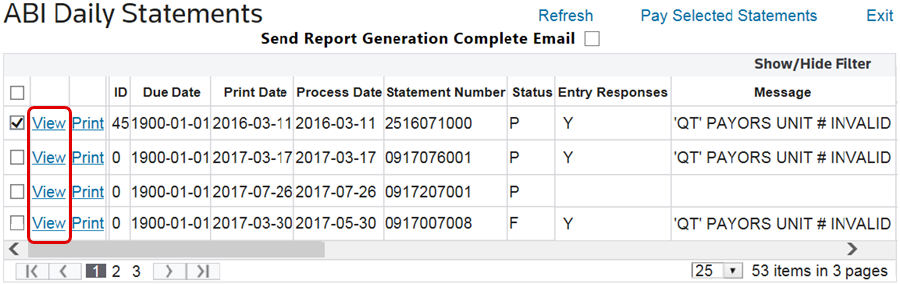
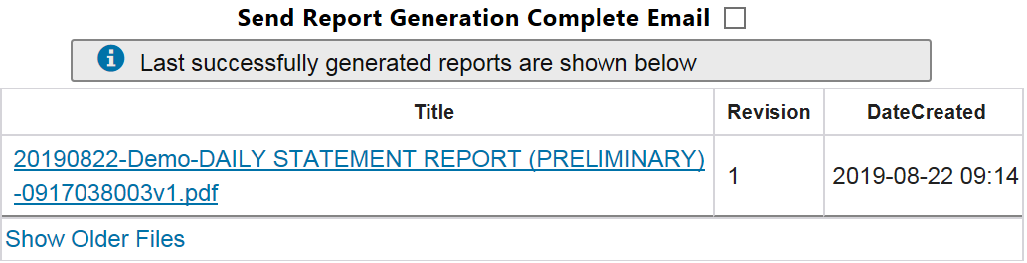
The top of the screen will display a grid with the most recent reports generated for the statement. Clicking the report name will open it in a separate browser tab, where you can download it.
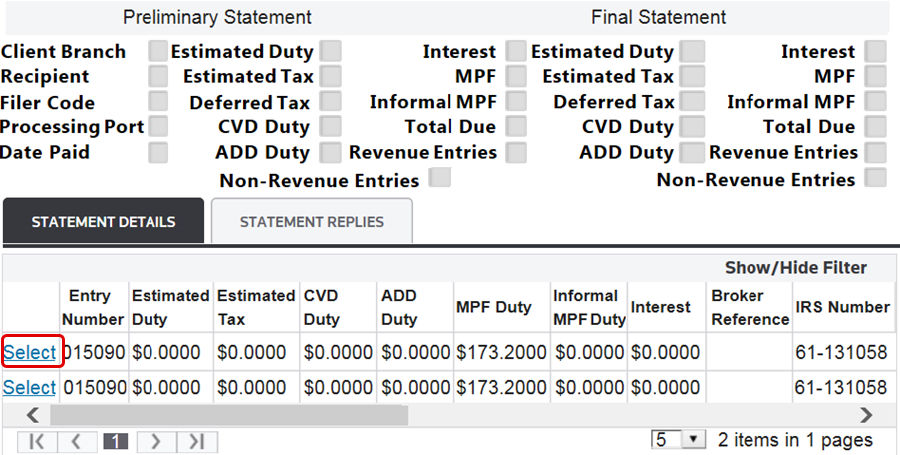
The bottom of the screen will display the preliminary and final statement details and replies. Select a statement from the grid and click
Select
.
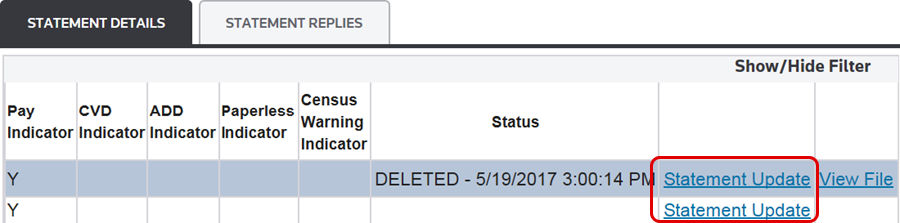
Next, scroll to the far right and click
Statement Update
.
This will trigger the
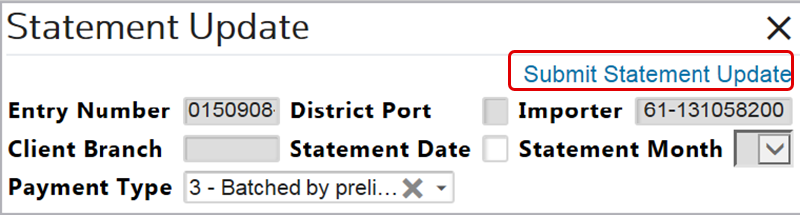
Statement Update
pop-up window to appear on the screen. Confirm that the information in the Statement Update
fields is correct. Assign a Statement Date
(typically the following business day) and Statement Month
for the requested statement. After this is done, click Submit Statement Update
.
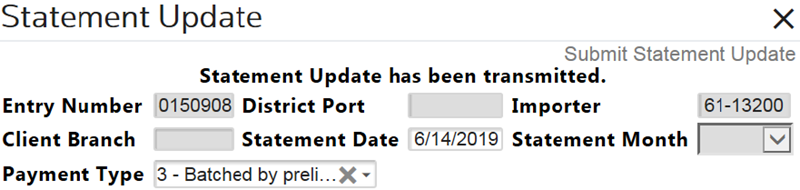
You will either receive direction to resolve incorrectly entered information or a confirmation message that the statement update has been transmitted.
Statement Replies
The
Statement Replies
tab contains CBP responses to the data in the Statement Update
tab. This tab becomes available if you clicks Select
for an entry number in the Statement Details
tab.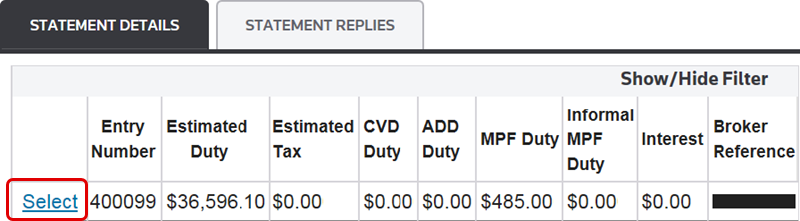
If no entry is selected, then the following message will appear in the tab:
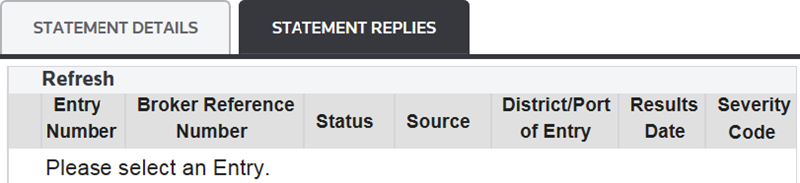
Use this tab to view replies associated to the selected entry.
To see additional CBP reply information, select an entry to review and click its corresponding arrow on the far left. Any statements containing Statement Replies will have a
Y
indicator in the Entry Responses
column at the Statement Header level.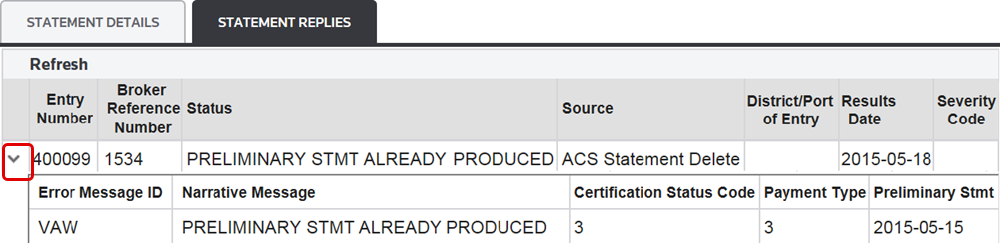
Related Content
-
Automated Broker Interface (ABI)
Format: Article